Quick Summary
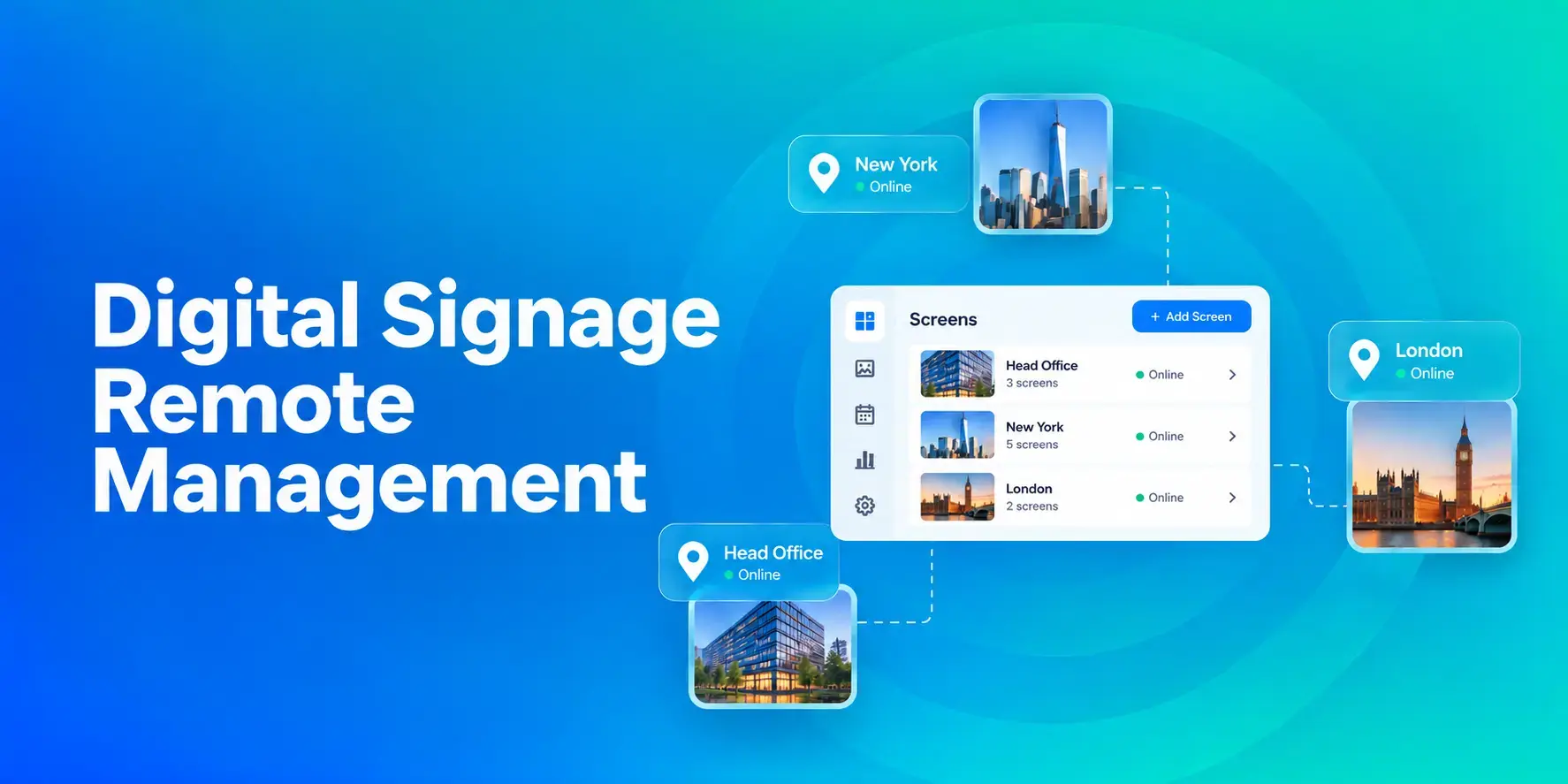
Digital signage remote management lets you control screens, schedules, and display health from an online platform. To get started, choose a hardware-agnostic platform, connect your media players or displays, and push content to your audiences with cloud-based device management. Rise Vision simplifies this with one all-in-one platform for digital signage, screen sharing, and emergency alerts.
The Cost of Managing Screens On-Site
Most organizations start with digital signage the same way. Someone loads a USB stick, walks it to a screen, plugs it in, and walks away. That works fine for one or two displays. But the moment you're running 5, 10, or 50 screens across multiple locations, that approach falls apart fast.
Remote device management is the solution. You can manage every screen from a single platform and update content across all your displays. You also get an email notification if your device go offline. This guide walks through how to set it up, step by step.
Why Listen to Us?
Rise Vision has helped 12,300+ organizations run digital signage across schools, offices, and industrial facilities.

Steve Rossiter is the Technology Director at Pentwater Public Schools. He cut his weekly update time from 15 hours to under 2.5 hours after switching to Rise Vision's cloud-based platform.
What is Digital Signage Remote Management?
It is the ability to control, update, and monitor your displays and digital signage from a central platform. Remote device management eliminates the need to be physically present at all displays, making it easy to manage signage across multiple locations. Instead, you use a content management system (CMS) to schedule, approve, and update content across all your displays from a single platform, ensuring consistency everywhere.
Everything is controlled on a cloud-based platform. This way, you can check whether screens are online and troubleshoot problems from your laptop or phone. If a display goes offline at 2 a.m., you get an email alert instead of finding out three days later.
It's the difference between managing screens reactively (finding out something broke after it broke) and managing them proactively (catching problems before anyone notices).
How to Manage Digital Signage Remotely
1. Choose a Cloud-Based Digital Signage Platform
Cloud-based content management systems are vital to the success of remote signage management. Unlike on-premise servers, which you have to maintain yourself, cloud-based platforms let you log in from anywhere, monitor display health, and update content to any display, without being on the same network.
Look for a few things specifically. The first is hardware flexibility. This matters more than most people realize. Some platforms lock you into proprietary media players. That means if you already have BrightSign players or Chromebox devices deployed, you'd have to rip them out and start over. A platform that integrates with the hardware you already own saves you thousands and allows you to maximize the value of your existing devices while delivering professional-quality communication.
Rise Vision is one such platform. It’s an all-in-one platform that combines digital signage, screen sharing, and emergency alerts, while supporting a wide range of hardware, including Android, Windows, Chrome OS, and Linux, and devices like Amazon Signage Sticks, Raspberry Pi, and Apple TV. So you can use your existing technology or use our recommended Rise Vision Media Player and Avocor displays.
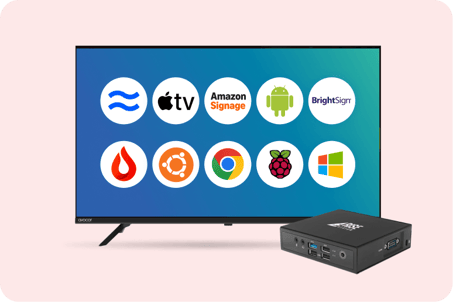
Hardware support is only one part of the equation. You should also check what remote management features each platform offers. Display monitoring, bulk management, and remote restarts should be built in, not locked behind an extra fee.
2. Set Up Your Displays and Media Players
Once you've picked a platform, the next step is getting your displays connected. Each display should be connected to a media player. That’s a small device that runs the signage software and sends content to the screen. If you're using an all-in-one display like an Avocor, the player is built in, and you can skip this step.
Next, activate each display in your CMS. Here, the goal is to make every display show up in your Displays dashboard with a name you recognize.
With Rise Vision, you can create a display entry to get a unique Display ID. Once you enter that ID on the player, the screen should appear in your dashboard within minutes. You can also give each display a specific name, such as “Main Office Lobby” or “Cafeteria North Wall.” Clear names make managing 20 or 30 screens much easier.
Finally, check the network connection before deploying. Each player needs reliable internet access to pull content updates and report its status. A restrictive firewall or unreliable Wi-Fi can make a working player appear offline. So, check the network requirements before installation, not after.
3. Create Content With Templates and Schedules
This is where a cloud-based platform can save you real time. Instead of creating content from scratch for every screen, you can save hours of content creation time with templates and schedule, approve, and update content across all your displays from a single platform, ensuring consistency everywhere.
Most cloud-based platforms include a template library. For example, at Rise Vision, we offer more than 750 professionally designed templates for lunch menus, event calendars, safety dashboards, KPI displays, and more.
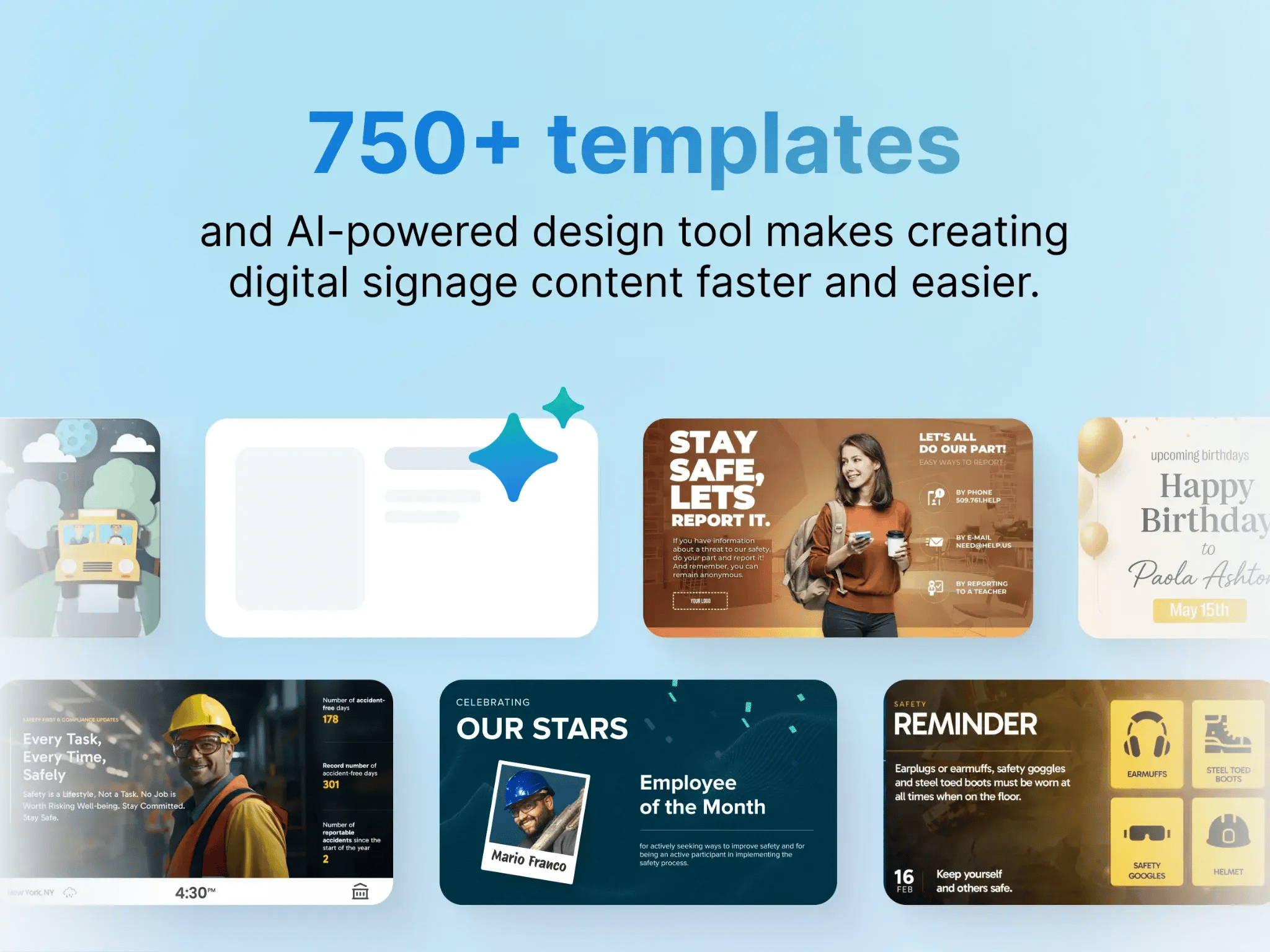
The process is similar across platforms: choose a template, customize the content, then push content to your displays to engage your audience.
A good scheduling system takes care of recurring updates keeping your messaging fresh and relevant. With these systems, you can set up a schedule that runs automatically at the times you specify. Morning announcements can play before the first period, safety reminders can rotate during shift changes, and the lunch menu can switch at 11:30, without anyone having to update the screens manually.
Integrations can be used to handle content that changes more frequently and automatically pull content. If your organization uses Google Workspace, Microsoft 365, Power BI, or Canva, look for a platform that seamlessly integrates to those tools. Your calendars and dashboards can then easily pull in the data and updates you rely on daily without anyone re-uploading files.
4. Assign User Roles and Permissions
Digital signage teams often make one of two mistakes: giving too many people full admin access or putting all the responsibility on one person.
The fix is user roles, allowing you to delegate the day to day management of digital signage to end users. Most cloud platforms let you create different permission levels. A front-desk staff member can update the lobby welcome screen. A marketing coordinator can manage content across the company. And IT keeps control of platform settings, hardware, and integrations.
This matters especially for organizations with multiple locations. Every tier of Rise Vision includes multi-location management tools, user roles, unlimited users, account hierarchy, and expert help. Rise Vision's Enterprise plan also includes single sign-on (SSO using SAML. Each location can manage its own content while IT maintains centralized control.
For example, a school district can empower each building's office staff to update their own displays while the district IT team still controls templates, schedules, and security settings district-wide.
The practical benefit is simple. You don't want to be the only person who can change a screen. And you don't want to come in Monday morning to find someone accidentally deleted the emergency alert schedule. User roles solve both problems.
5. Monitor Display Health and Troubleshoot Remotely
Pushing content from your desk is useful. But knowing the moment a screen goes down is what makes the system reliable. Two things are helpful here: display monitoring and remote troubleshooting.
Display Monitoring lets you track the connection status of your displays and receive email notifications if they go offline or come back online, keeping you informed so you can take action. This gives you a continuous view of each display's status, so you know which displays are online, offline, or in standby.
Choose a platform that lets you control when monitoring is active. This way, you don’t get false alerts when screens are supposed to be off.
You should also be able to add the people who need to know when something goes wrong and set how long a display can stay offline before an alert goes out. With Rise Vision, you can set a monitoring timeline and send email alerts to important personnel when a display has been offline for at least 15 minutes.
Remote troubleshooting, on the other hand, saves the most expensive part of on-site management: the site visit itself. A technician visit can cost several hundred dollars. Cloud-based platforms like Rise Vision reduce the need for these visits.
With remote desktop support from Rise Vision you can access features like Live Screenshots, Remote Display Commands, and Check Device Details. The Live Screenshot feature allows you to capture a still image of exactly what is playing on your display at any given moment. This is helpful for auditing content, verifying proof-of-play, or troubleshooting issues remotely without being in front of the screen. To simplify device testing and remote management, you can manually send commands like turning a screen on or rebooting directly to your displays from the centralized Rise Vision app. You can also check device identifiers like serial numbers and IP and MAC addresses.
For larger deployments, bulk management tools let you apply changes across multiple devices from one place .
Together, these tools mean you can diagnose and fix many issues without sending someone on-site. For a deeper walkthrough, see how to troubleshoot common digital signage player issues.
Start Managing Your Screens from Anywhere
You don't need a complicated setup or big budget to manage digital signage remotely. Just a cloud-based platform. Once you have one in place, you can connect your first screen in a few minutes and get your content schedule up and running without having to babysit it.
Rise Vision brings these remote management features together in one platform. It’s used by 12,300+ organizations to communicate, teach, and collaborate. Get started in minutes with flexible hardware options, a world-class one-business-hour support response SLA, and a 30-day money-back guarantee.
Get Free Demo or Start Free Trial, no credit card required.
FAQs
1. Can you Manage Digital Signage Without an Internet Connection?
Cloud-based platforms need an internet connection to push new content and report display status. However, that doesn't mean your screens stop working when the connection drops. Most good platforms, including Rise Vision, support offline playback.
When the connection goes down, the screen keeps playing the last content it received. It simply won't receive new updates or report its status until the connection is restored. You need the internet to manage your screens, but a temporary outage won't leave them blank.
2. What Hardware Do You Need for Remote Digital Signage?
You need a display (a commercial screen or even a consumer TV) and a media player to run the software. Media players range from compact devices like the Amazon Signage Stick to dedicated commercial players like the Rise Vision Media Player. (See this comparison of the best digital signage media players.) Rise Vision is hardware-agnostic and integrates seamlessly with diverse devices, operating systems, and display types, giving you complete flexibility to use the tools that work best for your organization.
3. How Do You Monitor Digital Signage Displays Remotely?
Display Monitoring shows the status of every connected display, typically as online, offline, or standby. You can set up email alerts so you're notified if a display goes offline beyond a set threshold. Some platforms also let you take remote screenshots to verify what's playing and restart displays without visiting the site.
4. How Much Does Digital Signage Software Cost?
Rise Vision's Basic plan starts at $11/display/month (or $119/display/year with annual billing). Advanced is $138/display/year, and Enterprise is $164/display/year (or $1,399/school/year for unlimited displays in K-12).
More From Our Blog
-
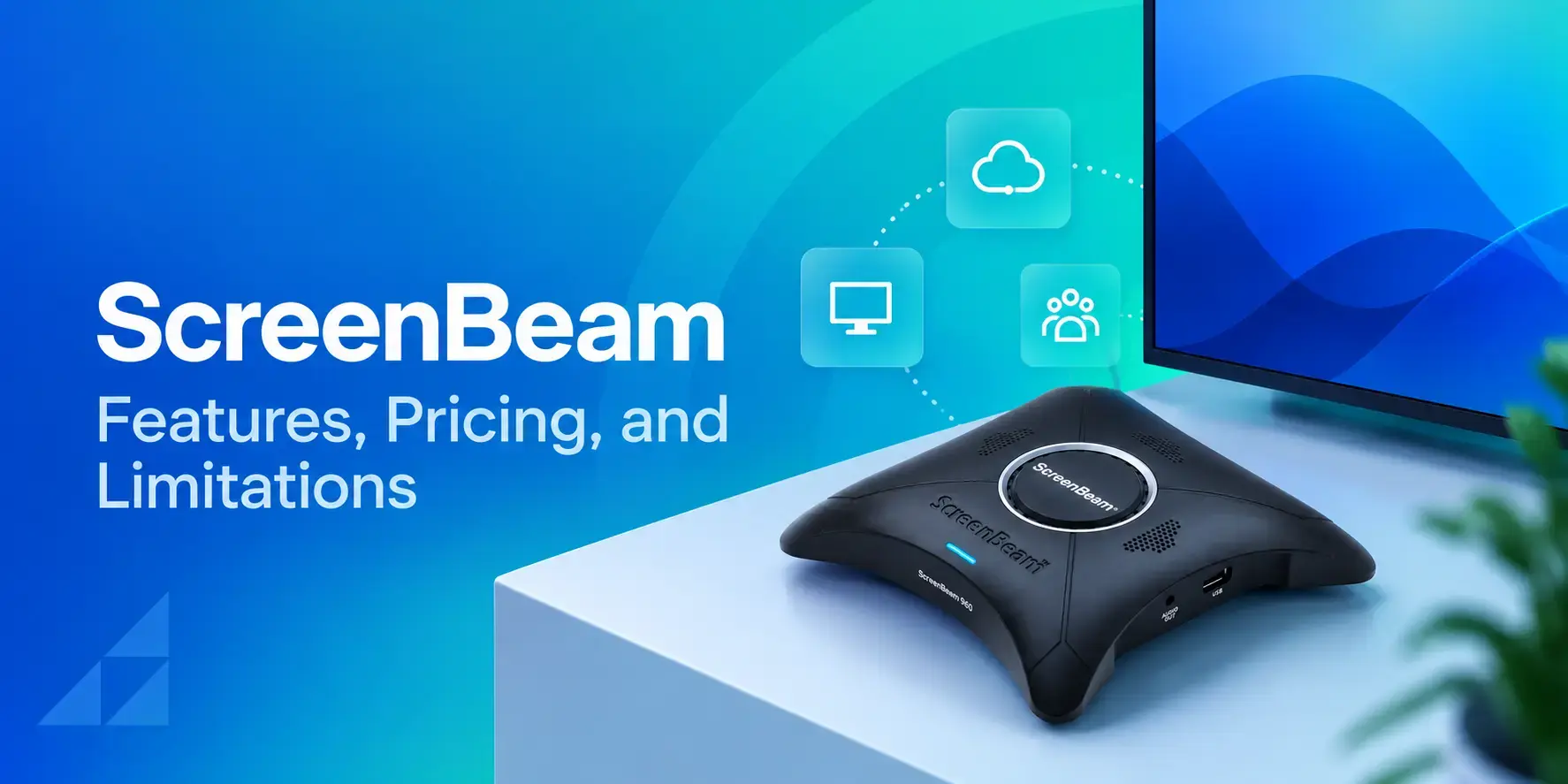
ScreenBeam Review 2026: Features, Pricing, and Limitations
ScreenBeam sells wireless display receivers that let people cast to a screen from any device without an app. You need one receiver per display, and they run from $299.99 to $1,199.99. Cloud-based[…]
Read More -
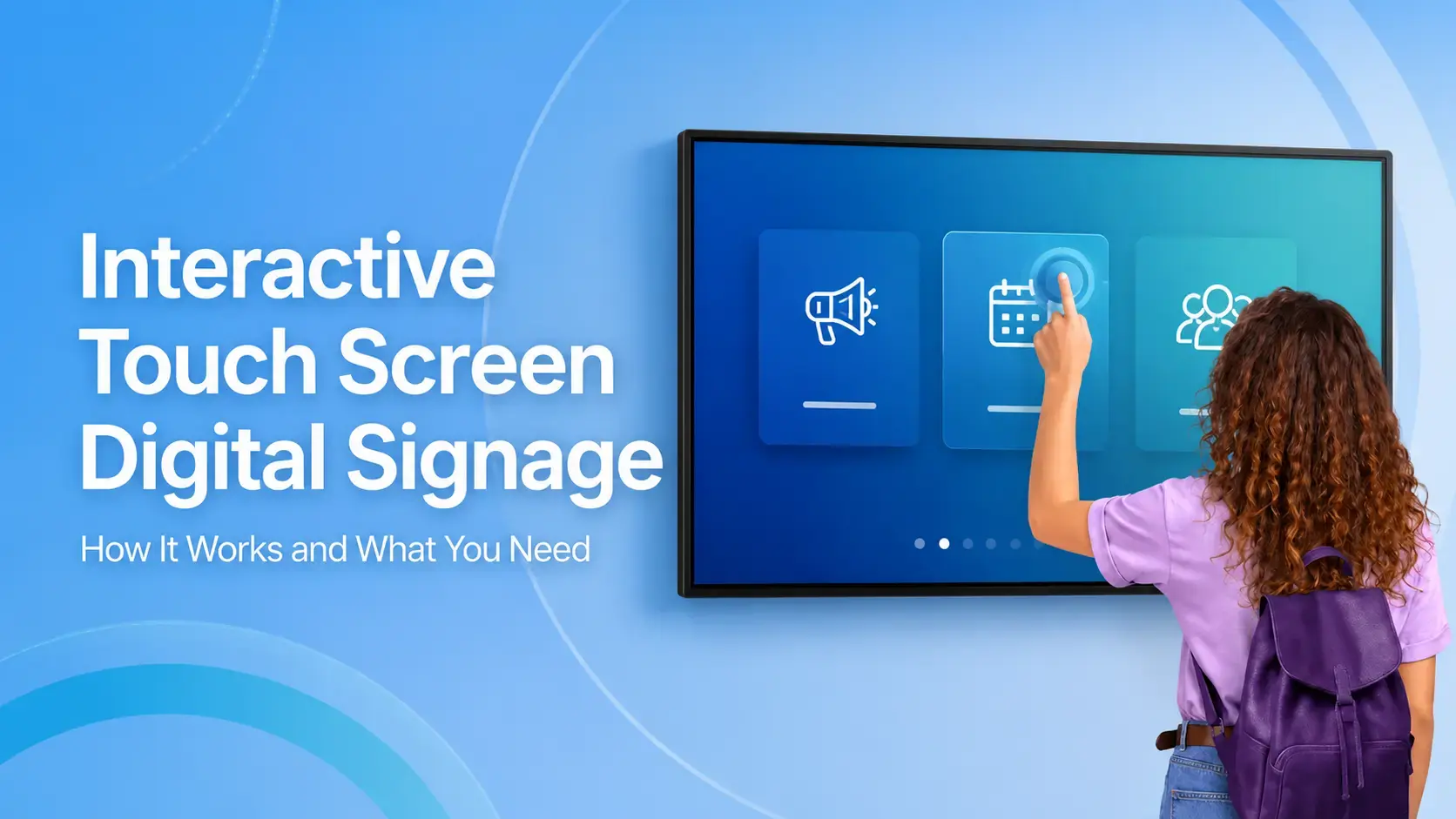
Interactive Touch Screen Digital Signage: How It Works and What You Need
Interactive touch screen digital signage lets viewers tap a display to find what they need. It pairs a commercial touch display with content software. Common uses include wayfinding, visitor[…]
Read More -
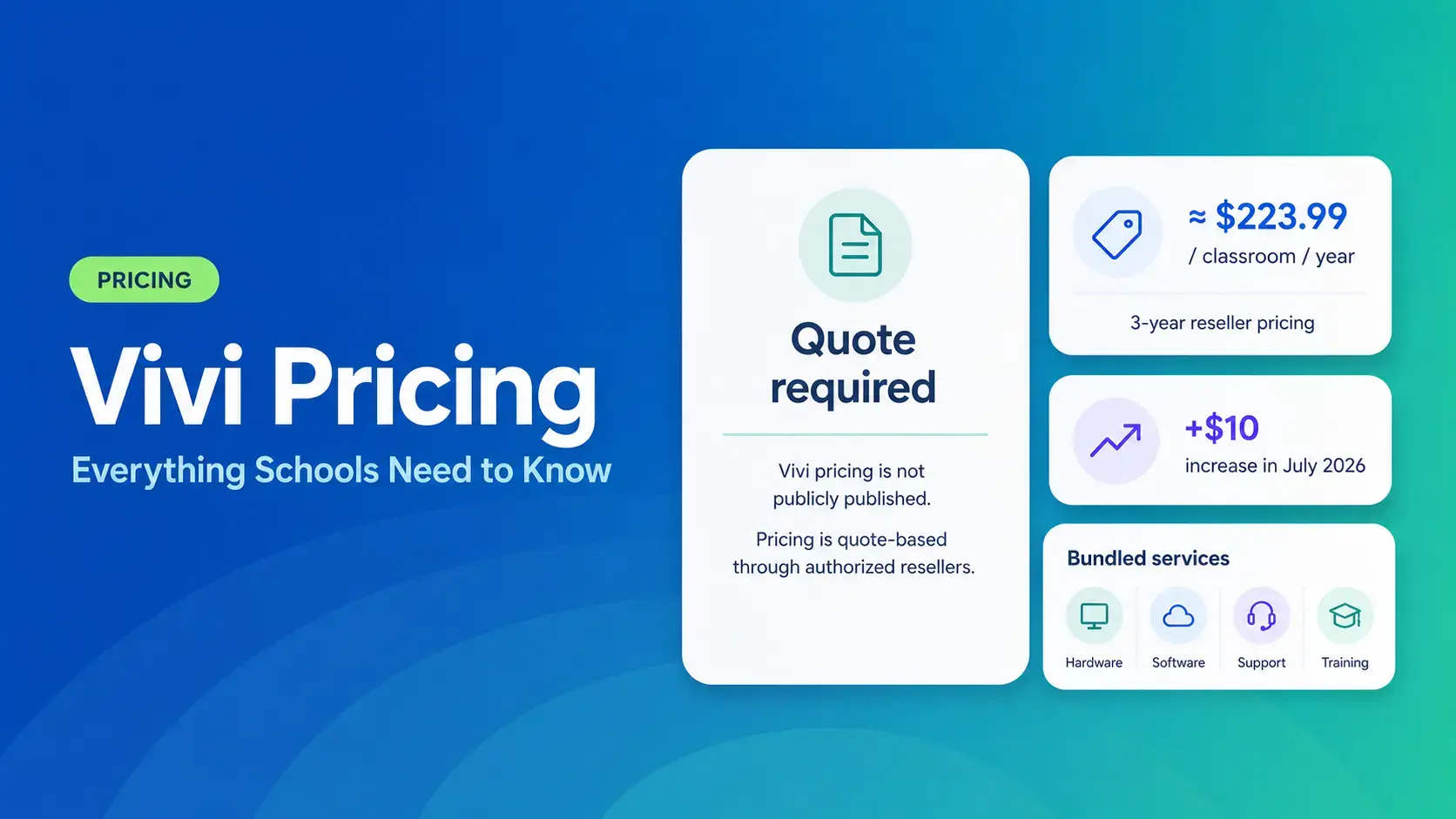
Vivi Pricing 2026: Everything Schools Need to Know Before Getting a Quote
If you're budgeting for Vivi, expect to call sales for a number. Pricing isn't published anywhere. Reseller data puts the 3-year subscription around $224 per classroom per year. That rate rose by $10[…]
Read More
12,300+ Organizations Trust Rise Vision, You Can Too























Schedule a Free Demo
You deserve the #1 all-in-one platform for digital signage, screen sharing, and emergency alerts.