Quick Summary
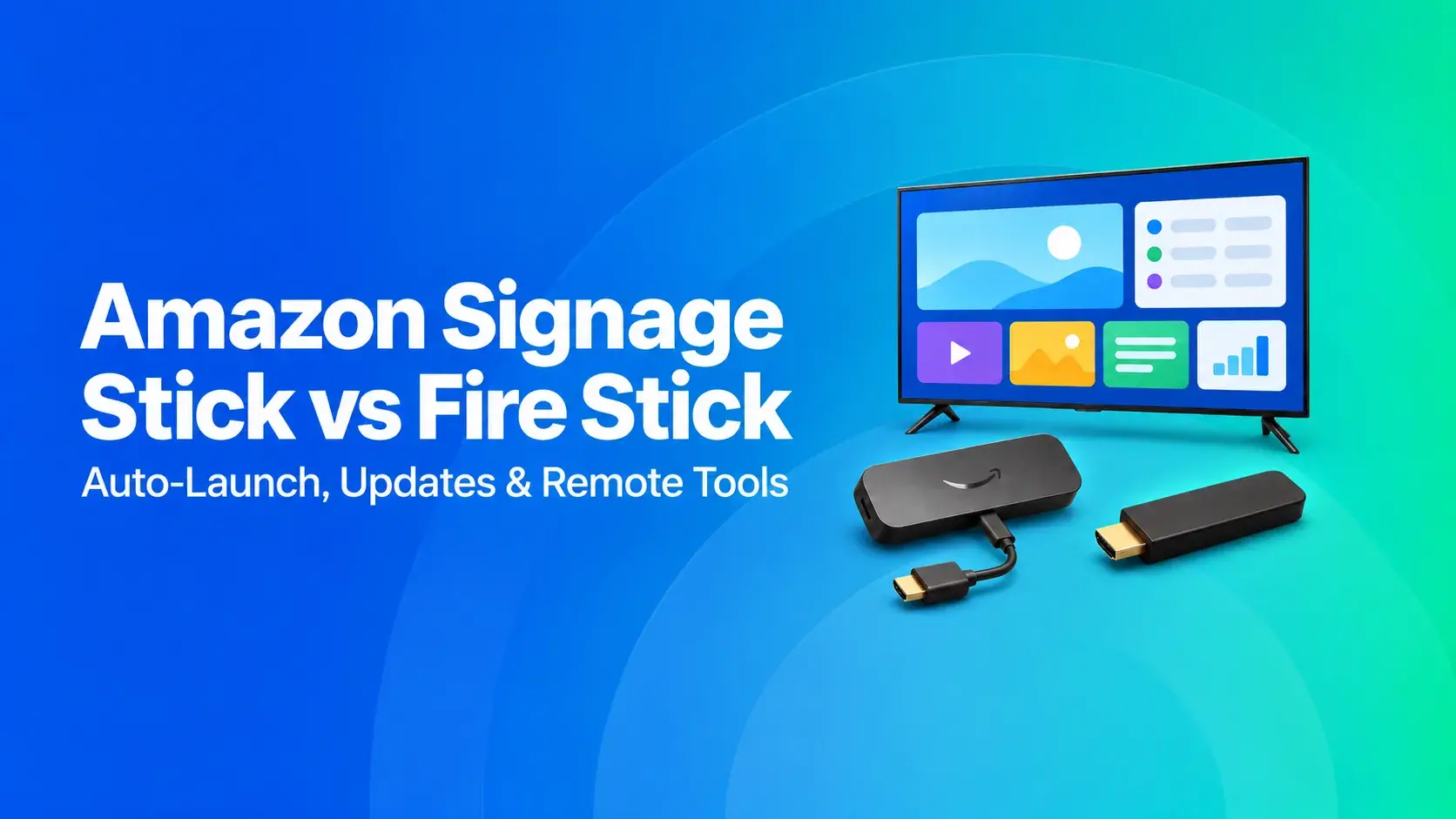
- The Amazon Signage Stick and the Fire TV Stick look alike, but they're built for different purposes. The Signage Stick is made for digital signage, while the Fire TV Stick is designed for streaming at home.
- After a restart or an update, the Signage Stick reopens your signage software by itself. A Fire TV Stick waits at its home screen until someone picks up the remote.
- At $99.99, the Signage Stick is the better choice for screens that run unattended. A Fire TV Stick costs less and can still work if you have just one screen nearby.
Why Pay More for a Stick That Looks the Same
If you're already using Fire TV Sticks for digital signage, or you're thinking about buying a few, you may have come across Amazon's Signage Stick.
It looks almost identical to a Fire TV Stick and plugs into the same HDMI port. But at $99.99, it's quite a bit more expensive than Amazon's latest Fire TV Stick HD, which launched at $34.99.
So why spend more when both can display content on a screen?
The difference comes down to how they're designed to work.
A Fire TV Stick is designed for home streaming, where someone is around to control it. Digital signage screens often need to run all day without anyone managing them.
That's where the Signage Stick comes in. If it restarts, your signage software opens again automatically. And if it freezes, you can restart it remotely without walking over to the screen.
Two IT teams have seen the difference firsthand.
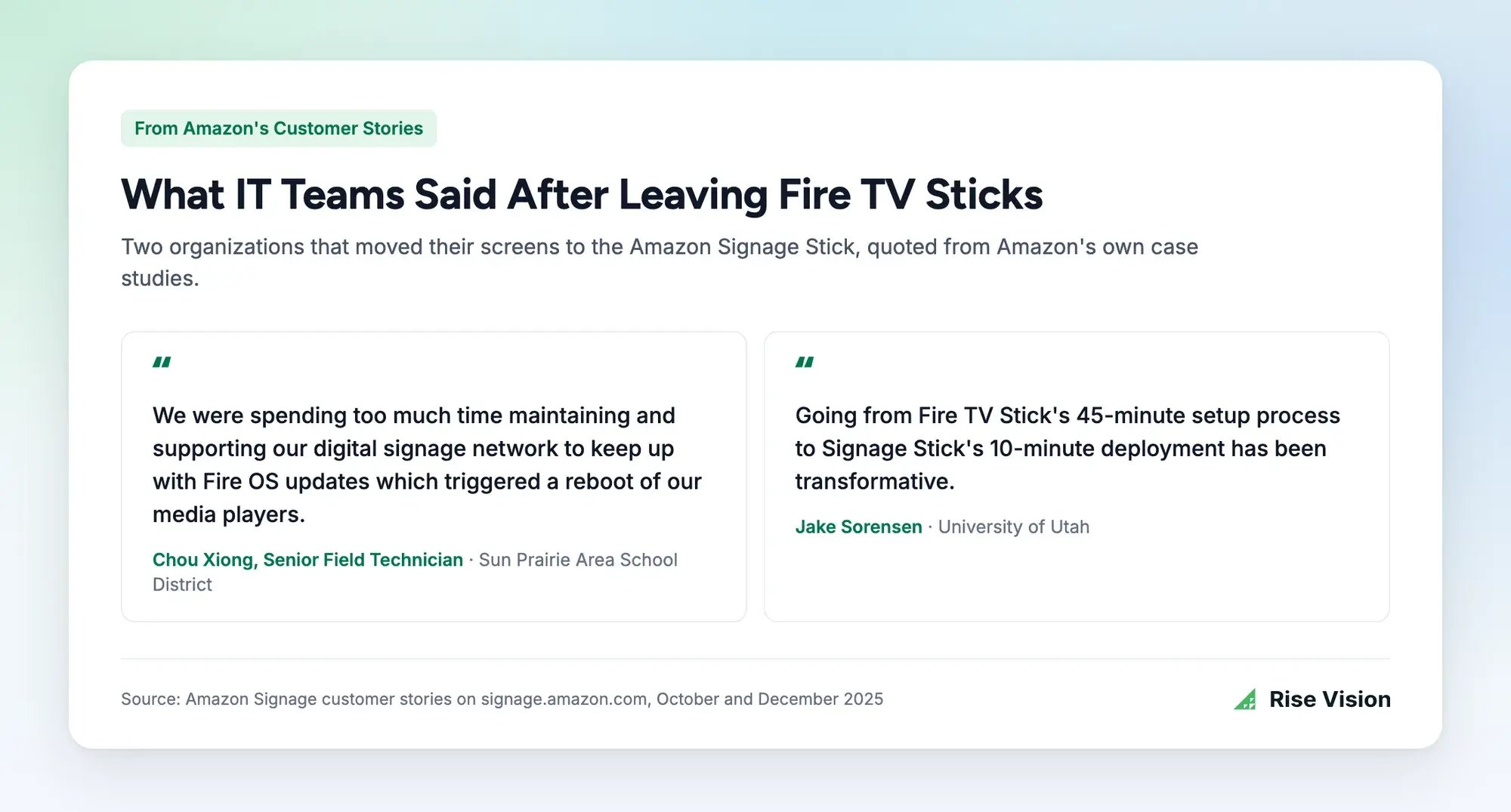
At Sun Prairie Area School District in Wisconsin, Amazon's software updates kept restarting the district's Fire TV Sticks. Senior Field Technician Chou Xiong said the team was "spending too much time maintaining and supporting our digital signage network." The district has since switched to Signage Sticks.
The University of Utah also noticed a difference during setup. Configuring each Fire TV Stick took 30 to 45 minutes, compared with just 10 minutes for a Signage Stick.
That's why we think the Signage Stick is worth the extra cost for most schools and offices. Below, we'll compare the key differences, explain where each stick makes sense, and show you how to switch if you're already using Fire TV Sticks.
Why Listen to Us
We’re Rise Vision, so it’s only fair to mention that we make digital signage software ourselves.
Since 1992, we’ve been helping organizations communicate, teach, and collaborate better. More than 12,300 organizations use our platform today. And the Amazon Signage Stick is one of the fastest-growing media players they run it on.
Our software used to run on consumer Fire TV Sticks, too, but we no longer support them. So we know how both sticks hold up day to day.
That said, a Fire TV Stick still makes sense for some screens, and we’ll tell you which ones.
What's the Difference Between the Amazon Signage Stick and a Fire TV Stick
The Amazon Signage Stick runs digital signage and nothing else. A Fire TV Stick, which you might just call a Fire Stick, is a streaming player for your home.
You start seeing that difference right from the setup phase.
With a Signage Stick, you choose your signage software or content management system (CMS) during setup. The stick installs your chosen CMS, opens it, and keeps it running. Amazon calls this kiosk mode. It prevents viewers or staff from exiting your signage content.
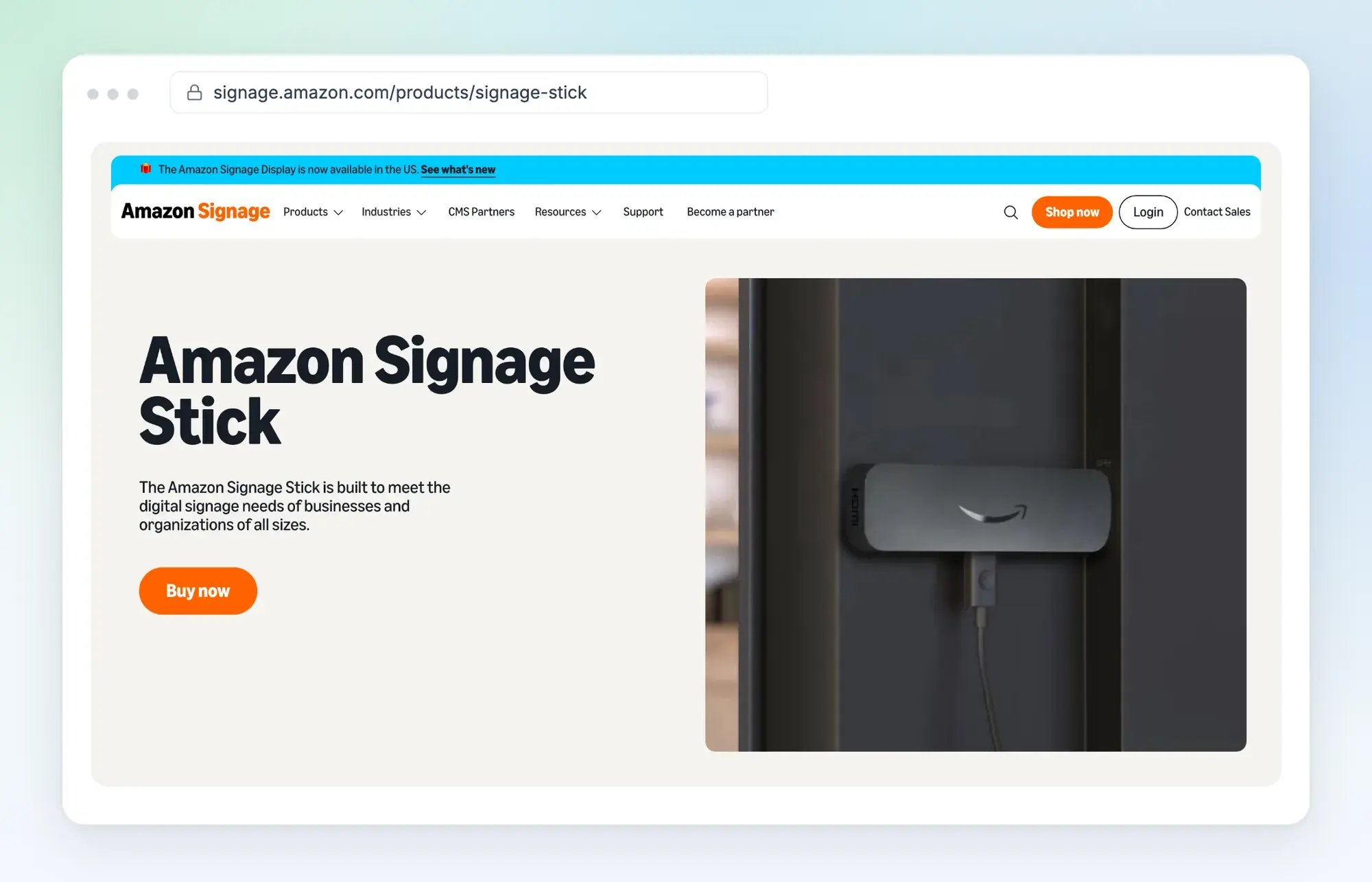
A Fire TV Stick works differently. It starts on the regular Fire TV home screen, where you access your apps. Amazon's current lineup includes the Fire TV Stick HD, 4K, and 4K Max. The 2026 HD and 4K models run Vega OS, while the 4K Max runs Fire OS 8. That's important for digital signage because some signage apps that work on Fire OS aren't available on Vega OS.
To use one for signage, you need to download a signage app from the app store, just as you would a streaming app.
That can work well enough when someone is nearby to manage the screen. But if the screen is in a hallway or another building, it becomes less practical.
Amazon makes the same distinction in its own comparison.
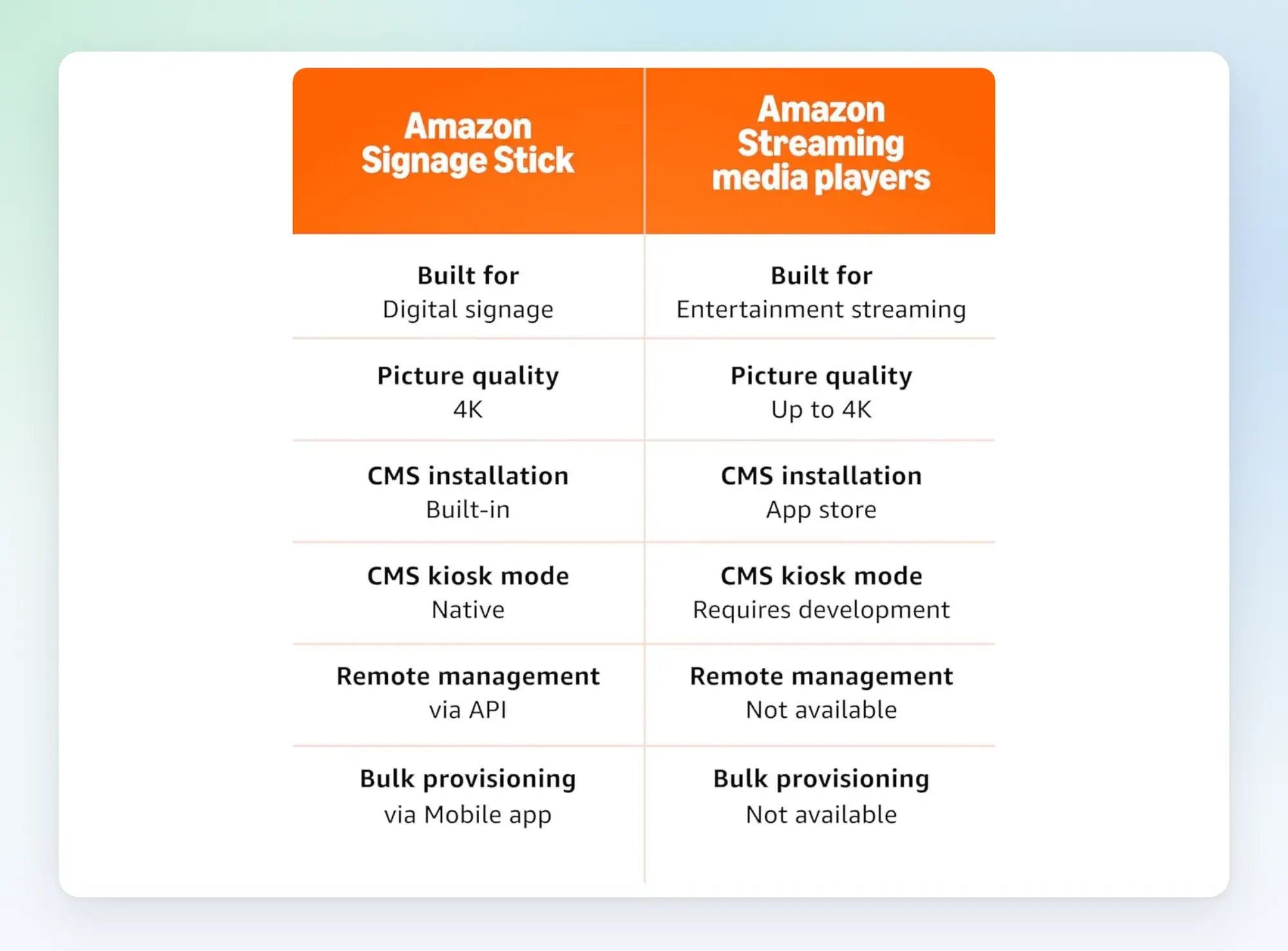
That said, here are the main differences worth considering if you're using either stick for digital signage.
| Amazon Signage Stick | Fire TV Stick | |
|---|---|---|
| After a restart or power cut | Reopens your signage software by itself | Returns to its home screen until someone reopens your signage app |
| If it freezes | You restart it from your phone or computer | Someone goes to the screen with the remote |
| Updates | Install overnight, then your signage software reopens | On Fire OS 8, the stick restarts and someone has to reopen your signage app |
| Signage software | Works with 80+ signage platforms | Depends on the model. The HD and new 4K run Vega OS, which some signage apps can't be installed on |
| Setting up many screens | Several sticks at once, with Amazon's free app | One stick at a time, from the app store |
| Price | $99.99 | $34.99 for the HD, and $59.99 for the 4K or the 4K Max, at launch |
| Network | Wi-Fi 6E, or wired with an Ethernet adapter. It can't join Wi-Fi that checks certificates | Wi-Fi 6 or Wi-Fi 6E, or wired with an Ethernet adapter |
| Hardware | 4K picture, with 16 GB of storage | HD or 4K picture, with 8 GB or 16 GB of storage |
The hardware is fairly similar. For example, the Signage Stick and Fire TV Stick 4K Max use the same 850 MHz graphics chip and support Wi-Fi 6E. Our Amazon Signage Stick review covers the hardware in more detail.
Choosing the Right Amazon Stick for Your Screens
The best choice depends on where your screens are and whether someone is nearby to manage them.
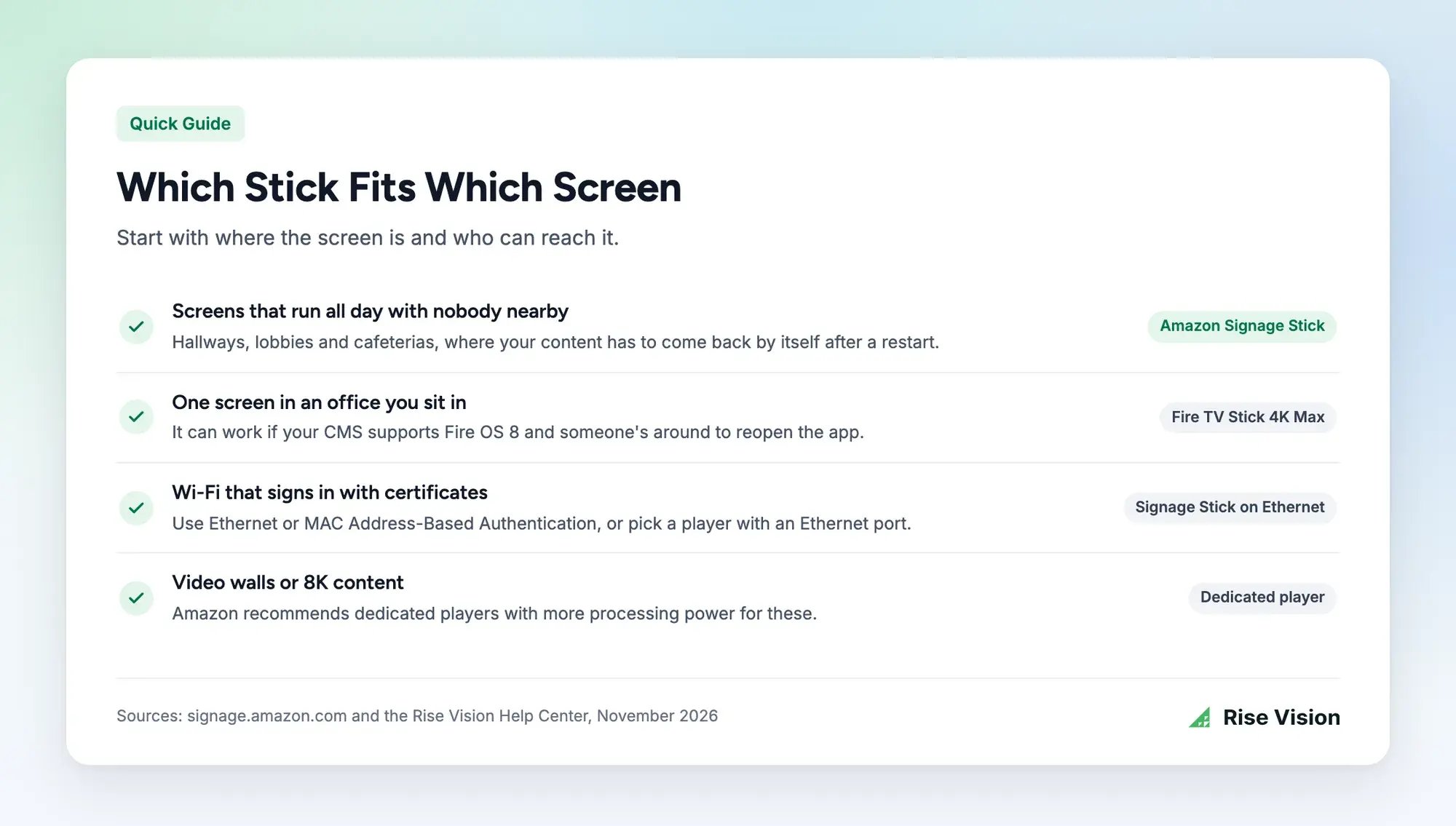
Here are four common setups and what we'd recommend for each:
- Screens that run all day without anyone nearby. Go with the Signage Stick. It automatically brings your content back after a restart, and you can restart the device remotely without going to the screen.
- One screen in your office. A Fire TV Stick 4K Max can work, provided your CMS supports Fire OS 8. You'll need to reopen the app after a restart, but that's less of an issue when you're nearby.
- Wi-Fi networks that require certificates. The Signage Stick can't connect to these networks over Wi-Fi. You can use an Ethernet adapter for a wired connection or ask your IT team to approve the device using its hardware address. This is called MAC Address-Based Authentication (MAB). Another option is a player with a built-in Ethernet port, such as our Rise Vision Media Player.
- Video walls or 8K content. Check the hardware requirements before choosing a stick. The Signage Stick supports 4K output, but more demanding setups may need dedicated media players.
If you're leaning toward the Signage Stick, we've also put together a full video review covering who it's best for and how to set it up.
How to Move From Fire TV Sticks to Signage Sticks
If you're already using Fire TV Sticks, you can switch to Signage Sticks one screen at a time. There are six steps to follow.
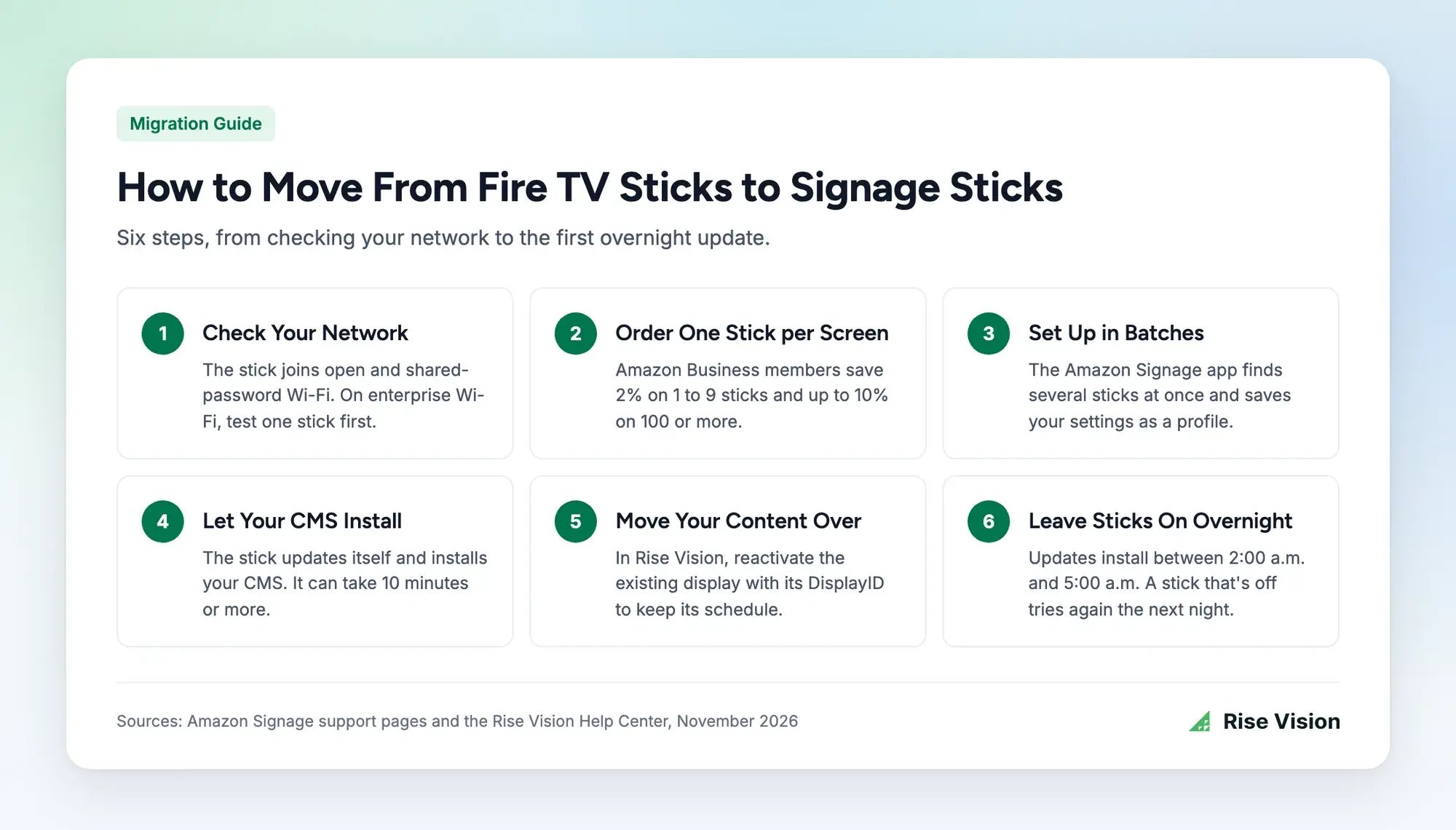
Sun Prairie made this move with 75+ displays in 15 schools. If you're planning the same switch, work through the steps in this order:
- Check your network. The Signage Stick works with open Wi-Fi and networks that use a shared password. If your school or office uses enterprise Wi-Fi, check its authentication requirements before buying. Amazon added support for password-only enterprise Wi-Fi in July 2026, but certificate-based connections aren't supported. Test one stick on your network before ordering more.
- Order one stick for each screen. Amazon Business members get 2% off orders of 1 to 9 sticks, with discounts of up to 10% on orders of 100 or more. Make sure you use the included power adapter, as some TV USB ports don't provide enough power.
- Set up your sticks in batches. Amazon's free Signage app lets you configure several sticks at once, so you don't have to repeat the process for every screen. We've covered the full process in our guide on how to set up the Amazon Signage Stick.
- Let your signage software install. Each stick updates its software first, then installs your chosen CMS. This can take 10 minutes or more, so keep the stick plugged in until it's finished.
- Move your content to the new sticks. In your signage software, link each new stick to the screen it's replacing. That way, you can keep the same content and schedule. We'll explain how to do this in Rise Vision below.
- Leave the sticks powered on overnight. Amazon installs updates between 2:00 a.m. and 5:00 a.m. local time. If a stick is turned off during that window, it will try again the following night.
Using Rise Vision on the Amazon Signage Stick
If you choose the Signage Stick, you'll also need signage software we talked about earlier. Rise Vision is one of the options available during setup.
Rise Vision is the all-in-one platform for digital signage, screen sharing, and emergency alerts. We help schools and businesses communicate, teach, collaborate, and improve safety affordably, all backed by fast support and flexible hardware options.
With Rise Vision on the Signage Stick, you can also use:
- 750+ Templates: Save hours of content creation time every week with 750+ professionally designed, animated, and customizable templates.
- Emergency Alerts: Integrate with leading Common Alerting Protocol (CAP) systems like Raptor, Alertus, InformaCast, and CrisisGo for streamlined, automated emergency alerts.
- Screen Sharing: Share from any device to the stick’s screen at risevision.com/join, without adapters or dongles. Use Standard Mode for quick screen sharing or Moderated Mode for secure, controlled sessions.
- Multi-Location: Manage every stick across your organization with user roles, unlimited users, single sign-on (SSO), account hierarchy, and expert help.
Getting started only takes a few minutes. Select Rise Vision during setup, and the stick will install our player and automatically open it whenever the device starts.
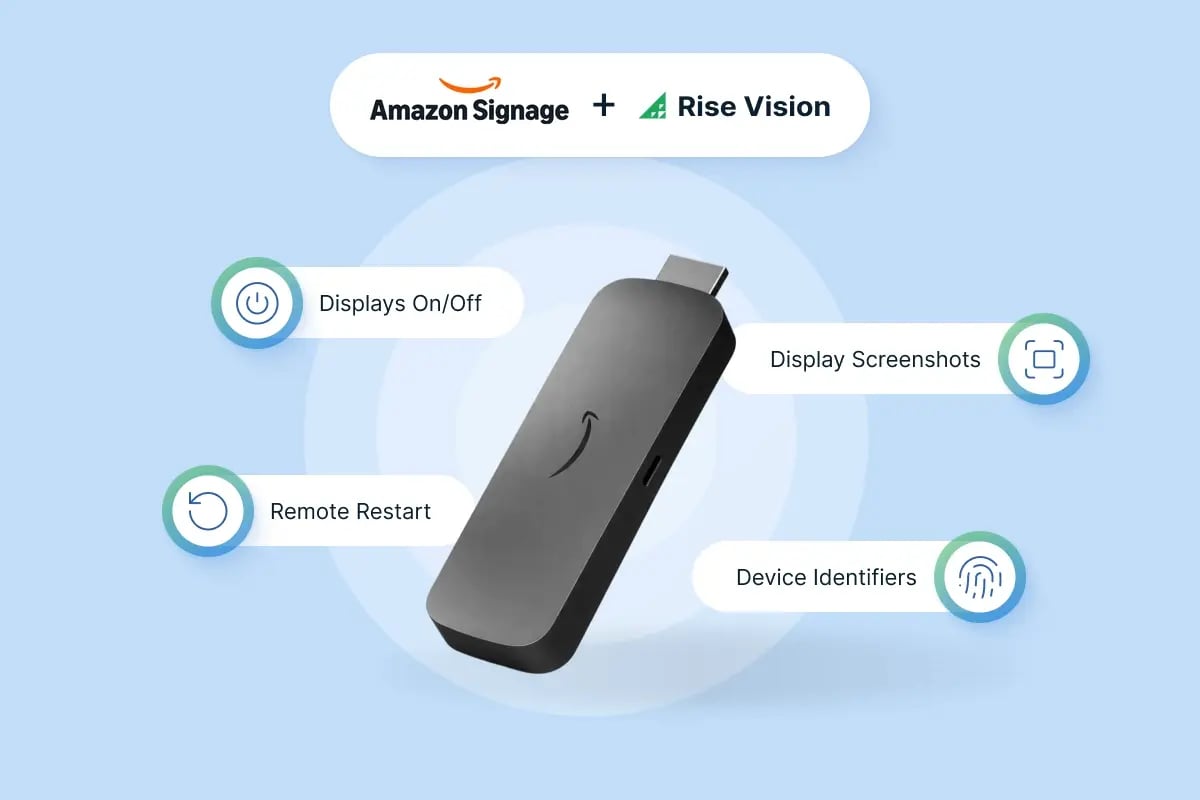
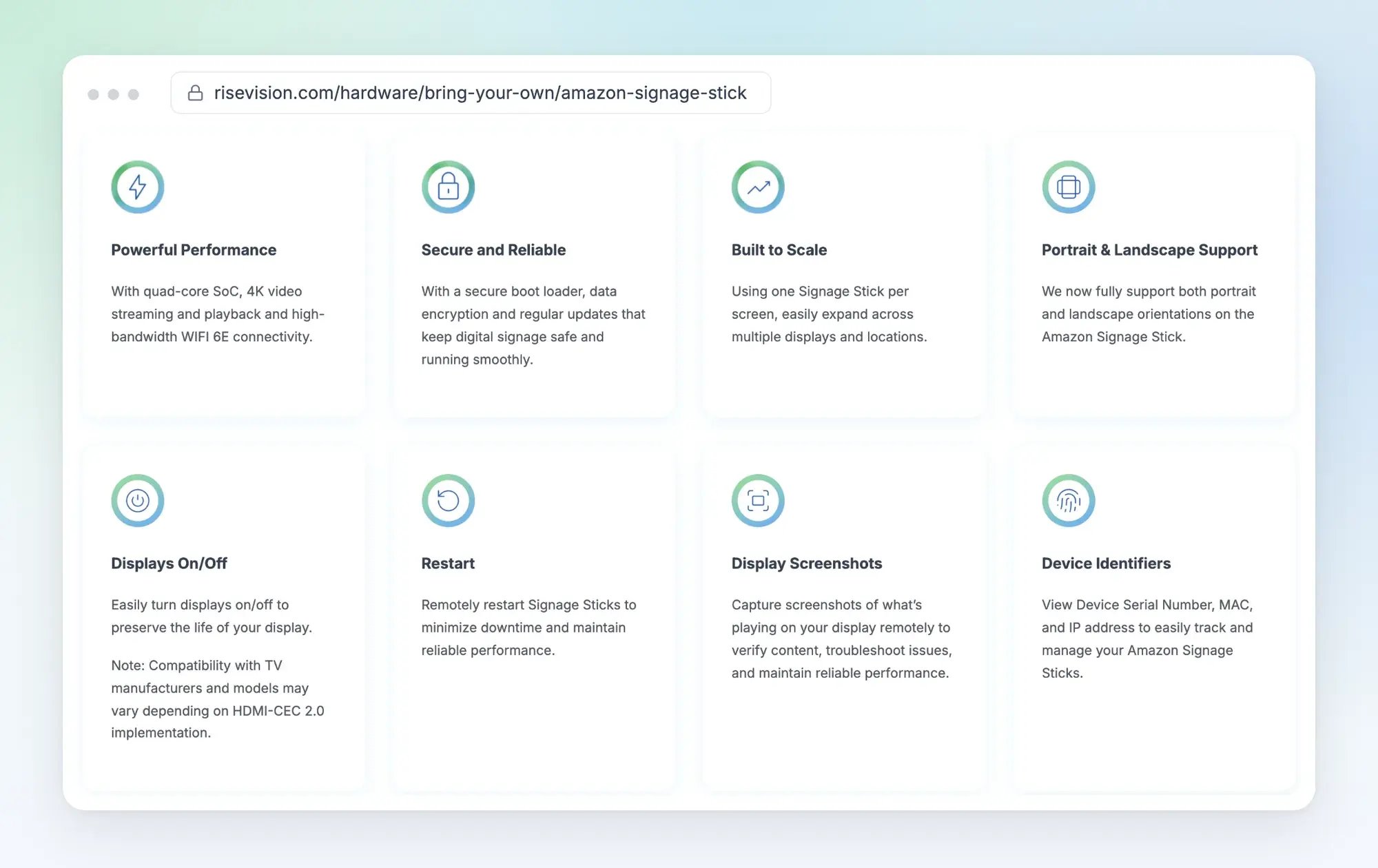
In January 2026, we added support for Amazon's Remote Management API to our dashboard. You can now turn screens on or off, restart sticks, and take screenshots to check what's playing, all without going to the screen. Just keep in mind that turning a TV on or off requires HDMI-CEC support from the TV.
Sun Prairie Area School District, which we mentioned earlier, uses Rise Vision on its Signage Sticks. According to Chou Xiong, the district's senior field technician, the switch has encouraged its schools to explore more ways to use digital signage.
“Rise Vision has been an outstanding platform for digital signage in our district. Because the Amazon Signage Stick is so affordable and easy to support, our schools are thinking about more ways they can innovate with digital signage to improve student experiences.”
If you're already using Rise Vision on Fire TV Sticks, you can switch without recreating your content or schedules. Simply reactivate each display on its new Signage Stick using the same DisplayID. Your existing scheduled content will appear automatically.
The Signage Stick works well if you’re happy to buy your player from Amazon and your software from us. But some organizations would rather have one company handle both, especially when they need support.
That’s why we also offer the Rise Vision Media Player. It’s a compact, commercial-grade player with a built-in Ethernet port, so it also works where the stick can’t join your Wi-Fi. You can buy it outright or get it through Hardware as a Service, and our team supports it directly.
Pricing
Save hundreds with our simple, transparent pricing. We have options for every organization, volume discounts, and affordable recommended hardware.
For businesses, government, and other organizations, these are our plans for up to 10 displays:
- Basic: $132 per display per year, or $12 per month
- Advanced: $156 per display per year, which adds emergency alerts
- Enterprise: $180 per display per year, which adds screen sharing and SSO
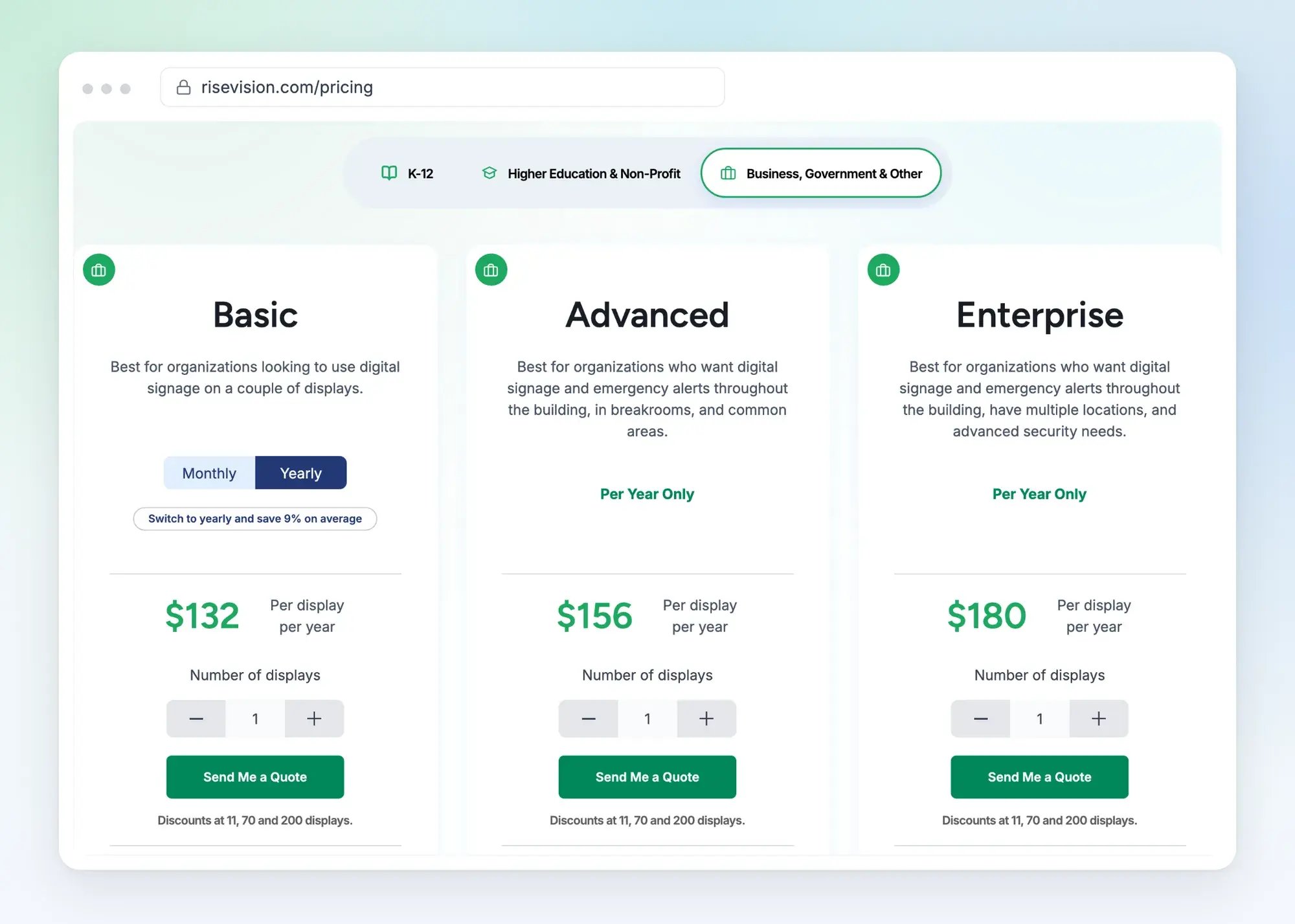
Schools, colleges, and non-profits pay less, starting at $11 per display per month. And K-12 schools can cover every display in a school with an Unlimited license for $1,399 a year.
You pay for Advanced and Enterprise yearly, and volume discounts start at 11, 70, and 200 displays. So if your business has 10 screens on Advanced, you’d pay $999.90 once for the sticks, plus $1,560 a year for our software.
You can try everything free for 14 days, with no credit card required, and new customers get a 30-day money-back guarantee.
Stuck? You’ll get help within one business hour by phone, email, or remote desktop support, from a team backed by a 99% satisfaction rating.
So, Which Stick Should You Buy
For most screens that run without anyone nearby, we'd recommend the Amazon Signage Stick. It costs $40 to $65 more than a Fire TV Stick based on launch prices, but it automatically reopens your signage software after a restart or update. You can also restart it remotely when it's connected.
If you only have one screen and you're usually nearby, a Fire TV Stick may be enough. Just make sure your signage software supports the exact model and operating system before buying one.
And if you want to see how Rise Vision works on the Amazon Signage Stick, we'd be happy to walk you through it in a free demo.
FAQs
Can you use a Fire TV Stick for digital signage?
Yes, you can use a Fire TV Stick to turn a TV into digital signage, provided it supports your signage software.
The main limitation is that Fire TV Sticks aren't designed to run signage unattended. On models running Fire OS 8, your signage app won't reopen automatically after a restart unless you make changes using developer tools.
Compatibility is another concern. The 2026 Fire TV Stick HD and Fire TV Stick 4K run Vega OS, which doesn't support every signage app. Rise Player, for example, no longer supports consumer Fire TV devices.
For screens that need to run all day without someone managing them, we recommend the Amazon Signage Stick instead.
What is the Amazon Signage Stick?
The Amazon Signage Stick is a $99.99 media player designed specifically for digital signage. It plugs into your TV's HDMI port and runs your chosen signage software, with more than 80 supported platforms, including Rise Vision.
Unlike a regular Fire TV Stick, it opens your signage software automatically and keeps it running in kiosk mode. If the device restarts, your software opens again without anyone needing to use the remote.
Does the Amazon Signage Stick require a subscription?
No. The Amazon Signage Stick costs $99.99 as a one-time purchase, with no subscription fee for the device itself.
You'll still need digital signage software to create, schedule, and manage your content. Some platforms are free, while others charge a separate subscription.
Our Amazon Signage Stick review covers the price in more detail.
How does an Amazon Signage Stick work?
The Amazon Signage Stick plugs into your TV's HDMI port and connects to your Wi-Fi network.
You can set it up using Amazon's free Signage app or with the included remote and Signage Manager web portal. If you use the web portal, you'll enter the pairing code shown on your TV and choose your signage software.
The stick then downloads and installs that software. Once you've finished setting it up, your signage content appears on the screen, and the software opens automatically whenever the stick starts.
More From Our Blog
-
Mvix Reviews: Pricing, Pros, Cons, and Who It Suits (2026)
Mvix has an appealing offer: pay $450 to $750 for a digital signage player, and the cloud software is included without a monthly subscription. Customers generally like the software, giving it 4.1 out[…]
Read More -
Visix Digital Signage Review 2026: Features, Pricing, Pros and Cons
Visix digital signage is a long-established system built for large organizations with their own IT teams. Its biggest strengths are meeting room signs, touchscreen wayfinding and calendar[…]
Read More -
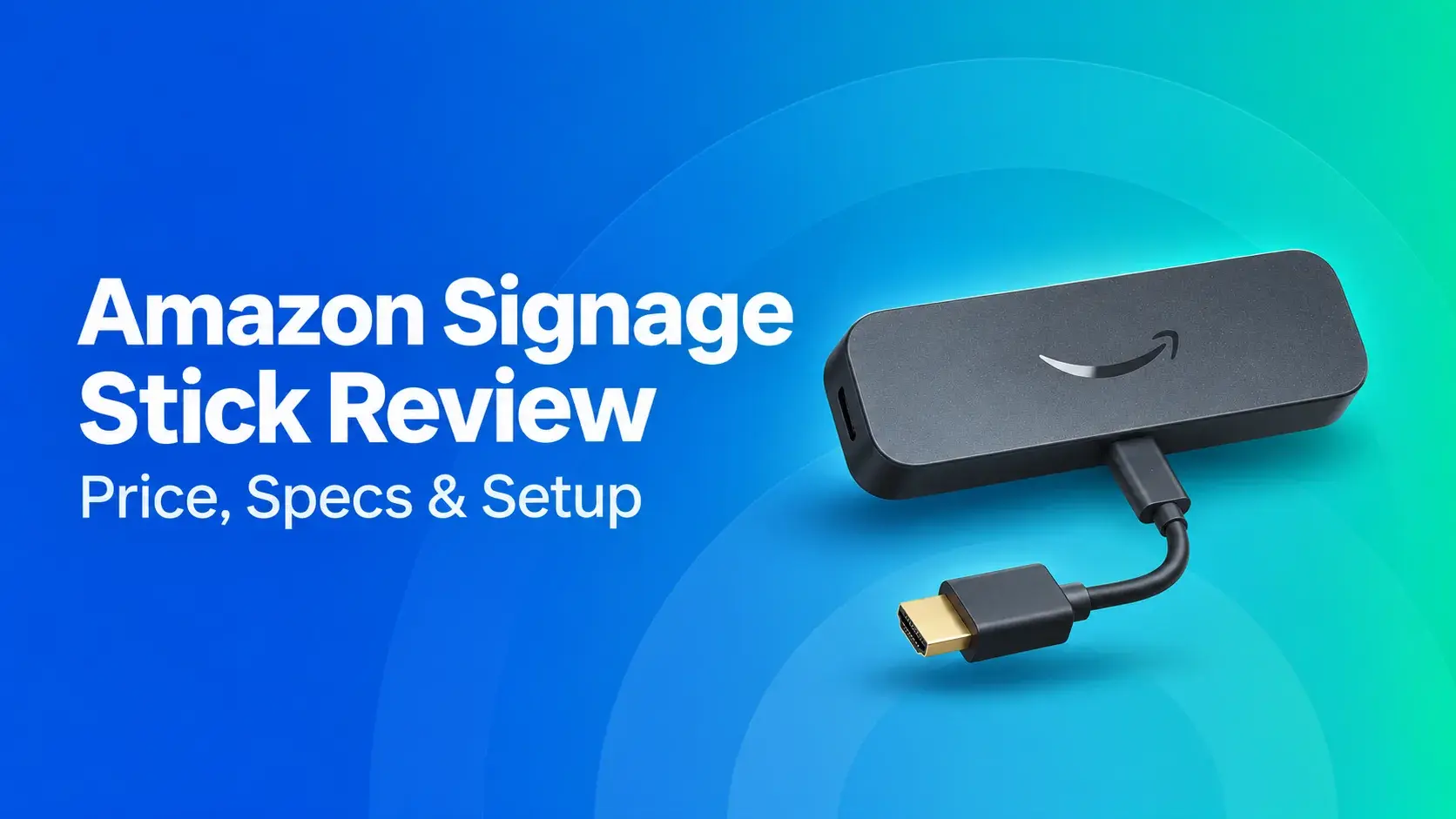
Amazon Signage Stick Review: Price, Specs, and Setup
The Amazon Signage Stick is a $99.99 media player that plugs into a TV's HDMI port and boots straight into your signage software. For announcements, menus, or lobby screens on Wi-Fi with a shared[…]
Read More
12,300+ Organizations Trust Rise Vision, You Can Too
























Schedule a Free Demo
You deserve the #1 all-in-one platform for digital signage, screen sharing, and emergency alerts.