Quick Summary
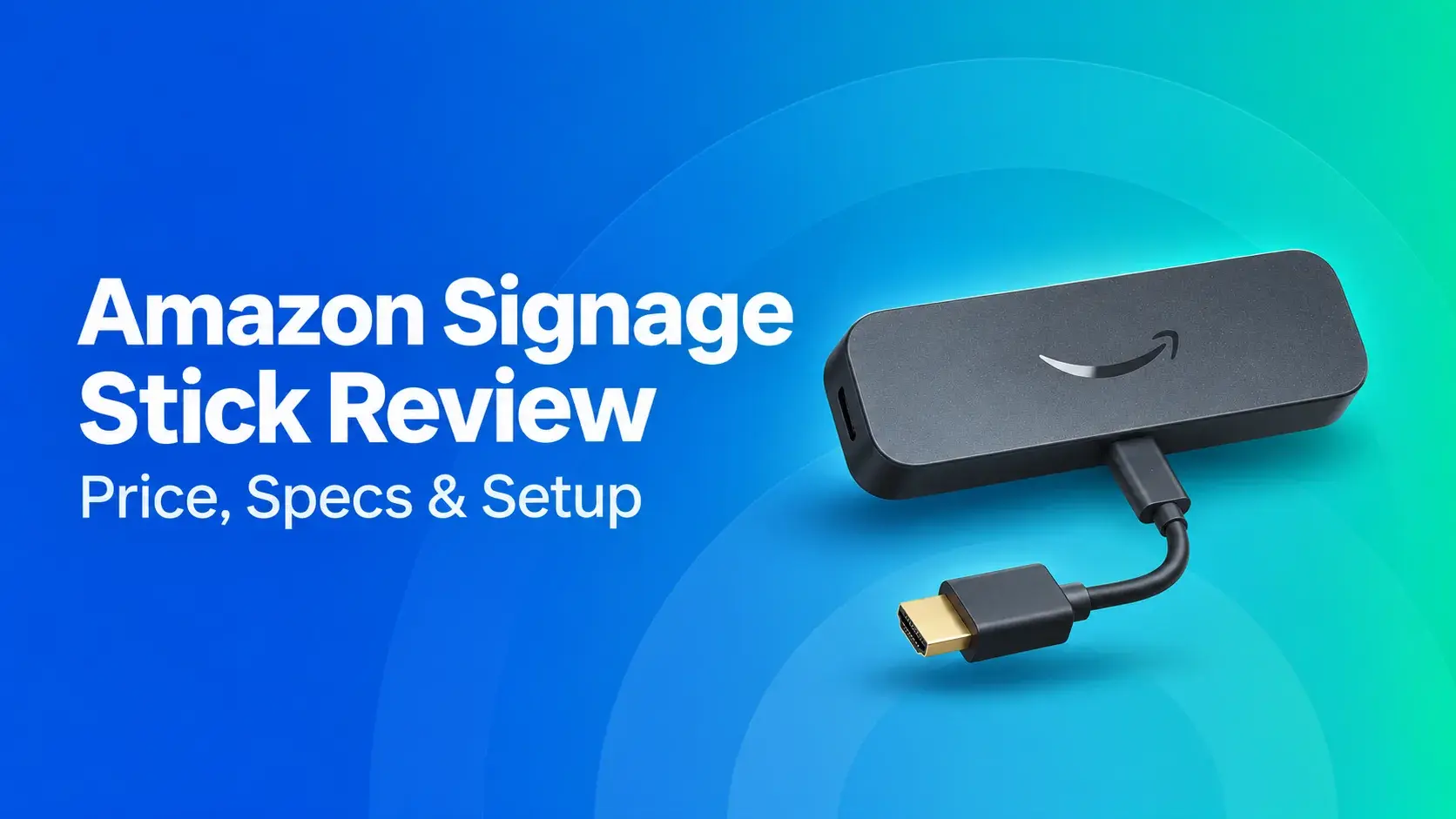
The Amazon Signage Stick is a $99.99 media player that plugs into a TV's HDMI port and boots straight into your signage software. For announcements, menus, or lobby screens on Wi-Fi with a shared password, it's a dependable, low-cost pick.
Prefer video? Watch our full review of the Amazon Signage Stick below.
Why IT Teams Are Talking About This $99.99 Stick
There's a big difference between getting digital signage up and running and keeping it running every day. The first part is relatively easy. The second can become a headache, especially when you're managing screens across a school or business. Nobody wants to keep restarting devices or troubleshooting screens that have gone blank.
That's what makes the Amazon Signage Stick interesting. It costs less than $100, is built specifically for digital signage, and some early users have had good things to say about its reliability.
In a discussion on r/k12sysadmin, one school IT professional said they had seven sticks running 24/7 across campus. Another said theirs hadn't crashed once. That was a big improvement over the regular Fire TV Stick they'd used before, where the signage app had been crashing daily.
And it's not just schools reporting good results. At Hollywood Casino Greektown, AV/IT lead Jason Oziem put the Signage Sticks through stress tests before rolling them out. "I tried to break them," he said, but they held up.
Of course, a few positive experiences don't guarantee it'll work perfectly for everyone. But for a device that costs less than $100, that's a promising start.
So what exactly is the Amazon Signage Stick, and how is it different from the regular Fire TV Stick you might already be using?
Why Listen to Us?
At Rise Vision, we help schools and businesses run digital signage across thousands of screens, including those powered by the Amazon Signage Stick. Amazon Signage Stick is also one of our fastest-growing media players. So we're familiar with what it takes to set up and manage the Amazon Signage Stick as part of a digital signage network, and we'll draw on that experience throughout this review.
What Is the Amazon Signage Stick?
The Amazon Signage Stick is a small device that plugs into your TV or monitor's HDMI port and turns it into a digital sign. You can use it to display announcements, menus, videos, and other content.
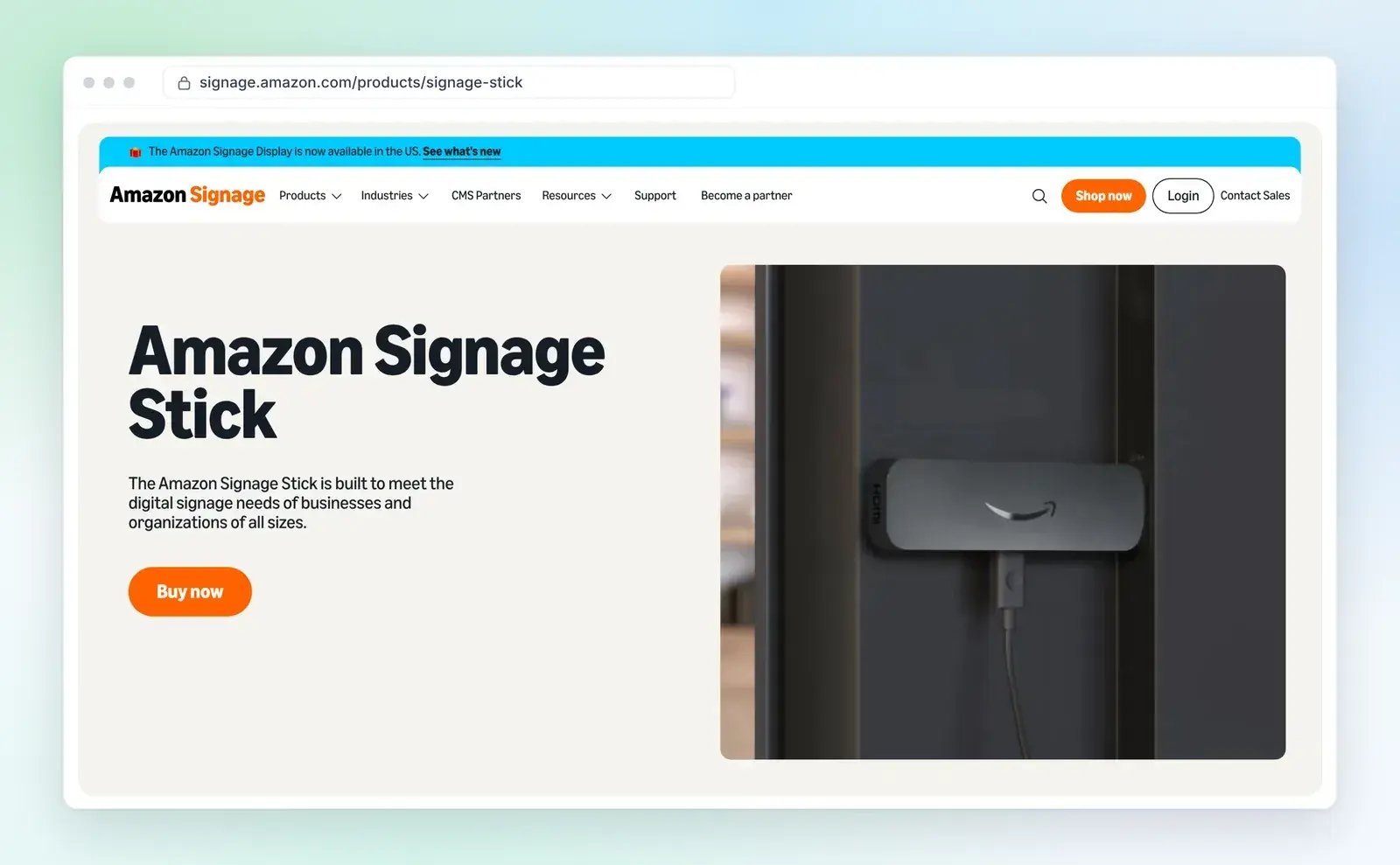
To get started, you'll need digital signage software, also called a content management system (CMS). Amazon supports more than 80 platforms, including Rise Vision. And depending on which one you pick, you may need to pay a separate subscription fee.
Once you've set everything up, the stick automatically launches your signage software whenever it starts. So if it restarts after a power outage, you won't need someone to reopen the app manually.
Key Features of the Amazon Signage Stick
Unlike a regular Fire TV Stick, the Signage Stick is designed to run your signage software and nothing else. These are its key features:
- Kiosk-Mode Playback: It opens your CMS by itself and keeps it on screen, and secure boot and encrypted storage protect it.
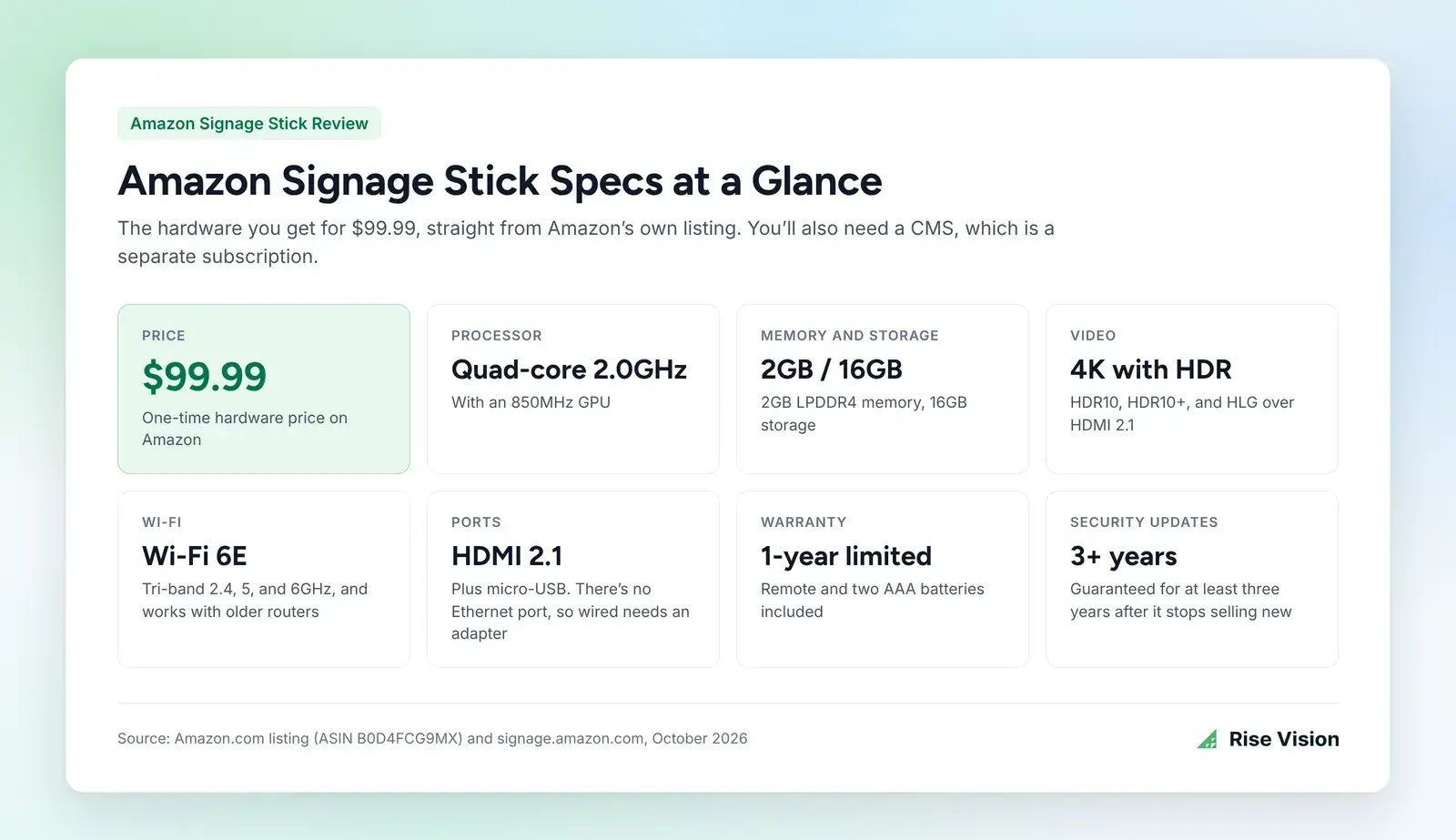
- 4K Hardware: A quad-core 2.0GHz processor, 2GB of memory, and 16GB of storage drive 4K output over HDMI 2.1, with HDR10 and HDR10+ support.
- Wi-Fi 6E: Tri-band Wi-Fi covers the 2.4GHz, 5GHz, and 6GHz bands, and it'll still connect to older routers.
- Fleet Setup and Remote Management: The free Amazon Signage app sets up several sticks at once. It also saves your Wi-Fi and CMS choices as profiles, so you don't retype them. And CMS apps that use Amazon's Remote Management API can restart a stick and capture its screen.
Here are the specs at a glance:
Pricing
The Amazon Signage Stick costs $99.99 from Amazon, and that's a one-time price. Amazon Business members save 2% on orders of one to nine sticks and up to 10% on orders of 100 or more.
Each stick comes with a remote and a one-year limited warranty. Amazon has also guaranteed security updates for at least three years after it stops selling the stick new.
Just remember you'll need one stick per screen, plus a CMS subscription. Our digital signage cost guide breaks down what else to budget for.
Rating
The Amazon Signage Stick has 4.3 out of 5 stars from 184 customer ratings on Amazon, as of October 2026. That's not a huge number, so we'd weigh it alongside the real-world feedback below.
How Does the Amazon Signage Stick Perform?
The Amazon Signage Stick comes with 2GB of memory and 16GB of storage. That might not sound like much, but it's decent for typical signage content, such as announcements, images, slides, and looping videos.
It also supports 4K. To take advantage of it, you'll need a 4K TV, a signage platform that supports 4K, and content created in 4K.
But what really stands out is how little attention the stick seems to need once it's running.
For example, Limitless Male Medical Clinic uses the stick across all 16 of its locations. According to IT manager John Sand, "None of our Signage Sticks have failed." It's a similar story at Hollywood Casino Greektown, where Oziem said, "I haven't had to go back to some screens in months."
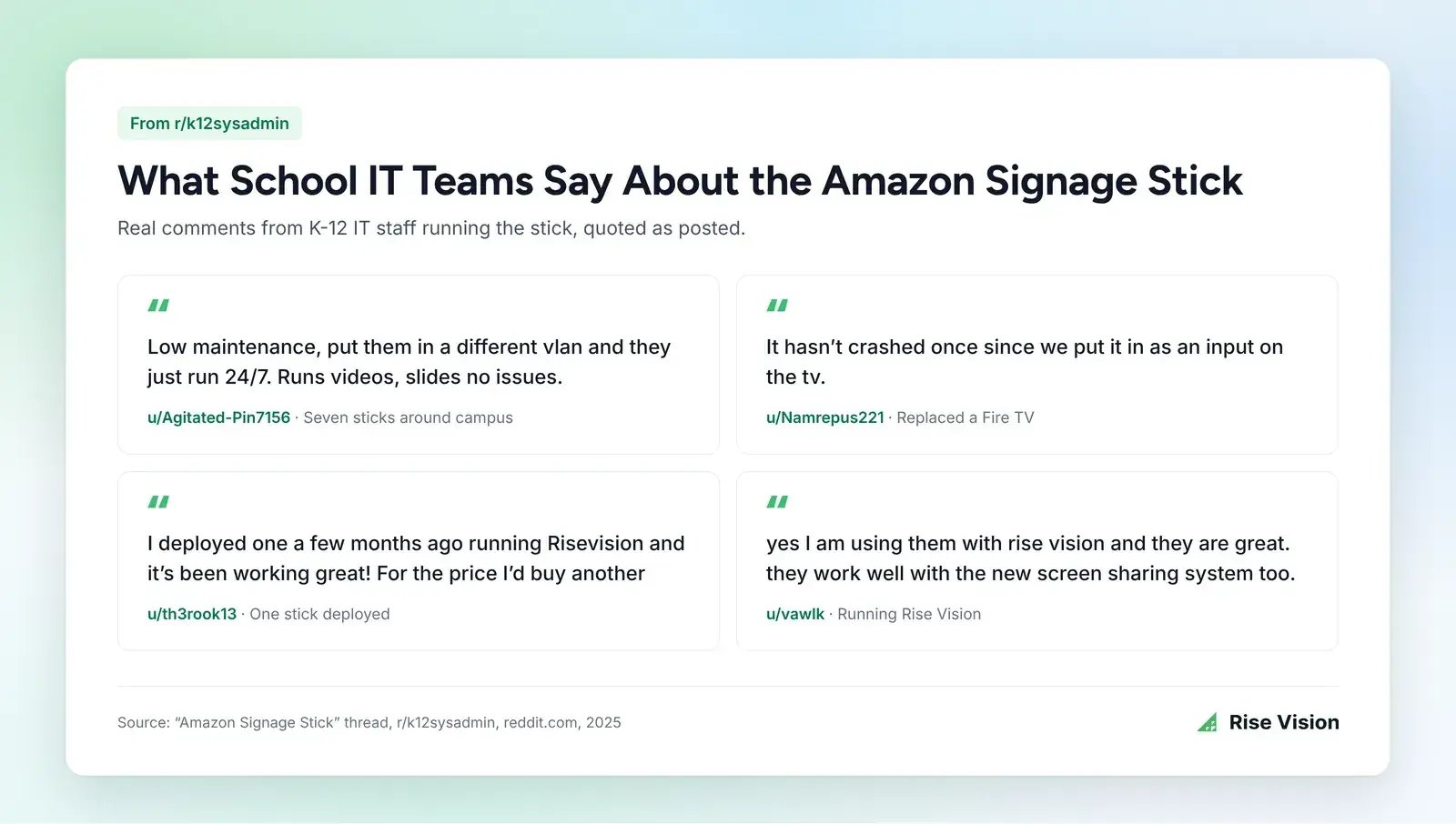
School IT teams have shared similar experiences. One Reddit user managing seven sticks across a campus described their experience this way:
"Low maintenance, put them in a different vlan and they just run 24/7. Runs videos, slides no issues."
For context, a VLAN is simply a way to keep devices on separate parts of the same network. In this case, it lets the school keep its digital signage devices separate from other connected devices.
Another useful feature is that the stick can continue playing content it has already downloaded if the internet connection drops. So a brief Wi-Fi outage doesn't necessarily mean your screens will go blank.
Of course, these are individual customer experiences, not a guarantee that every stick will run without issues. Still, they're encouraging signs for this device.
What We Like
Between the specs and the feedback from IT teams, there's plenty to like about the Signage Stick. These are the four things we like most:
- Your content starts playing automatically. If the stick restarts, it reopens your signage software and gets your content back on screen. That's something regular Fire TV Sticks running Fire OS 8 can't do.
- It's affordable, even if you need several screens. At $99.99 per stick, equipping 30 screens would cost $2,999.70 in hardware, before any Amazon Business discounts. You'll still need to account for your signage software subscription, though.
- You can fix some problems without visiting the screen. If your signage software supports Amazon's API, you can manage your devices remotely. That includes restarting a frozen stick from your desk rather than walking across the building to unplug it.
- You'll continue getting security updates. Amazon promises security updates for at least three years after it stops selling the device. That gives you some reassurance that the hardware won't lose security support shortly after you buy it.
Who Should Buy the Amazon Signage Stick?
The Amazon Signage Stick makes the most sense if you want a simple, affordable way to get content onto your screens. It's also a good fit if you'd rather not manage a lot of hardware.
It's particularly worth considering if you:
- Have screens in lobbies, hallways, break rooms, or waiting areas and just need something reliable to display announcements, menus, or videos.
- Manage screens across multiple locations, such as schools, clinics, or retail stores, and want to control what appears on them from one place.
- Are replacing older devices, such as Fire TV Sticks, Rokus, mini PCs, or Chromeboxes, with something designed specifically for digital signage.
- Don't want to visit every screen when something goes wrong and would prefer to check or restart devices remotely, where your signage software supports it.
That said, the Signage Stick won't work for every setup.
For example, if your organization uses Wi-Fi that requires individual employee logins, you can't connect the stick to that network directly. You'd need a compatible alternative network connection or a different media player.
It's also worth looking elsewhere if you'd prefer to buy your hardware and signage software from the same company. That way, you'd have one support team to contact when something goes wrong.
We'll look at that option shortly.
Running Rise Vision on the Amazon Signage Stick
If you're considering the Amazon Signage Stick, Rise Vision comes pre-loaded on it as a CMS option. Just select us during setup, and you can enjoy the features of our easy-to-use CMS for your signage display network.
Rise Vision is the all-in-one platform for digital signage, screen sharing, and emergency alerts. We support a wide range of hardware, so you can bring your own player, like the Amazon Signage Stick. Then you manage every screen from our cloud-based platform.
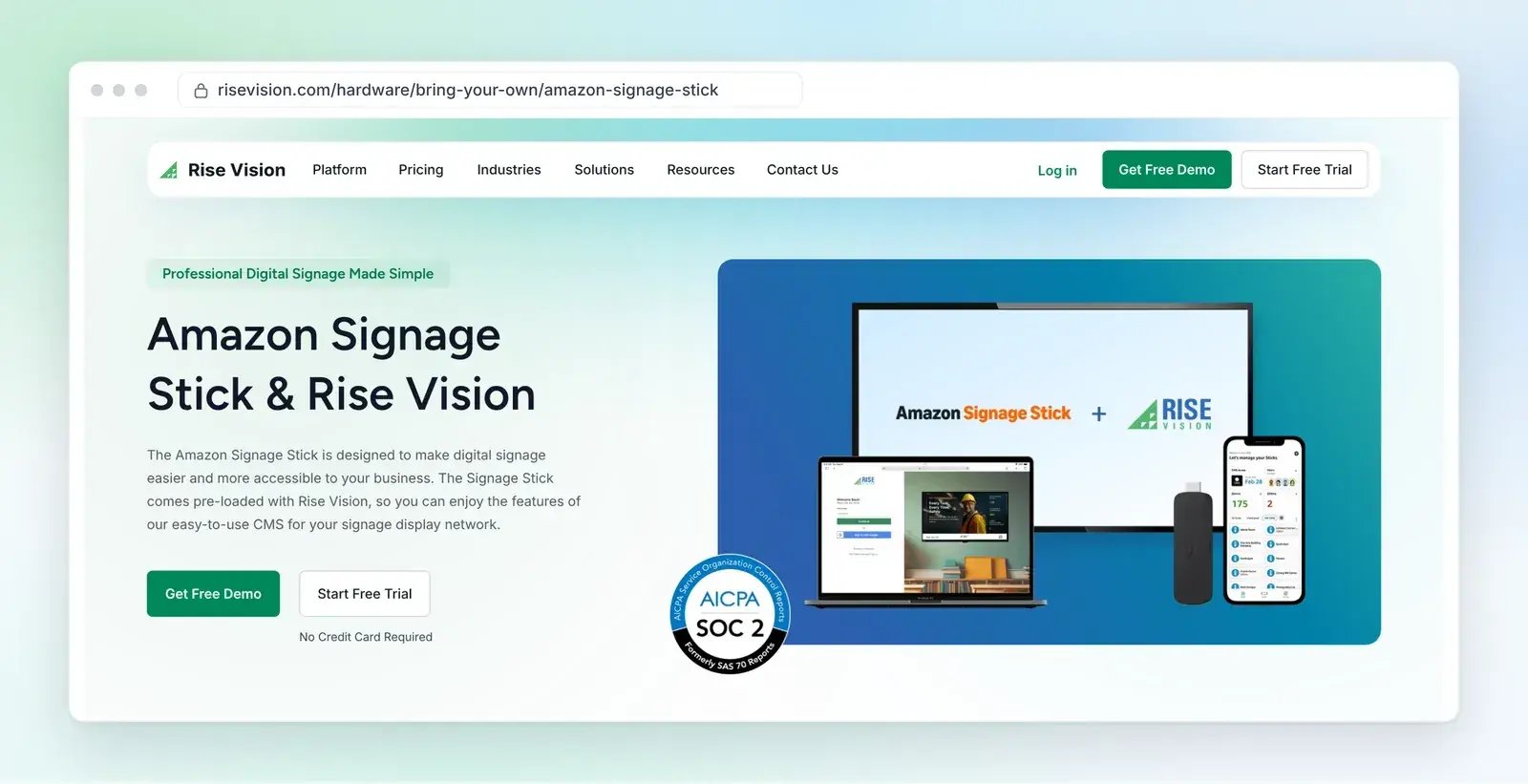
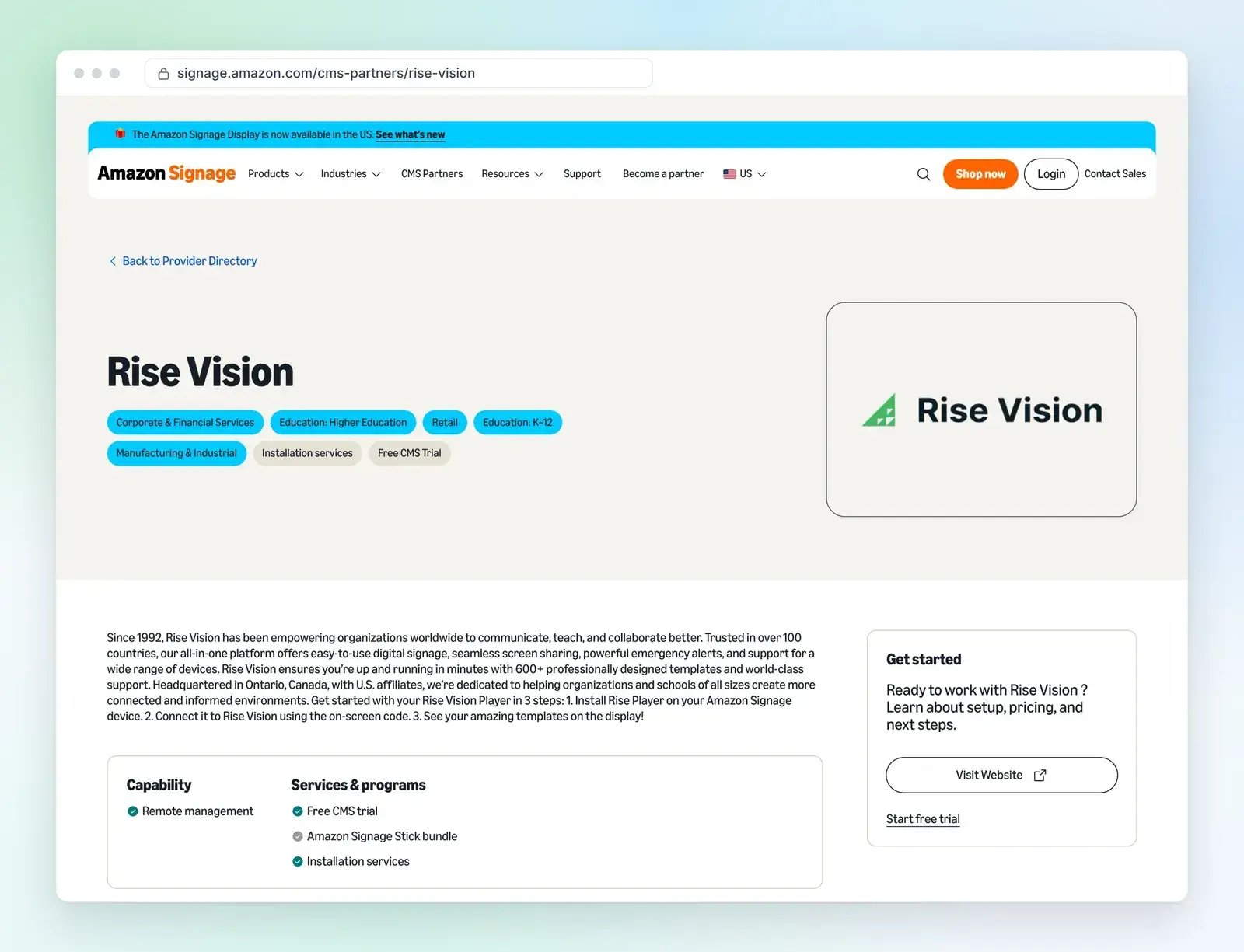
We're also listed in Amazon's directory of compatible signage platforms, with support for remote management, installation services, and a free trial.
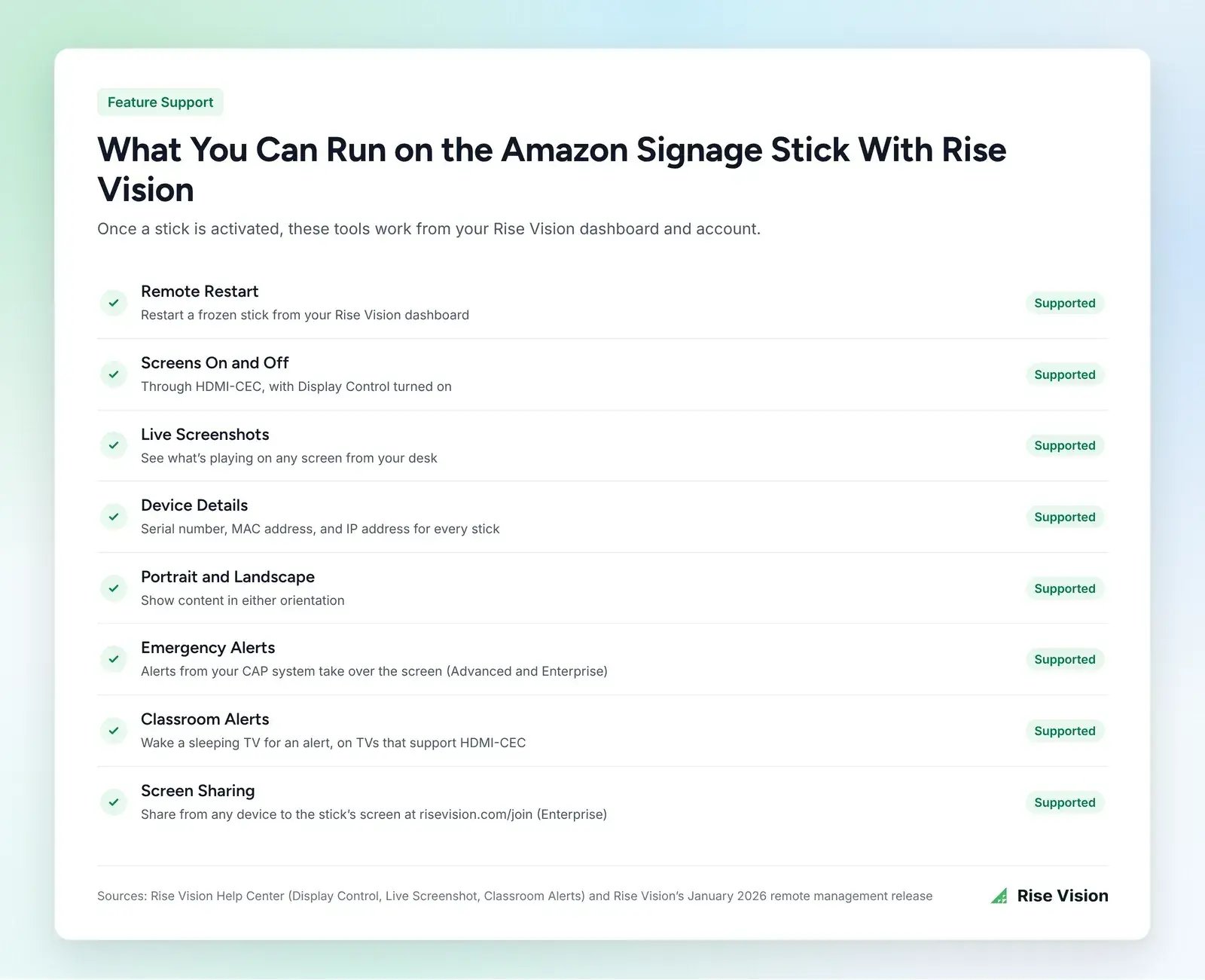
In January 2026, we added support for Amazon's Remote Management API. This means you can now check what's showing on your screen or restart an Amazon Signage Stick directly from your Rise Vision dashboard. You won't need to physically access the device.
And we've seen more customers choosing the stick.
One example is the Sun Prairie Area School District in Wisconsin.
The district had been using regular Fire TV Sticks, but Fire OS updates kept causing the devices to restart. To solve the problem, the IT team switched to Amazon Signage Sticks running Rise Vision.
Today, they use more than 75 displays across 15 schools.
And according to Chou Xiong, Senior Field Technician at the district, the switch has made it easier for schools to do more with their screens:
"Because the Amazon Signage Stick is so affordable and easy to support, our schools are thinking about more ways they can innovate with digital signage to improve student experiences."
Want Your Hardware and Software From the Same Company?
The Amazon Signage Stick is a good option if you want an affordable media player and don't mind using two providers. You'd get your hardware from Amazon and your signage software from another company.
But we understand that some organizations would rather have one company handle both, especially when they need technical support.
That's why we also offer the Rise Vision Media Player. It's a compact, commercial-grade player built for Rise Vision, with 4GB of RAM and a built-in Ethernet port. It handles demanding schedules full of animated templates, live data, and video, and setup takes five minutes.
You can buy the Media Player outright with a two-year warranty, or get it through Hardware as a Service. That subscription covers warranty and replacement shipping for the full term, and our team supports it directly.
Key Features
If you run Rise Vision on the Amazon Signage Stick, you can use these features:
- Remote Commands: Turn screens on and off, restart the stick, and pull a live screenshot from your dashboard.
- 750+ Templates: Save hours of content creation time every week with 750+ professionally designed, animated, and customizable templates.
- Emergency Alerts: Connect Common Alerting Protocol (CAP) systems like Alertus, InformaCast, and Raptor to send instant visual alerts to every stick.
- Screen Sharing: Let presenters share from any device to the stick's screen at risevision.com/join, without adapters or dongles. And Moderator Mode lets you approve who presents.
Pricing
Our pricing is simple and transparent. You pay per display, with volume discounts at 11, 70, and 200 displays. For businesses, government, and other organizations, the plans are:
- Basic: $12 per display per month
- Advanced: $156 per display per year, billed annually, which adds emergency alerts
- Enterprise: $180 per display per year, billed annually, which adds screen sharing and single sign-on (SSO)
Schools, colleges, and non-profits pay less, starting at $11 per display per month. And K-12 schools can cover every display in a school with an unlimited license for $1,399 a year.
So if your business has 10 screens on Advanced, you'd pay $999.90 once for sticks, plus $1,560 a year for our software. And we'll back it with a 30-day money-back guarantee.
How to Set Up the Amazon Signage Stick
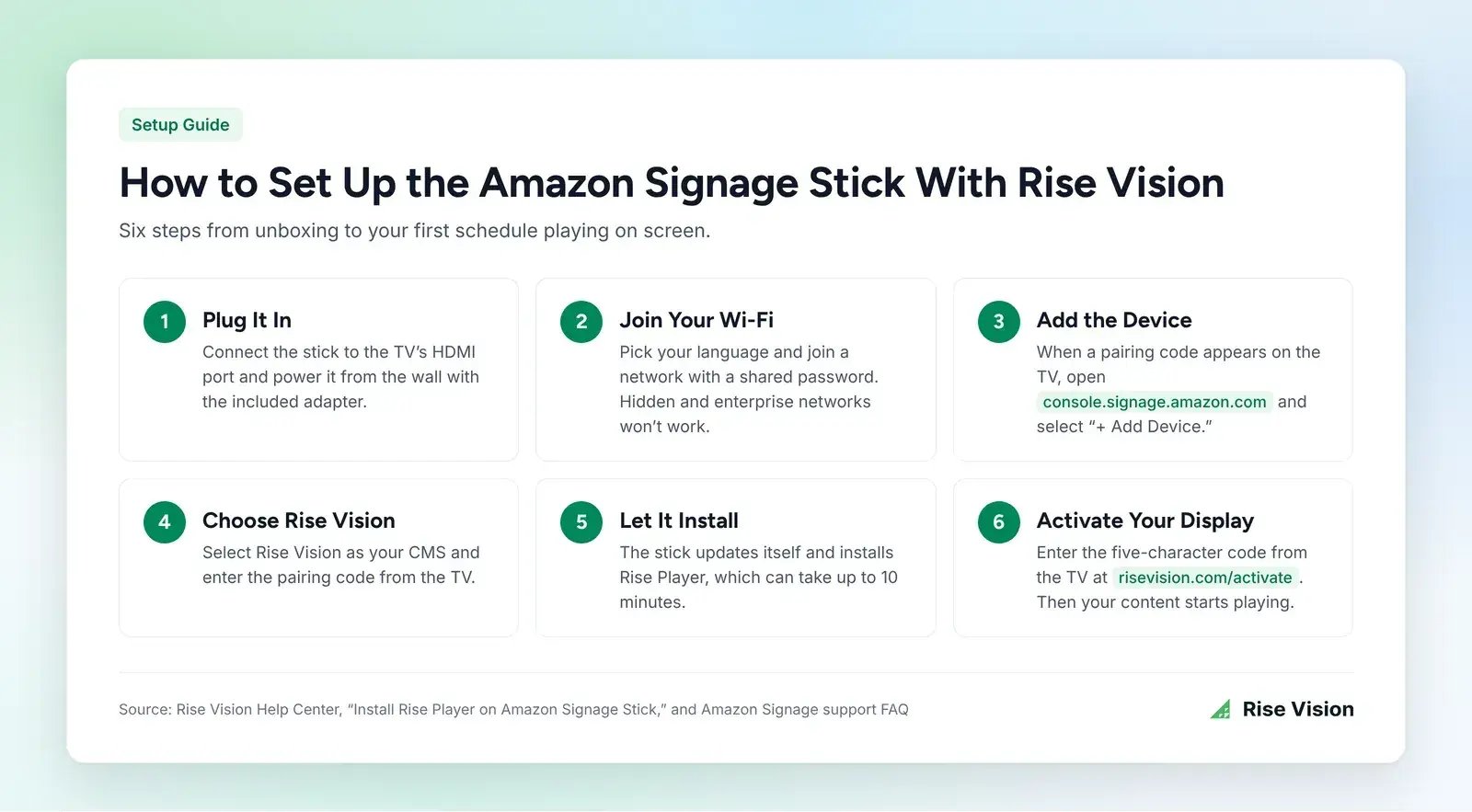
You can set up the stick with the free Amazon Signage phone app, or a computer and the included remote. Either way, you pick your signage provider, and the stick loads it for you.
And it doesn't take long. With Rise Vision as your CMS, the computer route looks like this:
- Plug the stick into the TV's HDMI port. Then power it from the wall with the included adapter, since not all displays supply USB power.
- Switch the TV to that HDMI input, pick your language, and join your Wi-Fi network. Use a network with a shared password, because the stick doesn't support WPA2 or WPA3-Enterprise sign-in. Hidden networks won't show up during setup, either.
- When a pairing code appears on the TV, go to console.signage.amazon.com on your computer and select "+ Add Device."
- Choose Rise Vision as your CMS and enter the pairing code from the TV.
- Wait while the stick updates itself and installs Rise Player. It can take up to 10 minutes, so don't unplug it.
- Go to risevision.com/activate and enter the five-character code showing on the TV to activate the display.
Our Verdict on the Amazon Signage Stick
For $99.99, the Amazon Signage Stick is a solid choice if you want a simple, affordable way to run digital signage. It automatically opens your signage software when it starts up, so you don't have to keep checking that your content is playing. And with a compatible platform like Rise Vision, you can monitor your screens and fix some issues remotely.
Just make sure it works with your Wi-Fi network before buying, and remember that your signage software may come with a separate subscription fee.
Want to see how the Amazon Signage Stick works with Rise Vision? We'll show you how it all fits together and what your setup could look like.
FAQs
Is There a Free Digital Signage App for Amazon Fire Stick?
Yes, a few signage providers offer free plans that run on consumer Fire TV Sticks. We wouldn't rely on one for everyday signage, though, because Fire OS 8 stopped apps from launching automatically. Rise Player also no longer supports consumer Fire TV devices. So the $99.99 Signage Stick is the safer bet.
How Do I Factory Reset My Amazon Signage Stick?
You can factory reset the stick three ways. In the Amazon Signage app, open the stick's virtual remote and tap the reset icon. In the web portal, click the three dots next to the stick and choose "Factory reset." With the physical remote, hold Back and the right side of the navigation circle for 10 seconds.
Which Digital Signage Player Is the Best?
For everyday announcement screens on shared-password Wi-Fi, it's hard to beat the Amazon Signage Stick at $99.99. Some organizations need more, though, like heavier schedules, a wired network, or one vendor for hardware and software. For them, our Rise Vision Media Player is the better pick. Our guide to the best digital signage players compares the main options.
What Is the Best App for Digital Signage?
For a Signage Stick, start with a CMS that has the "Remote Management" label in Amazon's CMS directory. That label means you'll be able to restart and check screens remotely. Then compare whether each one charges per display or per building, and whether it supports emergency alerts.
More From Our Blog
-
Visix Digital Signage Review 2026: Features, Pricing, Pros and Cons
Visix digital signage is a long-established system built for large organizations with their own IT teams. Its biggest strengths are meeting room signs, touchscreen wayfinding and calendar[…]
Read More -
Carousel Digital Signage Review 2026: Pros, Cons & Pricing
Carousel Digital Signage is a long-running, cloud-based digital signage platform. In short: What It Does Well: Strong accessibility, flexible emergency alerts and support for a wide range of screens[…]
Read More -
ScreenCloud Digital Signage Software Review: Features, Pricing, Pros and Cons
Best for: Organizations that want a polished digital signage platform with a broad app library, strong security, and flexible content management. Standout features: 80+ apps and integrations, SOC 2[…]
Read More
12,300+ Organizations Trust Rise Vision, You Can Too


























Schedule a Free Demo
You deserve the #1 all-in-one platform for digital signage, screen sharing, and emergency alerts.