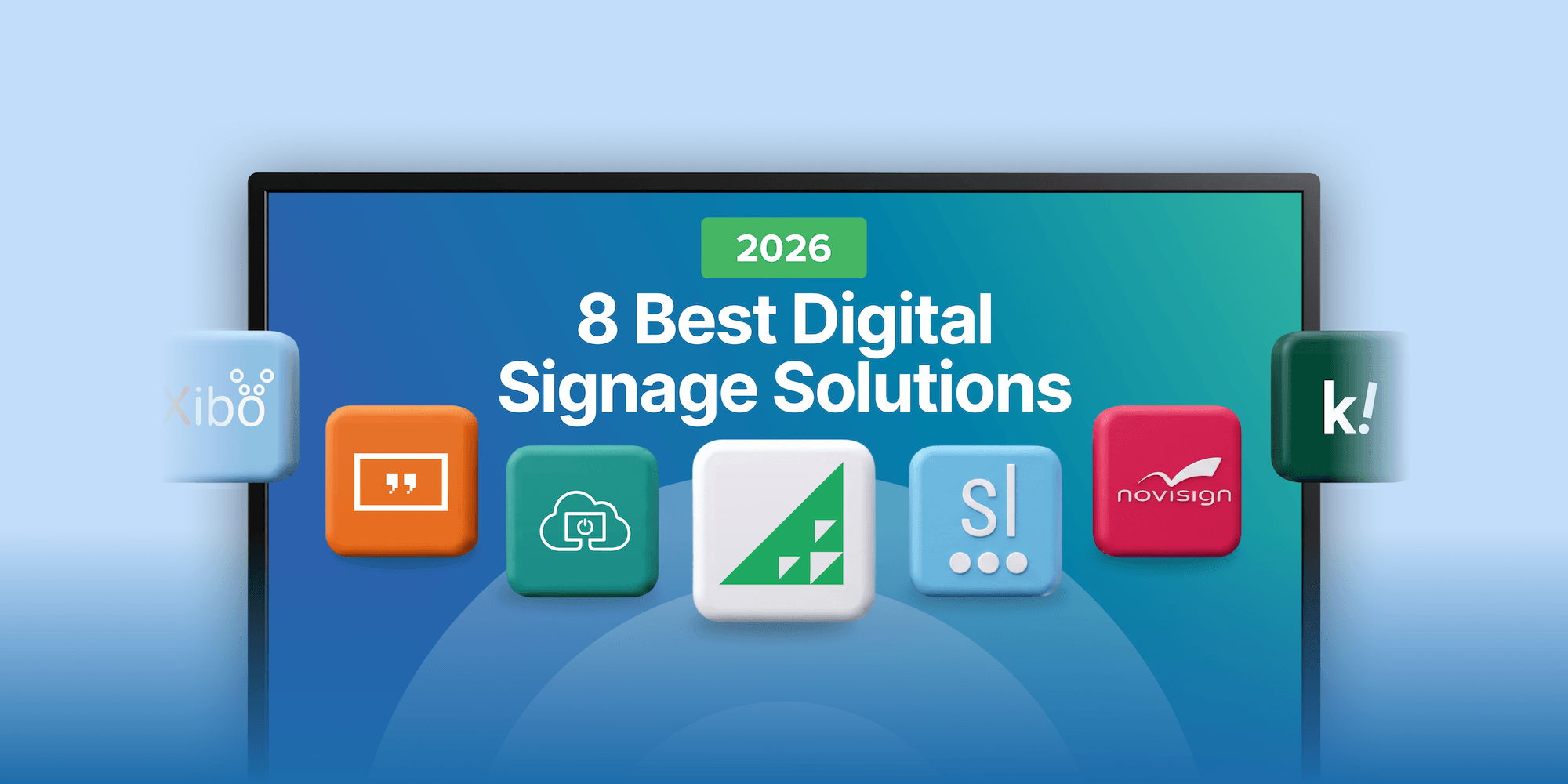
We evaluated eight digital signage software platforms based on ease of rollout, usability, and scalability. Here are our top three picks:
|
# |
Tool |
Best For |
Key Strength |
Starting Price |
|
1 |
Rise Vision |
Schools, offices, healthcare, and manufacturing |
Digital signage, screen sharing, and emergency alerts in one platform |
From $11/display/month |
|
2 |
ScreenCloud |
Teams with established workflows |
App integrations and live data displays |
From $20/screen/month |
|
3 |
Yodeck |
Small or budget-conscious setups |
Free tier and simple deployment |
Free for 1 screen |
Connecting Every Screen Across Your Facility
The ROI case for well-implemented digital signage software has never really been the issue.
You can see it in the results.
- Taco saw a clear improvement in how they handle internal communication across the business.
- Necedah Schools reduced lockdown time by 50% with digital signage.
The actual challenge tends to show up earlier, when it is time to choose the platform behind it. Sometimes it’s hardware lock in that no one spotted until rollout. Sometimes it’s emergency alerts being treated like a premium add on. Other times, it’s a platform that checks every box for IT but feels clunky for the people who actually need to use it every day.
That’s exactly why we put this guide together. In this Rise Vision article, we’ll break down the best digital signage software in 2026 and help you make a smarter, more confident choice.
But first…
Why Listen To Us?
We have been in and around the digital signage world for the better part of three decades. And that kind of longevity gives you a very different view of the category. We’ve seen what makes digital signage software easy to run and what makes it frustrating fast. That’s the perspective we’re bringing into this guide.

8 Best Digital Signage Software Platforms
|
# |
Tool |
Best For |
Key Strength |
Starting Price |
|
1 |
Rise Vision |
Schools, offices, healthcare, and manufacturing |
Digital signage, screen sharing, and emergency alerts in one platform |
From $11/display/month |
|
2 |
ScreenCloud |
Teams with established workflows |
App integrations and live data displays |
From $20/screen/month |
|
3 |
Yodeck |
Small or budget-conscious setups |
Free tier and simple deployment |
Free for 1 screen |
|
4 |
OptiSigns |
Small to mid-size teams |
Easy setup with broad device support |
Free for up to 3 screens |
|
5 |
Xibo |
IT-led organizations |
Open-source flexibility and self-hosting |
Self-hosted CMS available |
|
6 |
Signagelive |
Enterprise deployments |
Advanced scheduling and enterprise controls |
From $270/device/year |
|
7 |
NoviSign |
Small to mid-size schools and offices |
Easy content creation with drag-and-drop editing |
From $14/screen/month |
|
8 |
Kitcast |
Apple TV and mixed-device environments |
Fast rollout with strong hardware support |
From $7/screen/month |
Here’s how each digital signage software platform compares in more detail.
1. Rise Vision
Rise Vision is a cloud-based platform that combines digital signage, wireless screen sharing, and emergency alerts in one system.
We’ve been in this space since 1992, and today more than 12,300 organizations across 100+ countries use Rise Vision. That includes schools, manufacturers, warehouses, logistics teams, corporate offices, healthcare organisations, retailers, and government teams.
A big part of the appeal is that you don’t have to start from scratch. With Rise Vision, you get 750+ templates for announcements, KPI dashboards, safety messaging, menus, lobby screens, and more, all of which are easy to customize with your own branding. And if your team already uses Canva, Google Slides, Google Sheets, or Power BI, those tools fit neatly into the workflow. That makes it much easier to keep screens up to date without creating extra work for IT or bottlenecking content changes.
There are plenty of examples of teams getting value from Rise Vision. You can dive into our case studies later, but for starters:
- Louisiana-Pacific Corporation used Rise Vision to reinforce safety messaging on the shop floor. They went a full year without a recordable incident.
- FirstFleet deployed it across more than 100 terminals and brought wait times down across their entire operation.
- RSU 25 School District runs it across more than 100 displays for announcements and emergency alerts without adding a single person to their IT team.
Rise Vision also gives you flexibility on the hardware side. You can use our Vision hardware and Media Players, the Amazon Signage Stick (which comes pre-loaded with Rise Vision), or run the platform on devices you already own, including Windows, Android, Apple TV, ChromeOS, and BrightSign. You can start with what you already own and make different decisions later without being locked in from day one.
Speaking of decisions, we also covered a few more criteria for choosing the right option (especially for schools) here:
Key Features
- All-in-one communication platform: Manage digital signage, screen sharing, and emergency alerts from one system instead of using separate tools for each task.
- 750+ templates: Publish announcements, schedules, dashboards, and other content quickly with ready-made templates that reduce design work.
- CAP-based emergency alerts: Push urgent safety messages across connected screens through CAP-supported systems like Alertus and CrisisGo.
- Flexible hardware support: Use existing hardware or choose dedicated Rise Vision media players and commercial displays, depending on your setup.
- Google and Microsoft integrations: Show content from Google Workspace and Microsoft 365 tools, including calendars, slides, and other shared resources.
- Centralized screen management: Update playlists, schedules, and content across one building or multiple locations from a single dashboard.
- Onboarding and support: Get guided onboarding, free training, and technical support to help keep displays live and useful from the start.
Pricing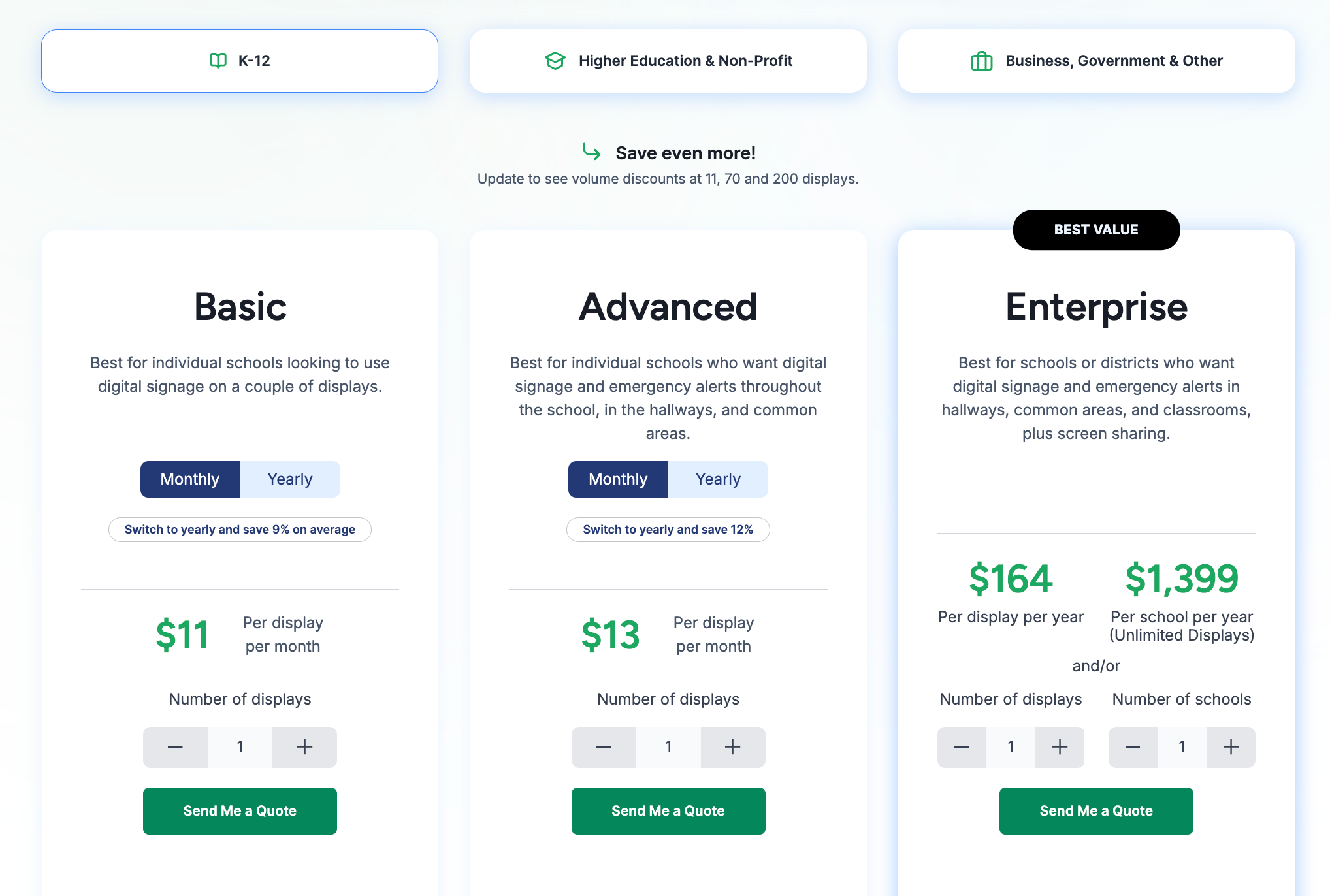
|
Segment |
Plan |
Price |
Billing basis |
Includes / Adds |
|
K-12 Education |
Basic |
$11 |
per display / month |
Core signage features, templates, scheduling, unlimited users, one-business-hour support response |
|
Advanced |
$13 |
per display / month |
CAP-based emergency alerts, Google and Microsoft integrations, brand settings, school-wide scheduling overrides |
|
|
Enterprise |
$164 |
per display / year |
Screen sharing, content approval workflow, SSO, district-wide scheduling overrides, classroom alerts |
|
|
Unlimited |
$1,399 |
per school / year |
Unlimited displays |
|
|
Higher Education and Non-Profit |
Basic |
$11 |
per display / month |
Core signage, templates, scheduling, unlimited users, support |
|
Advanced |
$13 |
per display / month |
CAP-based emergency alerts, Google and Microsoft integrations, brand settings, company-wide scheduling overrides |
|
|
Enterprise |
$164 |
per display / year |
Data dashboards, authenticated web pages, screen sharing, content approval workflow, SSO |
|
|
Business, Government, and Other |
Basic |
$12 |
per display / month |
Core signage, templates, content storage, scheduling, unlimited users, support |
|
Advanced |
$14 |
per display / month |
CAP-based emergency alerts, Google and Microsoft integrations, brand settings, company-wide scheduling overrides |
|
|
Enterprise |
$180 |
per display / year |
Data dashboards, authenticated web pages, screen sharing, content approval workflow, and SSO |
|
|
Add-on |
Interactive Templates + Touchscreen Displays |
$1,200 |
per display / year |
Requires Advanced plan; supports recognition boards, directories, and wayfinding |
|
Additional AI Credits |
$300 |
per 600 credits / year |
Extra monthly content generation capacity |
Pros
- Combines signage, screen sharing, and alerts in one platform.
- Works with a broad range of hardware and operating systems.
- Gives non-technical teams a practical way to manage content.
- Includes guided onboarding, free training, and strong support.
- Highly responsive customer support.
Cons
- Interactive templates require a separate annual add-on.
2. ScreenCloud
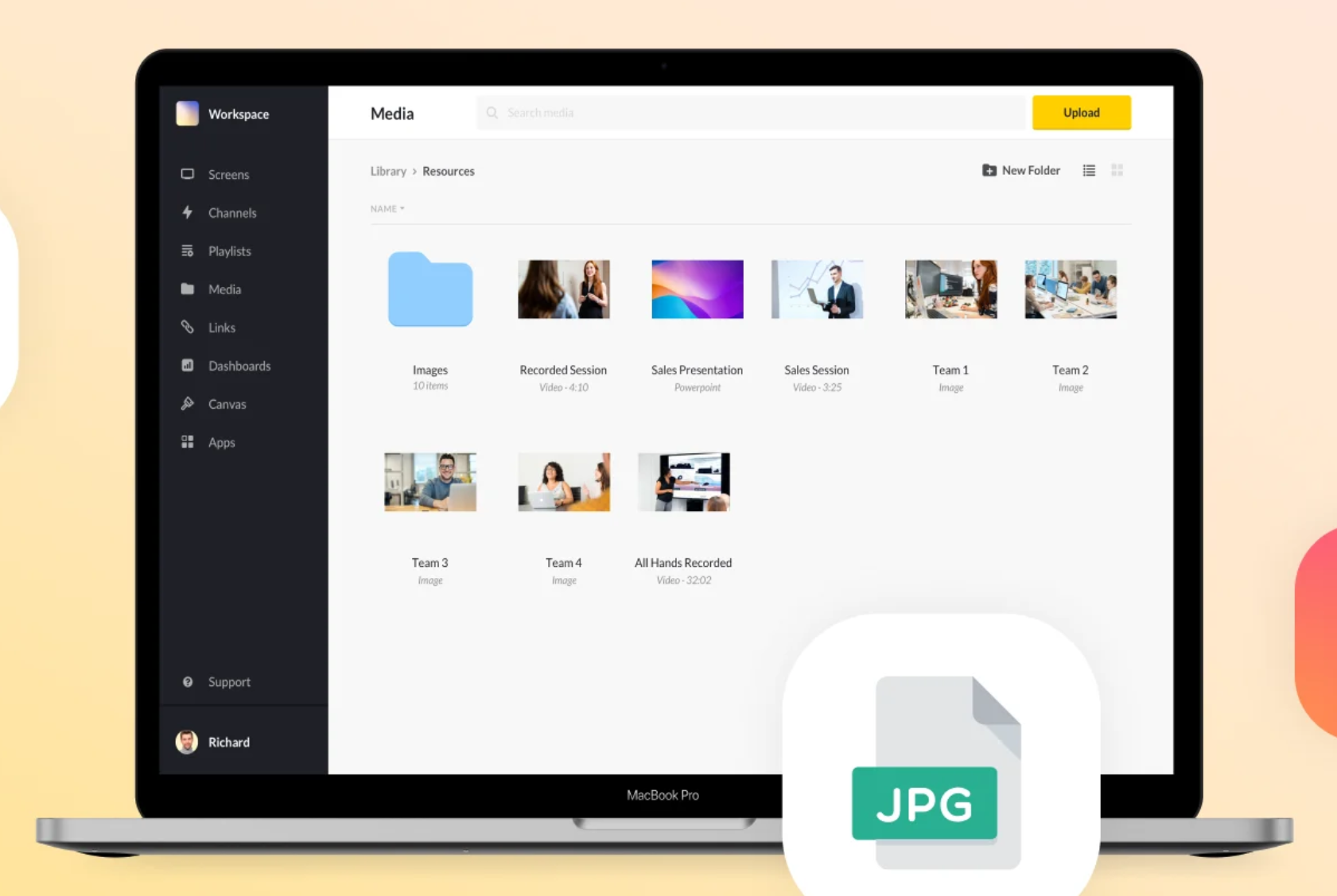
ScreenCloud sits in that upper mid-market range. It gives you more depth than cheaper entry-level signage tools, but it is still far more approachable than the heavier enterprise AV platforms. A lot of teams like it because the interface is clean, the integration ecosystem is strong, and the scheduling tools are practical enough for marketing or operations teams to manage without constantly pulling in IT.
However, emergency alerting is a genuine gap worth knowing about before you commit. ScreenCloud does not handle alerts natively. It connects to third-party mass alert platforms, which means an extra integration to set up, an extra vendor to manage, and a more complicated path to getting urgent messages on screens fast. That distinction matters and is worth pressure-testing during your trial.
Key Features
- App integrations: Connect with tools like Slack, Microsoft Teams, and Google Slides to display live updates and dashboards on screens.
- Canvas design tool: Create and customize content directly in the browser using built-in design tools for posters and layouts.
- Emergency casting: Broadcast urgent messages or live streams across all connected screens in real time.
- Centralised screen management: Control and update screens across multiple locations from a single dashboard.
- Enterprise security: Secure access with features like single sign-on and multi-factor authentication.
Pricing
- Core: From $20 per screen per month with access to apps, storage, and basic templates.
- Pro: From $30 per screen per month with advanced integrations and analytics.
- Enterprise: Custom pricing with onboarding support and additional services.
Pros
- Strong integration layer for teams that rely on live data and existing tools.
- Easy to manage screens across multiple locations from one platform.
- Quick setup for connecting and activating new displays.
Cons
- Pricing scales quickly for larger deployments.
- Performance depends on a stable internet connection.
- Template and design flexibility can feel limited for more complex use cases.
3. Yodeck
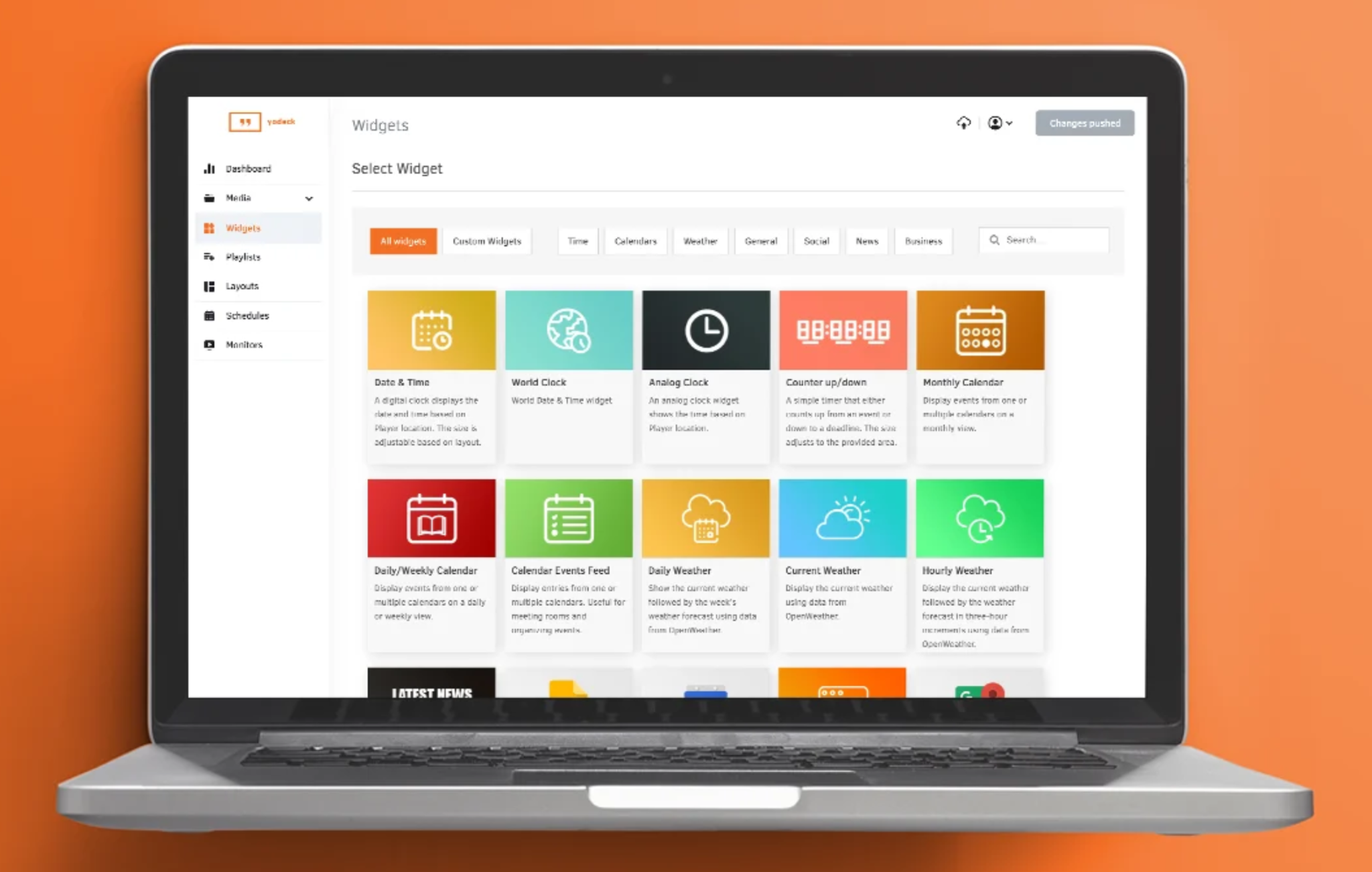
Yodeck gives you affordable digital signage without giving up core scheduling and screen management features. In fact, one of its most discussed and most defensible claims is pricing. The first screen is free permanently with no credit card required, and additional screens cost $7.99 per month on an annual plan, which is one of the lowest.
The feature depth at that price point is genuinely strong. At larger scale, though, some teams may want more advanced analytics, deeper content controls, and a smoother layout-building experience than Yodeck currently offers. For small deployments or single locations, the value is hard to beat. For more complex enterprise environments, it depends on how much control, reporting, and workflow depth you need.
Key Features
- Free hardware programme: Annual paid plans include a Yodeck player, which helps reduce upfront setup costs for new deployments.
- Remote power management: HDMI-CEC support lets teams schedule screens to turn on and off automatically, which can help reduce manual effort and unnecessary power use.
- Raspberry Pi foundation: The platform is closely tied to Raspberry Pi hardware, giving teams a stable setup for continuous playback.
- Layout zone editor: Split one screen into multiple sections so different types of content can run at the same time.
- Simple screen pairing: New displays can be activated quickly by entering the code shown on the screen into the admin dashboard.
Pricing
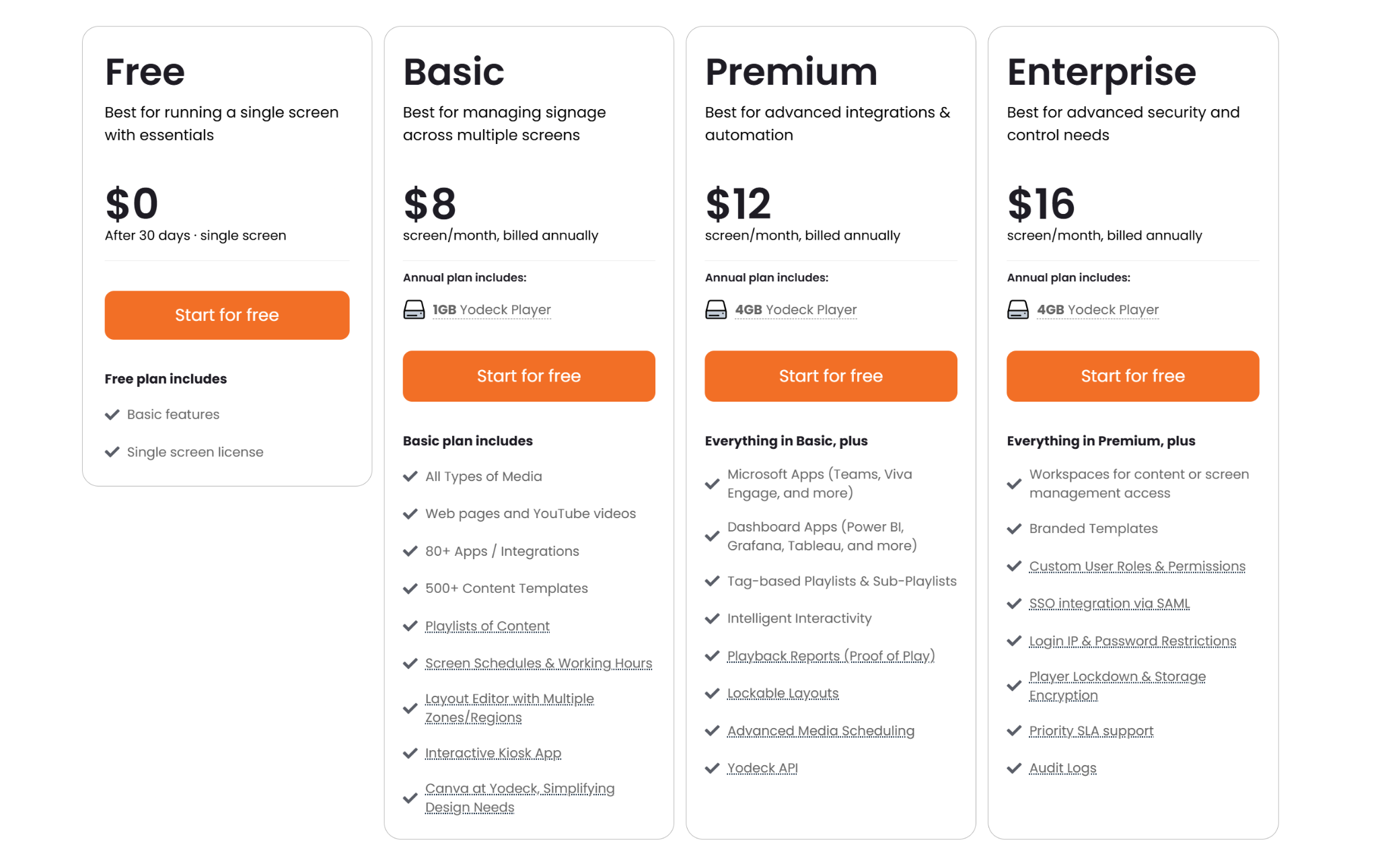
- Free: $0 for one screen with core digital signage features.
- Basic: $8 per screen per month, billed annually, with templates, scheduling, and a free player.
- Premium: $12 per screen per month, billed annually, with dashboard integrations and more advanced scheduling options.
- Enterprise: $16 per screen per month, billed annually, with SSO and stronger security controls.
Pros
- Affordable entry point for smaller teams and first-time buyers.
- Core signage features are easy to deploy and manage.
- Includes unlimited storage and bandwidth on all paid accounts.
Cons
- More advanced security features are limited to higher tiers.
- Managing larger multi-site deployments can become more involved.
- Template and layout options are less flexible than some alternatives.
4. OptiSigns
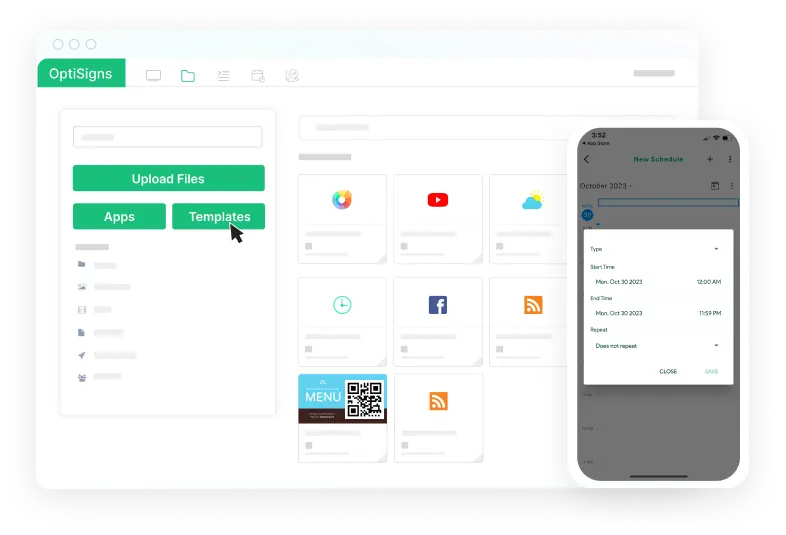
OptiSigns is another strong option if you want something easy to set up and manage. It gives you a simple way to upload, schedule, and show content on screens without needing much technical support.
It also works with Amazon Signage Stick, which makes deployment easier.Your team can buy a player from a regular electronics store, connect it to a screen, and get started without waiting for vendor-specific hardware.
Key Features
- Broad hardware support: Run OptiSigns on devices like Amazon Signage Stick, Android, Windows, Chrome OS, and Raspberry Pi, which makes it easier to work with existing hardware.
- Content scheduling: Schedule playlists, rotate assets at specific times, and set content to expire automatically when it is no longer needed.
- Multi-zone layouts: Split a screen into different sections so teams can show videos, dashboards, news, weather, or announcements at the same time.
- Built-in design studio: Create and edit signage content inside the platform with a drag-and-drop editor instead of relying on separate design tools.
- Remote device management: Monitor screens, reboot devices, capture screenshots, and manage updates from one central dashboard.
Pricing
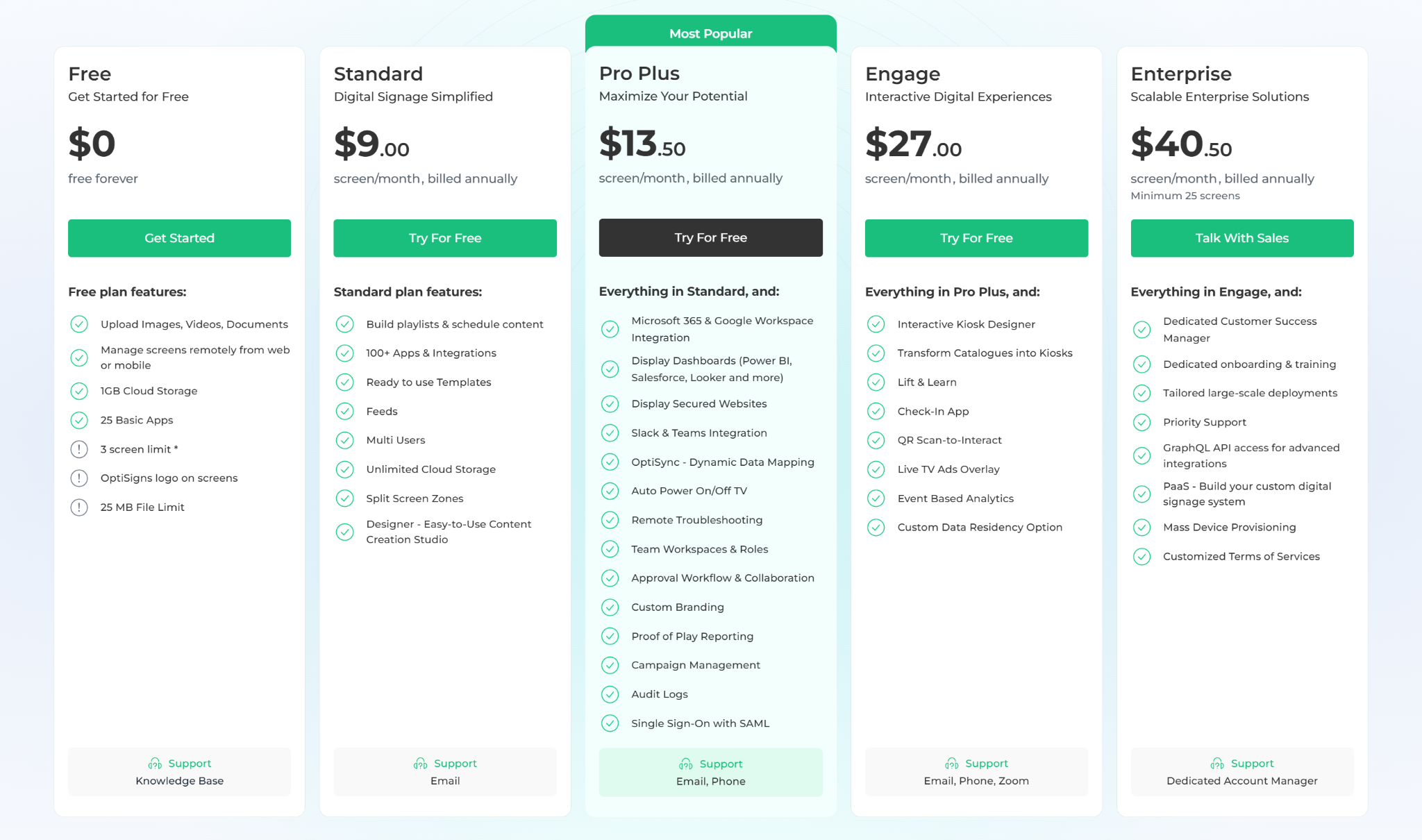
- Free: $0 for up to 3 screens, with OptiSigns branding.
- Standard: $9 per screen per month, billed annually, with core apps, zones, and design tools.
- Pro Plus: $13.50 per screen per month, billed annually, with dashboards, Microsoft 365 integrations, and SSO.
- Engage: $27 per screen per month, billed annually, with interactive kiosk and engagement features.
- Enterprise: $40.50 per screen per month, billed annually, with priority support and more advanced account services.
Pros
- Easy to deploy across different hardware types.
- Covers core digital signage needs without much setup friction.
- Offline playback helps keep screens running during connectivity issues.
Cons
- Pricing climbs as screen count and feature needs increase.
- Free plan is limited and includes OptiSigns branding.
- More advanced scheduling and asset workflows can take time to get used to.
5. Xibo
Xibo is a very different kind of option from most of the cloud-first tools on this list. It is better suited to technical teams that want more control over hosting, infrastructure, and integrations rather than a plug-and-play experience. The biggest draw is that it is open source at the CMS level, which gives you the option to self-host and customize more deeply.
On the flip side, it asks more from the buyer. Setup is more involved, the interface is less polished than some cloud-first competitors, and it is not really built for teams that want to get moving quickly with minimal technical effort.
Key Features
- Open-source CMS: Offers a web-based CMS that can be self-hosted on your own servers or managed through Xibo Cloud Hosting.
- Independent Player Operation: Players are designed to work independently from the CMS, caching content locally to ensure uninterrupted playback during network outages.
- Comprehensive API Suite: Provides a "headless" CMS and full API, allowing developers to integrate signage into existing internal systems or build custom user experiences.
- Wide Player Compatibility: Supports a broad range of hardware including Windows, Linux, Android, webOS, Tizen, and ChromeOS.
Pricing
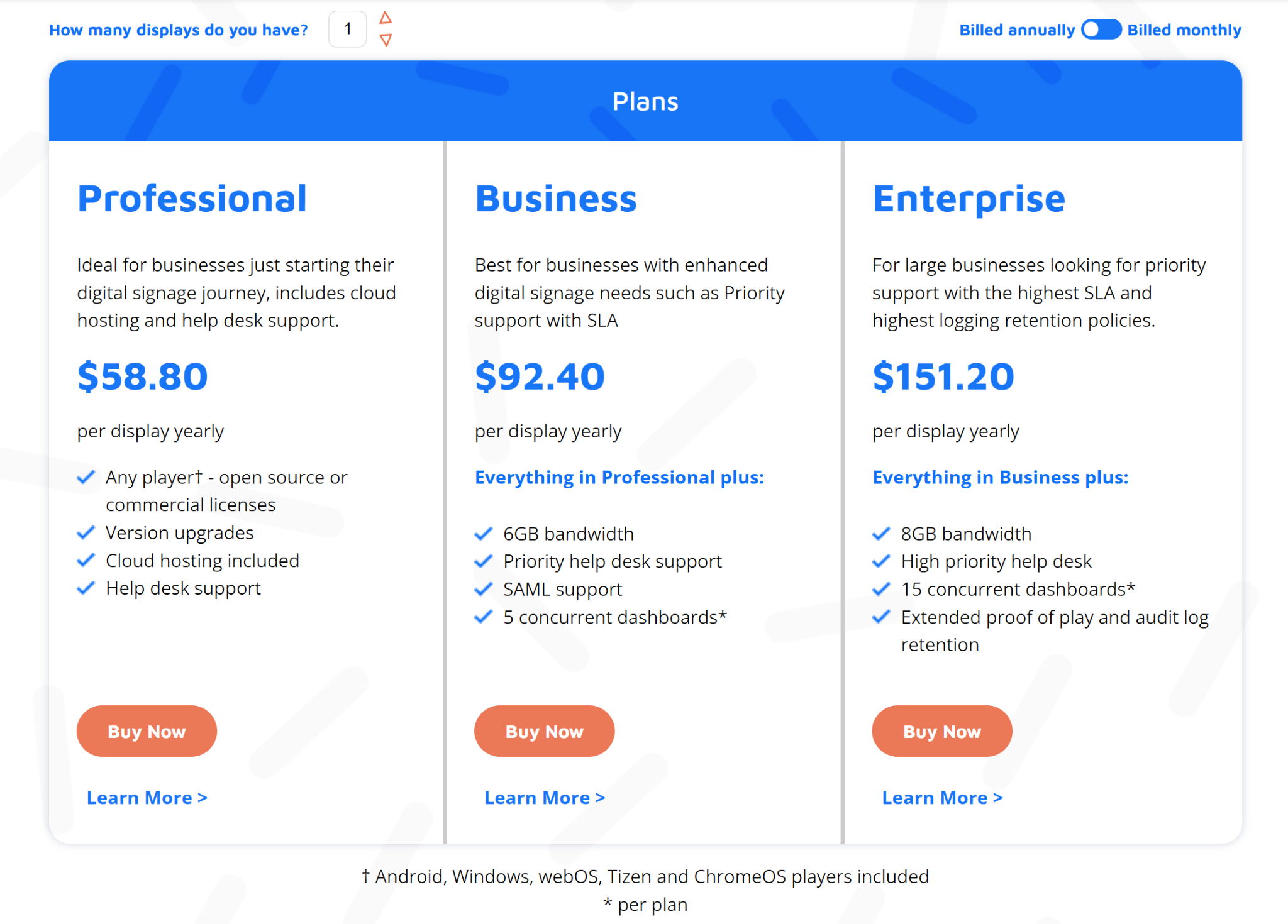
- Professional: $58.80 per display per year with cloud hosting, version upgrades, and help desk support.
- Business: $92.40 per display per year with priority support, SAML support, and additional dashboard capacity.
- Enterprise: $151.20 per display per year with higher-priority support, more dashboard capacity, and extended audit retention.
- Self-hosted: The CMS can be self-hosted, with open-source Windows and Linux player options available, while some commercial players and services are paid separately.
Pros
- Gives technical teams more control over hosting and configuration.
- Can be cost-effective for organisations comfortable with self-hosting.
- Offers strong flexibility for custom deployments and integrations.
Cons
- Setup and ongoing management require more technical effort.
- The interface can feel more complex than simpler cloud-first tools.
- Lacks the extensive library of ready-to-use design templates.
6. Signagelive
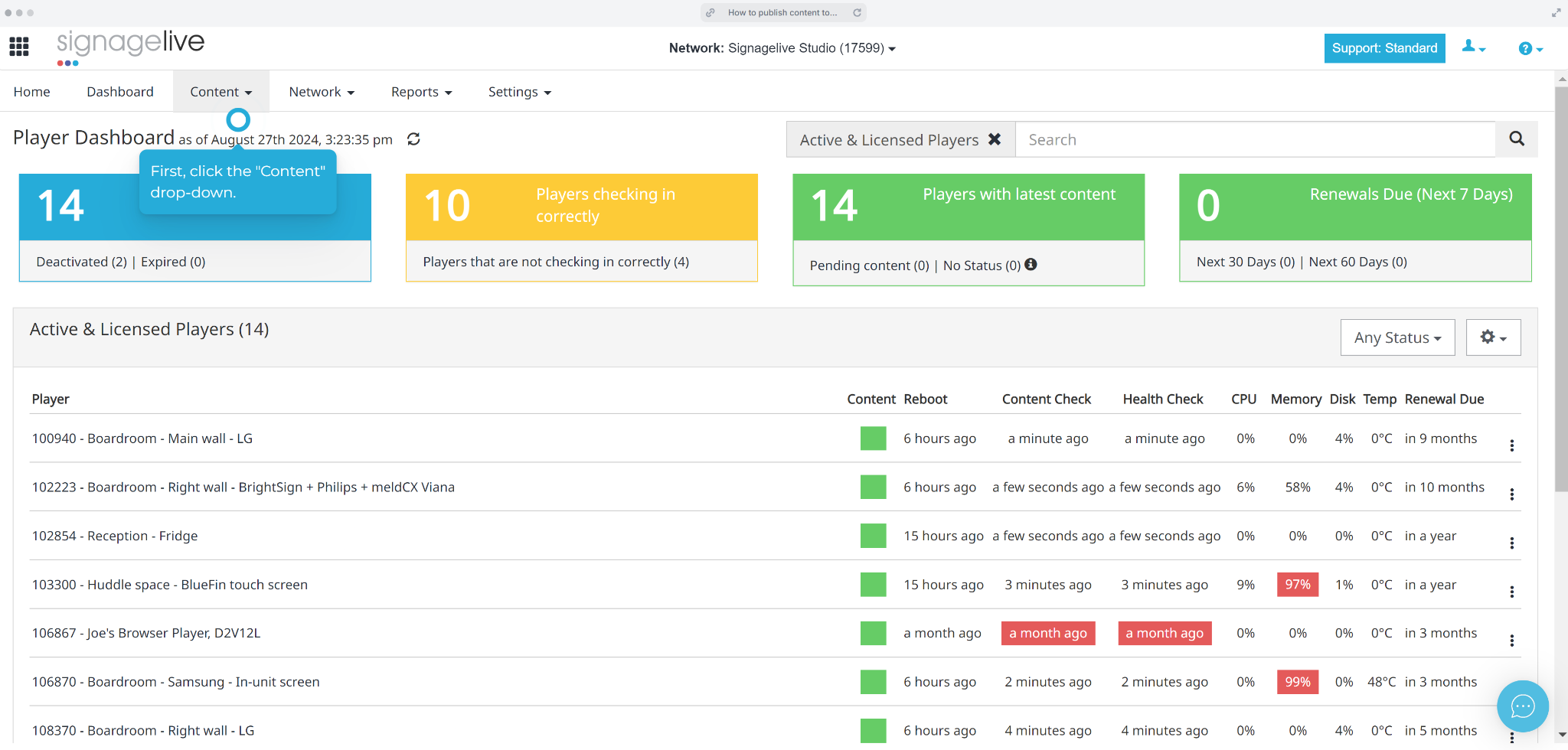
Signagelive is built for larger deployments in offices, higher education, and healthcare. Content scheduling, multi-zone layouts, and hardware partner support are all solid. Enterprise teams with specific requirements and existing hardware relationships tend to get the most out of it.
Key Features
- API-first platform: Build custom workflows and connect signage to internal systems through a headless CMS and developer tools.
- Broad hardware support: Run Signagelive across a wide range of professional media players and supported screen hardware.
- Advanced scheduling: Manage more complex publishing with nested playlists, conditional tagging, and flexible layout control.
- Enterprise permissions: Set granular user permissions, hierarchies, and audit trails for larger teams with stricter governance needs.
- Marketplace and modules: Extend the platform with optional modules for proof of play, proactive monitoring, web triggers, SSO, and other advanced functions.
Pricing
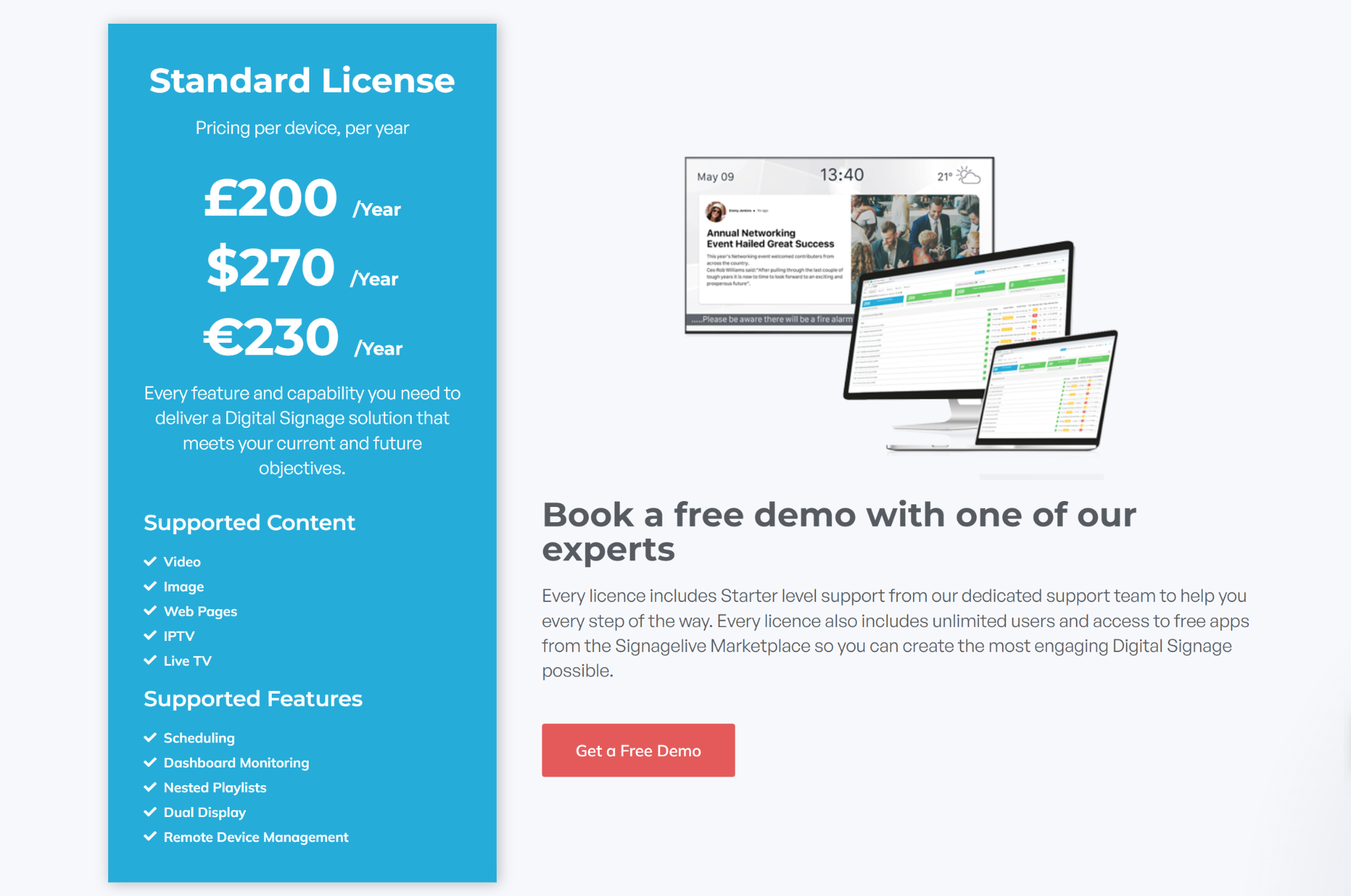
- Standard licence: From $270 per device per year, with unlimited users, starter support, and access to free marketplace apps.
- Additional modules and services: Custom pricing for enhanced support, secure dashboards, proof of play, monitoring, SSO, and other add-ons.
Pros
- Strong fit for large and security-conscious deployments.
- Supports a wide range of hardware and enterprise workflows.
- Offers deeper publishing and control options than many simpler tools.
Cons
- Pricing is higher than many mid-market alternatives.
- Some advanced capabilities are sold as add-on modules.
- The platform can feel more complex for smaller or less technical teams.
7. NoviSign
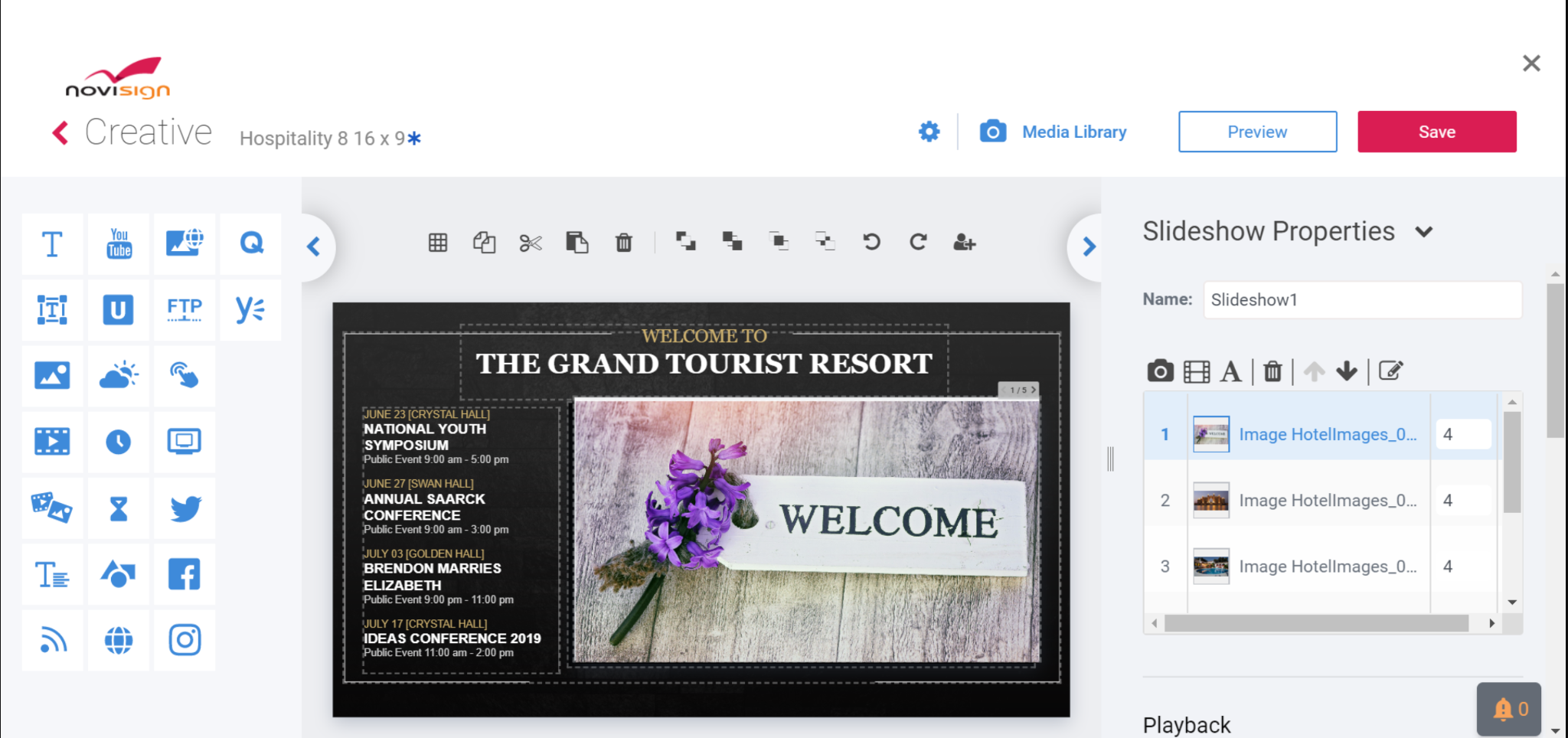
NoviSign is a mid-market digital signage platform that sits somewhere between cheaper tools and more enterprise-heavy platforms.
It can handle regular screen content like the other tools in this guide, but its stronger angle is interactivity. Instead of only pushing playlists to a screen, NoviSign gives teams ways to make the screen more useful for the person standing in front of it, with features like touchscreens, polls, surveys, and wayfinding.
Key Features
- Online studio editor: Create and update screen content with a drag-and-drop design studio that works directly in the browser.
- Template and widget library: Use templates and built-in widgets for content like weather, social feeds, videos, QR codes, and announcements.
- Interactive display support: Build touch-friendly content for directories, polls, and other interactive screen experiences.
- Proof-of-play reporting: Track when and where content was displayed for visibility and reporting.
- Broad hardware support: Run NoviSign across Android, Windows, ChromeOS, and other compatible display setups.
Pricing
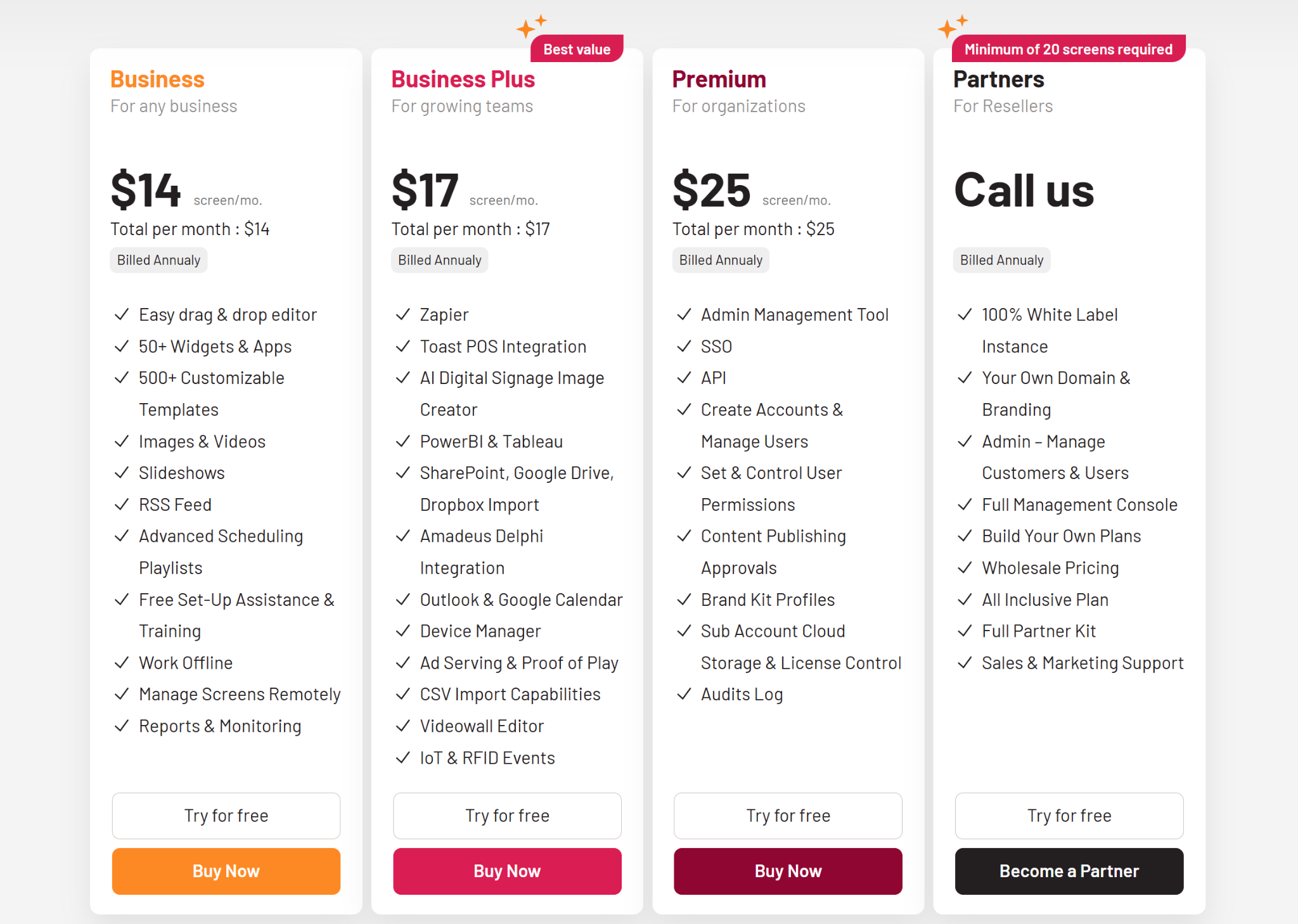
- Business: From $14 per screen per month, billed annually, with editor access, templates, and scheduling tools.
- Business Plus: From $17 per screen per month, billed annually, with added integrations and more advanced management features.
- Premium: From $25 per screen per month, billed annually, with SSO, approval controls, and higher-level administration.
Pros
- Easy for non-technical teams to create and manage content.
- Supports interactive use cases as well as standard signage.
- Offers helpful onboarding resources and responsive support.
Cons
- The backend can feel slower than some newer platforms.
- Template styles may feel less modern in some cases.
- Pricing becomes less attractive as deployments grow.
8. Kitcast
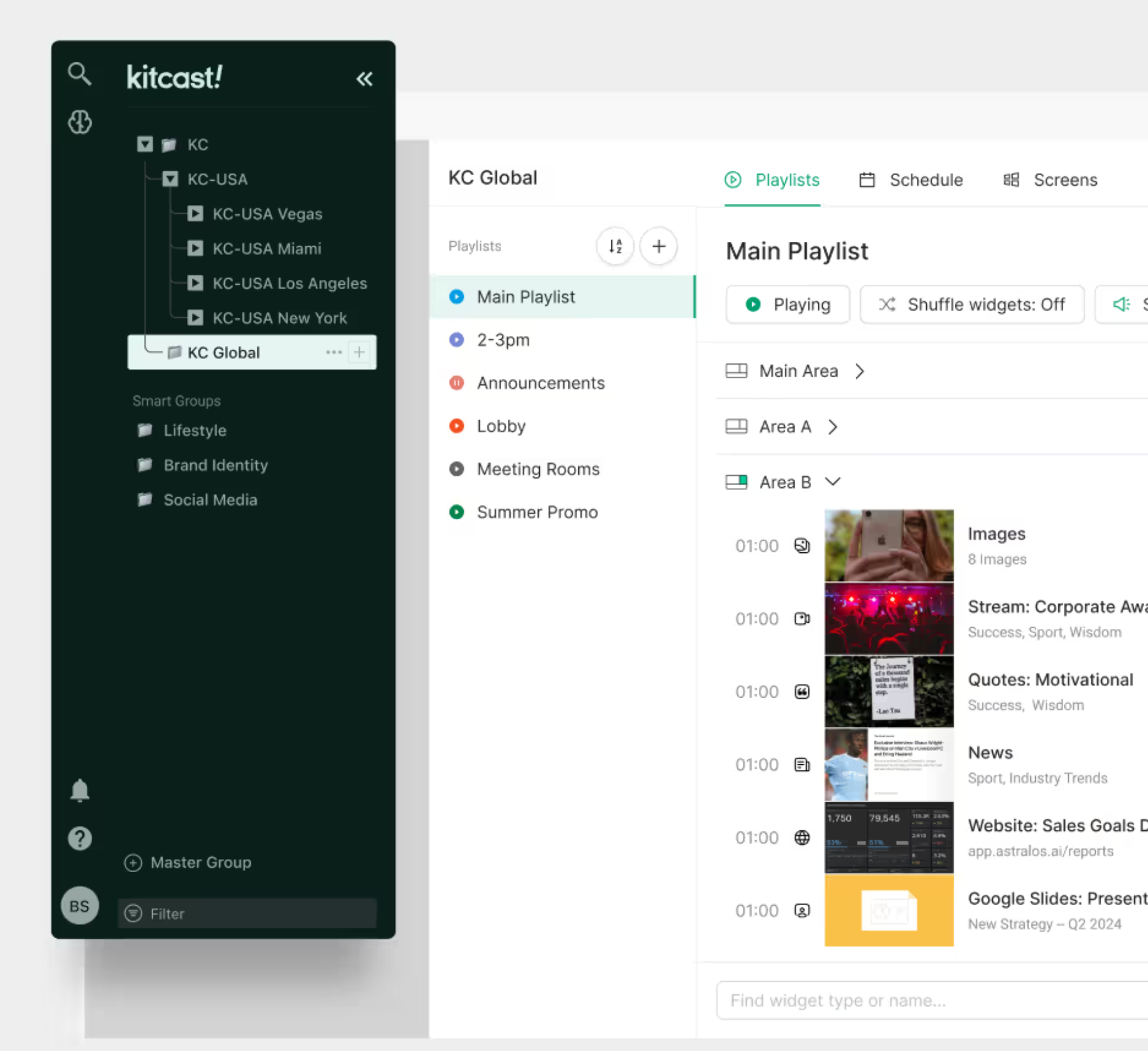
Kitcast stands out for its Apple TV support. It has had a native tvOS app in the App Store since 2015, and that shows up in how it performs. Because it is built specifically for Apple hardware rather than running through a browser layer, playback tends to feel smoother, caching is more reliable, and screens are generally more stable over long runtimes.
Since 2025, it has also expanded beyond Apple TV. Android TV and Amazon Fire TV are now supported, so teams are not locked into one device type and can manage everything from a single dashboard.
That said, its hardware strategy is more selective than some competitors. While it supports a solid range of platforms, it is not built around covering every possible device type, which can matter if your setup depends on very specific or legacy hardware.
Key Features
- Broad hardware support: Run Kitcast across Apple TV, Android TV, Fire TV, BrightSign, Samsung, LG, ChromeOS, macOS, and other supported devices.
- Centralised screen management: Manage content, schedules, and screen groups across multiple locations from one dashboard.
- Offline playback: Keep screens running with locally cached content even when the network drops.
- Emergency alerts: Push CAP-based alerts and other urgent notifications across connected displays.
- Enterprise controls: Use features like SAML SSO, role-based permissions, audit logs, and zero-touch deployment for larger rollouts.
Pricing
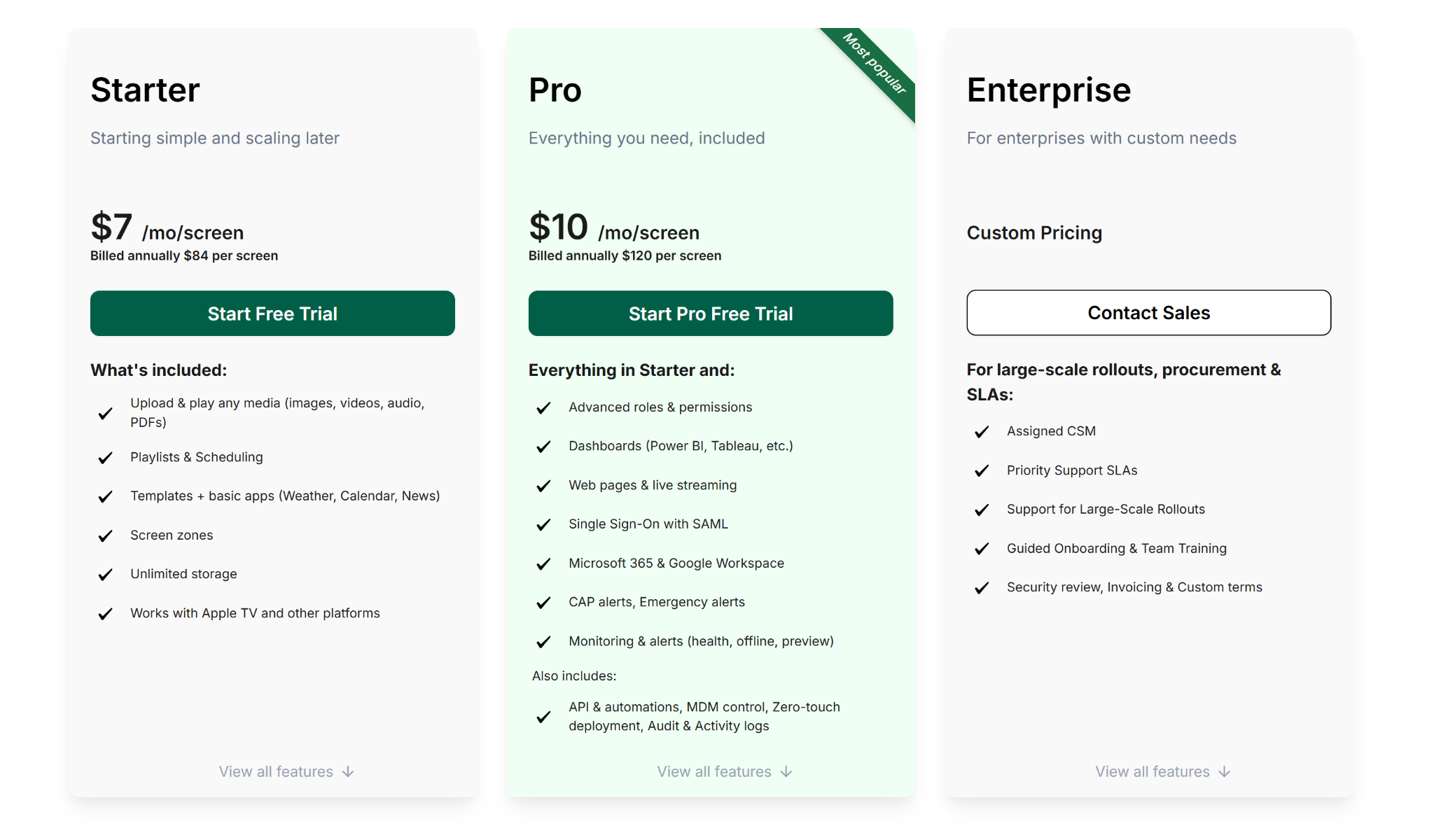
- Starter: $7 per screen per month, billed annually at $84 per screen, with media uploads, playlists, scheduling, templates, and screen zones.
- Pro: $10 per screen per month, billed annually at $120 per screen, with dashboards, web pages, SSO, Microsoft 365, Google Workspace, CAP alerts, monitoring, API access, and zero-touch deployment.
- Enterprise: Custom pricing for large-scale rollouts, procurement support, onboarding, training, and priority SLAs.
Pros
- Strong fit for teams already using Apple TV and other mixed hardware.
- Low starting price for standard screen management needs.
- Includes stronger admin and deployment features in its Pro tier.
Cons
- Template depth appears lighter than some more design-focused platforms.
- Per-screen pricing can add up for larger rollouts.
- Enterprise support and custom procurement features require a sales-led plan.
How To Choose The Best Digital Signage Software
The right choice depends less on long feature lists and more on your actual environment and day-to-day needs. Before selecting a platform, prioritize the following factors to ensure long-term usability and a lower total cost of ownership:
- Hardware compatibility: Choose software that works with your existing screens and common operating systems so you do not add unnecessary hardware costs.
- Management complexity: Pick a platform your team can manage easily, especially if non-technical staff will be creating and updating content.
- Support and reliability: Check how the vendor handles onboarding and troubleshooting, since live screen issues need fast, dependable support.
- Safety and alert tools: Make sure the platform can override scheduled content to push urgent safety messages across every display.
- Total cost of ownership: Compare licence pricing, hardware needs, and ongoing support costs against the value of better visibility and more reliable communication.
Strengthening Facility Communication Through Visual Signage
The best digital signage software is rarely the one with the longest feature list. It is the one your team can actually roll out, manage, and scale without adding friction. We covered several strong options in this guide, including tools like Xibo for teams that want an open-source route.
But if you want the best overall pick, Rise Vision stands out. It brings digital signage, screen sharing, and emergency alerts into one easy-to-manage platform. Want to see how Rise Vision works in practice? Book a demo with us!
Frequently Asked Questions
What Is Digital Signage Software?
Digital signage software lets you control what shows up on screens connected to your network: announcements, schedules, safety messages, wayfinding directories, employee recognition, and similar content. Everything runs from a central dashboard, which means you can update a screen in a building across town without physically touching it.
What Hardware Do I Need To Run Digital Signage?
At a minimum, a display and a media player, which is a small device that connects to the screen and runs the software. Some providers sell their own dedicated players; others work with consumer devices like Amazon Fire TV Stick, Raspberry Pi, or Chrome OS sticks. A few support certain smart TVs directly without a separate player.
Can Digital Signage Software Work With My Existing Screens?
Usually, yes, as long as you have a compatible media player. Most cloud-based tools are designed to work with a range of hardware rather than requiring proprietary displays.
How Much Does Digital Signage Software Cost?
Pricing varies widely. Some tools offer free tiers for single-screen setups. Most cloud-based options charge on a per-screen basis, though the amounts and structures differ significantly across vendors. Get a quote based on your actual screen count rather than relying on base pricing from a website.
What's The Difference Between Cloud-Based And On-Premise Digital Signage?
Cloud-based tools store your content and settings on servers managed by the vendor. You access and update everything through a browser. On-premise runs on servers your organization manages internally. Cloud is easier to set up and maintain; on-premise gives more control but requires dedicated IT resources to keep it running.
What Features Should I Prioritize For A School Or University?
Multi-site management, user permissions so department staff can update their own screens without touching others, Google Calendar integration for automatic schedule updates, and emergency alert capabilities tend to be the highest-priority features in education environments.
Does Digital Signage Software Work For Manufacturing Or Warehouse Settings?
Yes, though the use cases shift. The focus in those environments is usually on safety messaging, shift schedules, compliance communications, and operational updates rather than event announcements. Most cloud-based tools support these content types. Screen placement near equipment or in high-noise areas may affect hardware selection.
How Many Screens Can One Account Manage?
Most cloud-based tools don't impose a hard cap on screen count, but pricing scales with the number of screens. Some are better suited for small deployments; others are built with large, multi-site rollouts in mind. If you're managing more than 20 or 30 screens, look closely at how the software handles grouping, permissions, and bulk content updates.
More From Our Blog
-
Yodeck vs ScreenCloud vs Rise Vision (2026 Comparison)
Yodeck is the cheapest way to run a few screens. ScreenCloud is the polished corporate pick. Rise Vision combines digital signage, screen sharing, and emergency alerts in one platform, and it's the[…]
Read More -
The Best Chrome Sign Builder Alternatives for Schools in 2026 (Free and Paid Options)
Google stopped supporting Chrome Sign Builder in kiosk mode after ChromeOS 150 in July 2026. So you'll need a replacement for any screen that's still running it. For schools that want to keep their[…]
Read More -
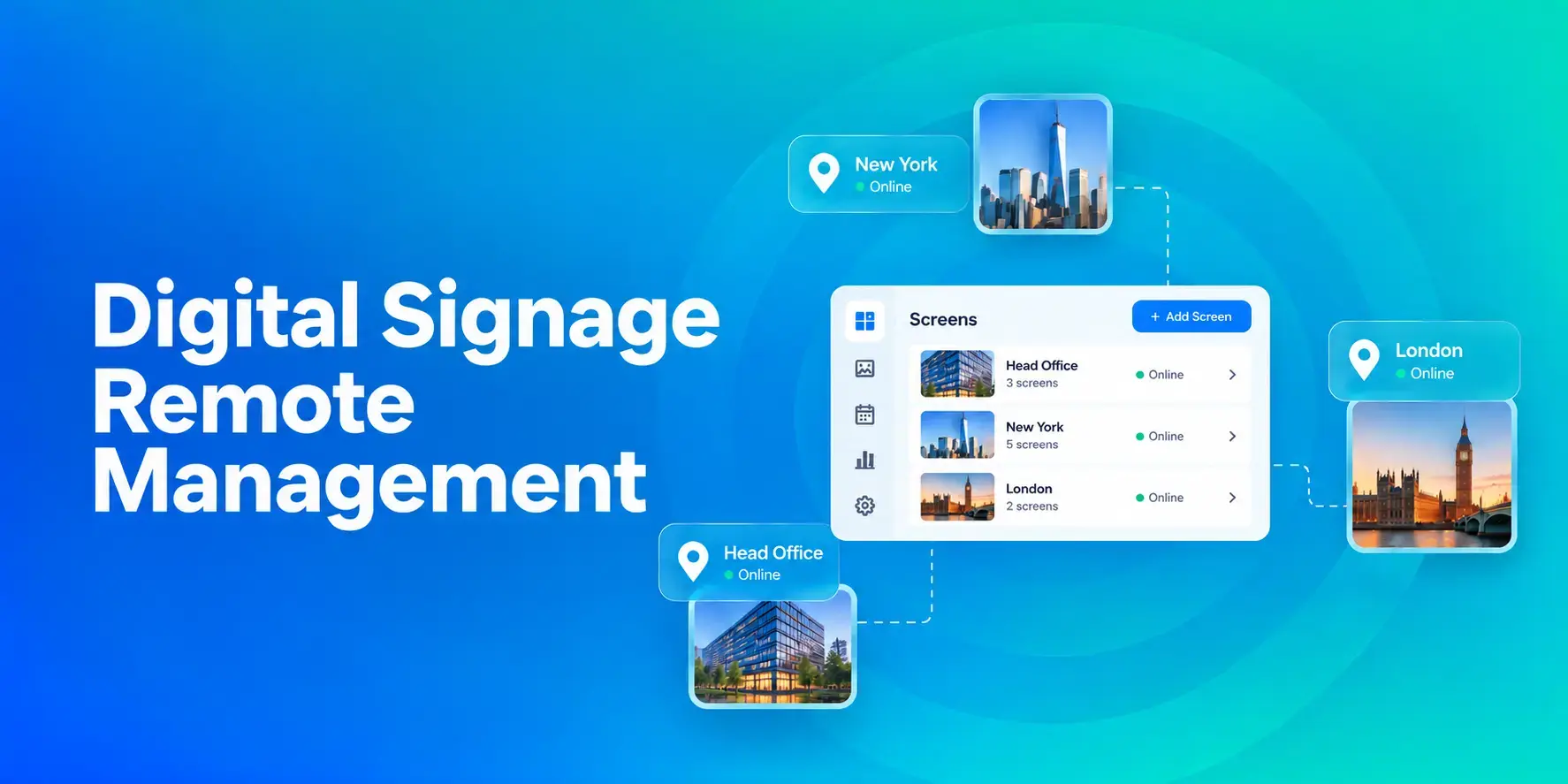
Digital Signage Remote Management: How to Run Every Screen From One Place
Digital signage remote management lets you control screens, schedules, and display health from an online platform. To get started, choose a hardware-agnostic platform, connect your media players or[…]
Read More
12,300+ Organizations Trust Rise Vision, You Can Too





















Schedule a Free Demo
You deserve the #1 all-in-one platform for digital signage, screen sharing, and emergency alerts.