Quick Summary
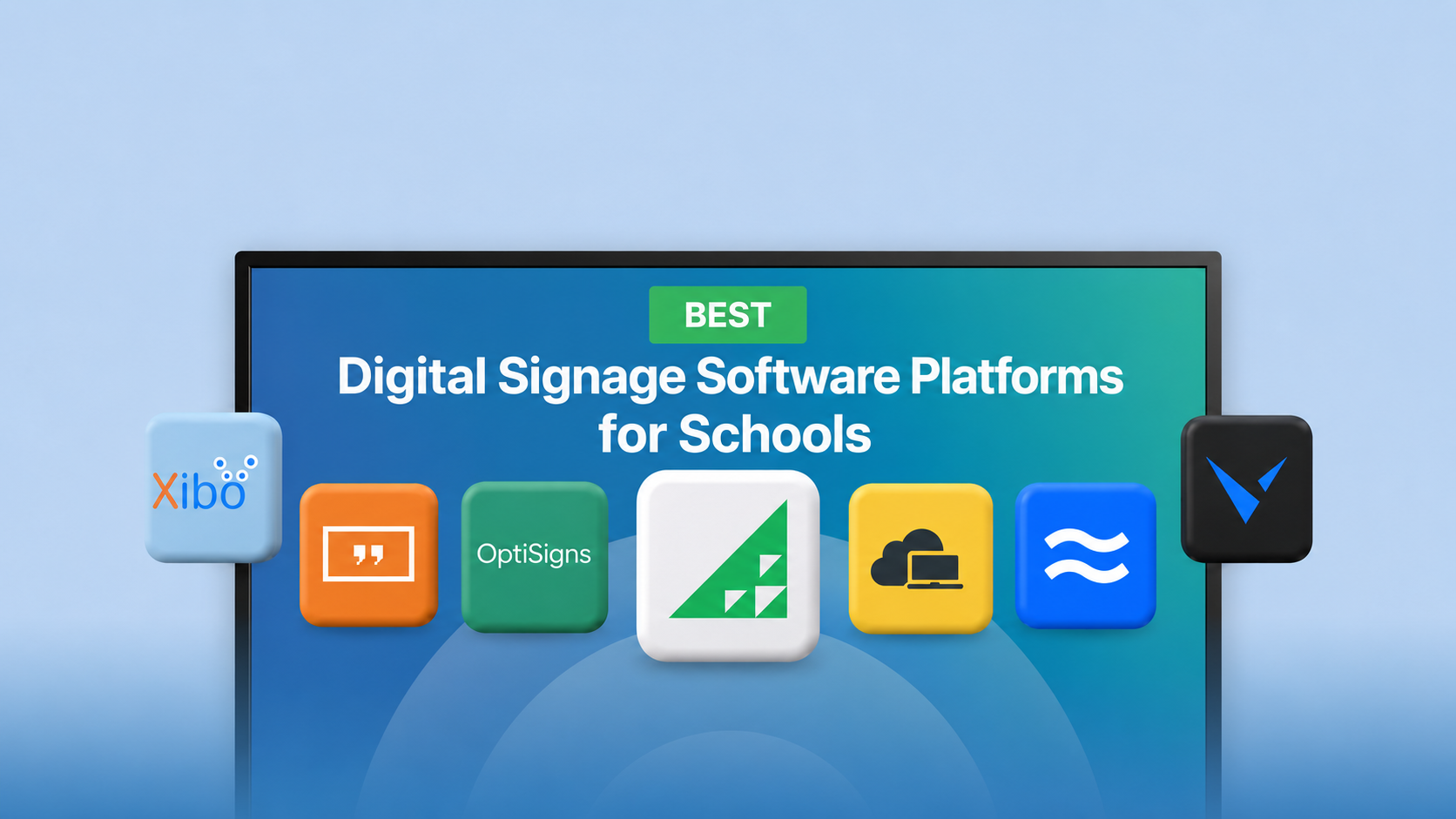
The best digital signage software for schools handles emergency alerts, supports classroom screen sharing, and keeps content current without relying on IT. We reviewed six platforms across K-12 and higher education, including Rise Vision, Airtame, and Vivi, to find the best options that hold up in a school environment.
Our top three picks:
|
# |
Tool |
Best For |
|
1 |
Rise Vision |
K-12 and higher education teams needing digital signage, emergency alerts, and screen sharing in one platform |
|
2 |
Airtame |
Schools that prioritize wireless classroom screen sharing alongside digital signage and emergency alerts |
|
3 |
Vivi |
K-12 districts that want a school-exclusive platform combining signage, screen sharing, and PA replacement |
Why Listen to Us?
Today, thousands of schools across the US and Canada use Rise Vision for digital signage, from smaller campuses to large K–12 districts. And the results speak for themselves:
We put together this list from that vantage point. We understand the unique operational challenges of school deployments, the realities of user adoption, and what it actually takes to keep a campus network running long-term.
How the 7 Best Digital Signage Software for Schools Compare
Here is how all seven platforms compare across key factors schools should consider before making a decision.
|
# |
Tool |
Key Strength |
Starting Price |
|
1 |
Rise Vision |
Emergency alerts, screen sharing, and digital signage in one platform |
$11/display/month |
|
2 |
Airtame |
Wireless screen sharing and digital signage built for classrooms |
From $299/display/year |
|
3 |
Vivi |
School-exclusive platform with location-specific content targeting |
$159 per classroom per year. |
|
4 |
Yodeck |
Affordable entry-level pricing with a free player on annual plans |
$8/screen/month |
|
5 |
ScreenCloud |
Strong app integrations for schools using Google and Microsoft tools |
$20/screen/month |
|
6 |
OptiSigns |
Wide hardware support for schools with existing devices |
Free for 3 screens |
|
7 |
Xibo |
Has IT-controlled self-hosting with no per-screen licensing fees |
Self-hosted: Free (open-source, server costs apply) |
1. Rise Vision
Rise Vision is a cloud-based platform that brings digital signage, screen sharing, and emergency alerts together in one place. It serves schools that need a consistent way to reach students, staff, and visitors across every screen on campus, without managing multiple tools or vendors.
Our emergency alerts connect directly with CAP-based systems, including InformaCast, Alertus, Raptor, CrisisGo, and more. When an emergency happens, alerts override every screen on campus instantly.
Schools using Rise Vision consistently see a similar trend in their feedback: Rise Vision just works, and it doesn't require constant IT involvement to keep it running. Rick Gangwer, CIO at Beekmantown Central School District, put it directly:
The results show up in deployment numbers too. York School District 1 in South Carolina had screens sitting unused across their buildings before switching to Rise Vision. They now have active content running across 10 schools reaching close to 5,000 students. Miami Country Day School started using it for event promotion and saw parent attendance at school events increase measurably after rollout.
Rise Vision uses a parent-and-sub-company structure that makes district-wide management practical. A superintendent or district IT coordinator can manage licenses and content from a top-level account, while individual schools or departments operate their own sub-accounts. You can push content down from the district level, share approved templates across buildings, or let each school manage its own displays independently.
And since Rise Vision supports Android, Windows, Linux, Chrome OS, Apple TV, Amazon Signage Stick, BrightSign, and more, most schools can get started without buying new hardware.
Key Features
- CAP-based emergency alerts: Connects to InformaCast, Alertus, Raptor, and CrisisGo to instantly push urgent alerts to every campus screen. Audio syncs with the visual override, so the message reaches anyone who isn't near a display.
- Wireless screen sharing: Present from any device to any display across classrooms and meeting rooms, with no cables or adapters required.
- 750+ templates and an AI design tool: Build announcements, lunch menus, event boards, and safety content from a simple text prompt without design skills.
- 40+ integrations: Connects to Google Workspace, Microsoft 365, Canva, Power BI, social media feeds, and live weather.
- Digital directories and wayfinding: Automatically update room assignments and building directories so students and visitors always have accurate information.
- Single sign-on (SSO): IT controls access for the whole district from one place, without managing separate logins for each user.
Pricing
K-12 Education, Higher Education and Non-Profit
- Basic: $11/display/month.
- Advanced: $13/display/month.
- Enterprise: $164/display/year, or $1,399/school/year for an Unlimited license (for K-12 only).
Pros
- Emergency alerts, screen sharing, and digital signage in one platform.
- Works with hardware schools already have across multiple operating systems.
- Non-technical staff can manage content without IT involvement.
- Free onboarding, training, and support are included on all plans.
- Support responds within one business hour.
Cons
- Interactive display features require a separate add-on license.
2. Airtame
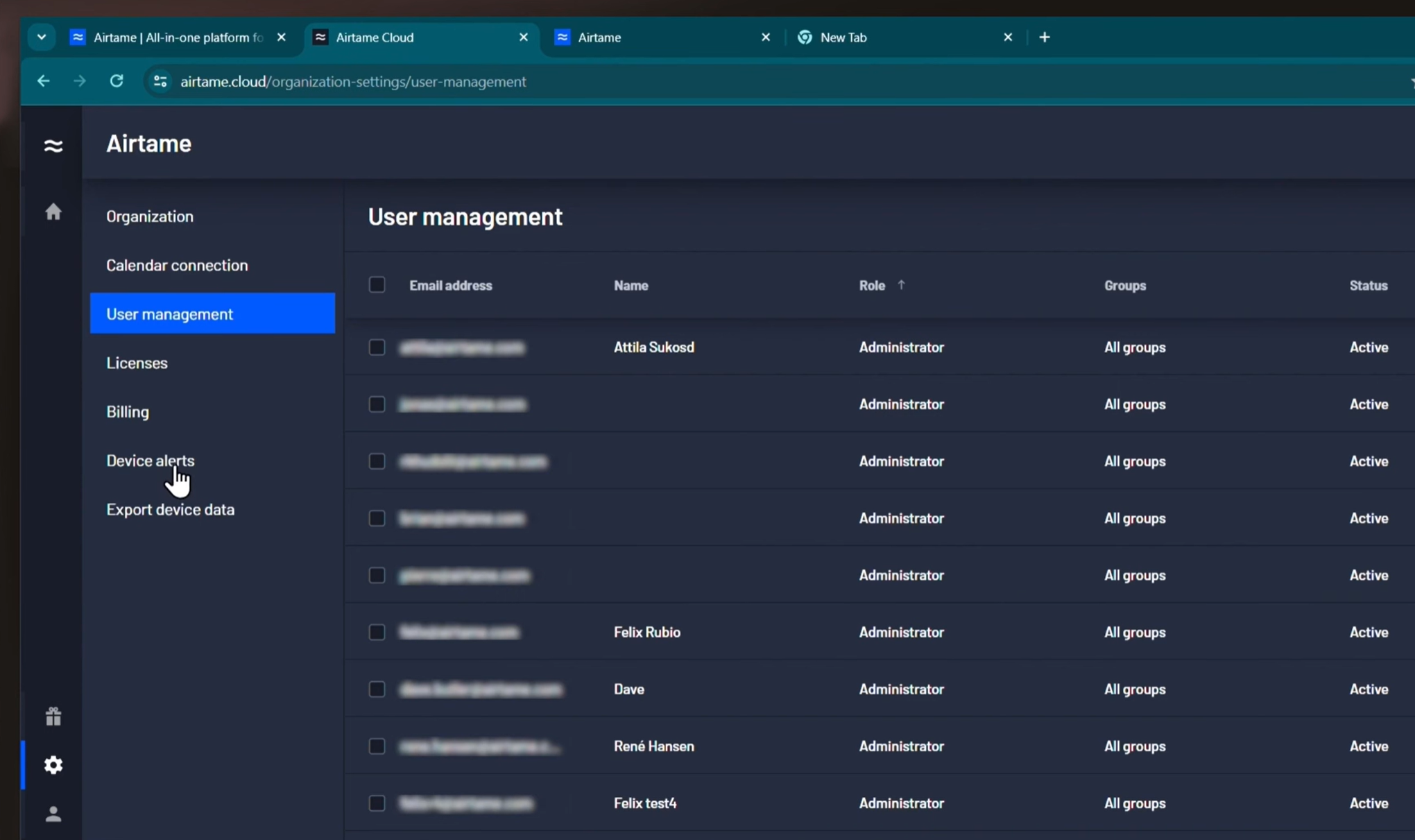
Airtame started as a wireless presentation tool for classrooms and has expanded into a platform that also handles digital signage and emergency alerts. The signage capabilities run natively through that same wireless infrastructure. You can schedule content dynamically (like pushing morning announcements at 8:00 AM, the lunch menu at noon, and assembly reminders on Friday afternoons), allowing you to plan playlists ahead of time and let the screens run on autopilot.
Key Features
- Wireless screen sharing: Teachers and students can instantly share their screens with any display from any device, with no account or setup required at the point of use.
- Digital signage: Display announcements, schedules, lunch menus, and event content using Google Slides, Canva, PowerPoint, and more. Supports playlists and scheduled content.
- Emergency alerts: Push urgent alerts to all screens instantly from Airtame Cloud or via connected third-party alert systems.
- Remote management: IT can push updates, reboot devices, and deploy new content across the entire campus without visiting classrooms.
- Scheduled content: Morning announcements, lunch menus, and assembly reminders can be planned in advance and published automatically.
Pricing
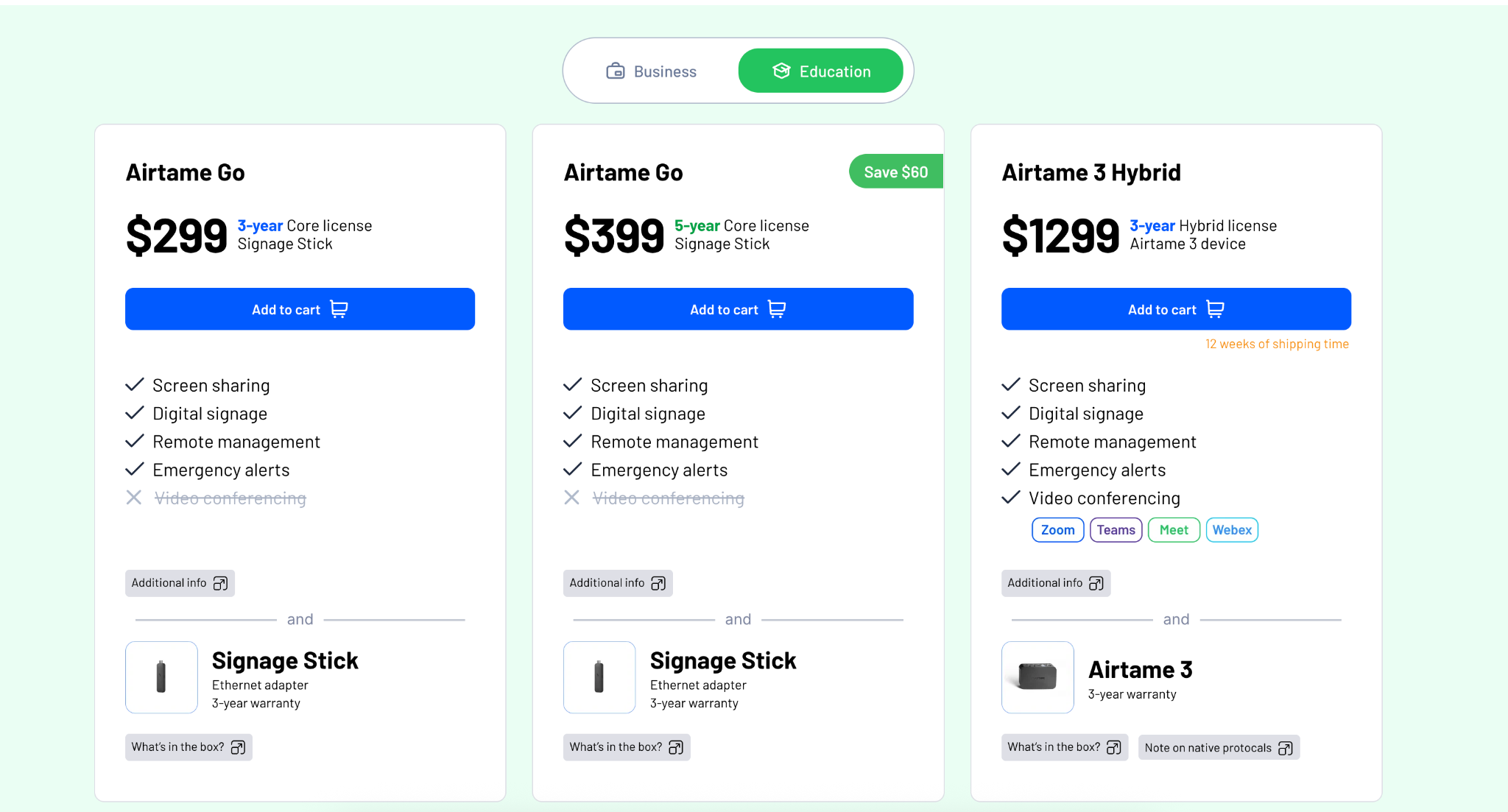
- Airtame Go (3-year Core license + Signage Stick): $299
- Airtame Go (5-year Core license + Signage Stick): $399
- Airtame 3 Hybrid (3-year Hybrid license + Airtame 3 device): $1,299.
For existing Windows or Android devices:
- Core license: $80/year
- Hybrid license: $300/year.
Educational institutions can contact a local Airtame reseller for education pricing and bulk order quotes.
Pros
- Combines screen sharing and digital signage in one device.
- Built specifically for classroom and campus environments.
- Simple for teachers to use with no technical knowledge required.
Cons
- Performance depends on network stability.
- Video conferencing requires the most expensive hardware tier.
- Not as template-rich as dedicated digital signage platforms.
3. Vivi
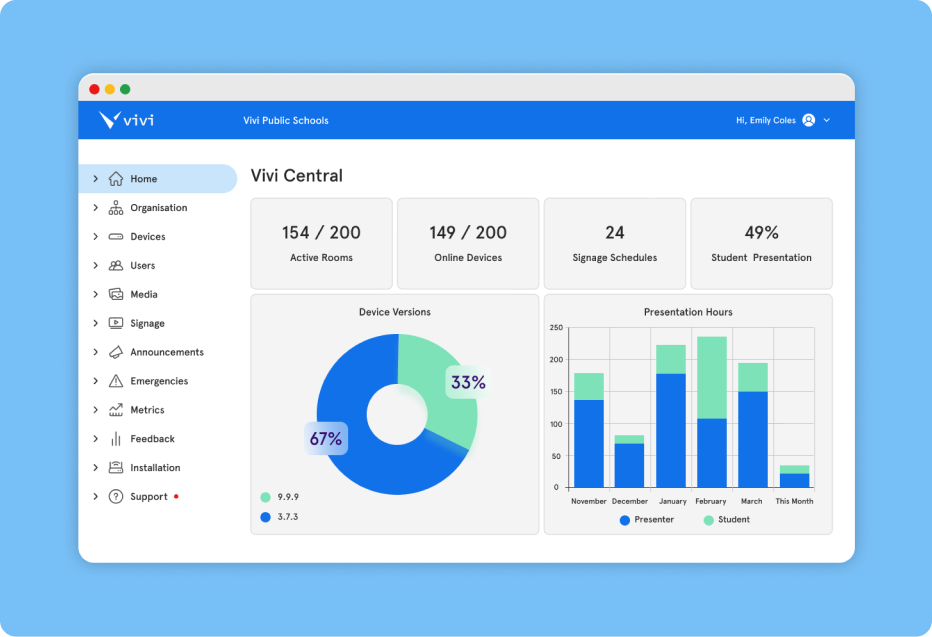
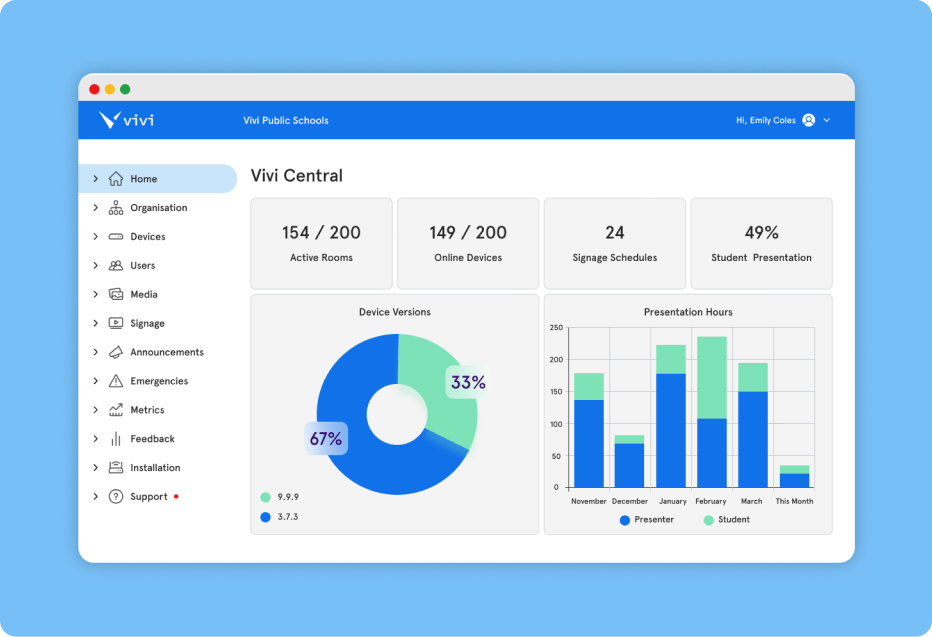
Vivi is an Australian edtech company that describes itself as the operating system for connected learning spaces, and that framing is reasonably accurate. It combines digital signage, emergency alerts, campus-wide video and text announcements, and wireless screen mirroring into one centrally managed platform, and has been deployed in classrooms globally.
Key Features
- Wireless screen mirroring: Teachers and students can share content with classroom displays from any device.
- Digital signage: Display announcements, event schedules, and student achievements across hallways, common areas, and classrooms via a central dashboard.
- Emergency alerts and live announcements: Push text and live video announcements to every screen on campus instantly, with device alerts that confirm who saw the message.
- Location-specific content: Target content to specific buildings, floors, classrooms, or grade levels without showing it everywhere.
- Education-specific templates: Pre-built designs tailored to school communication needs.
Pricing
- Vivi box: $159 per classroom per year.
- Software license: $150 to $500 per classroom per year.
Pros
- Built for schools, with features tailored to their communication needs.
- Integrates screen sharing, signage, and emergency alerts into a single platform.
- Location-specific content targeting benefits large campuses and districts.
Cons
- Less hardware flexibility.
- Pricing not publicly listed, contact sales for a quote.
- Software updates on certain devices may require manual installation.
4. Yodeck
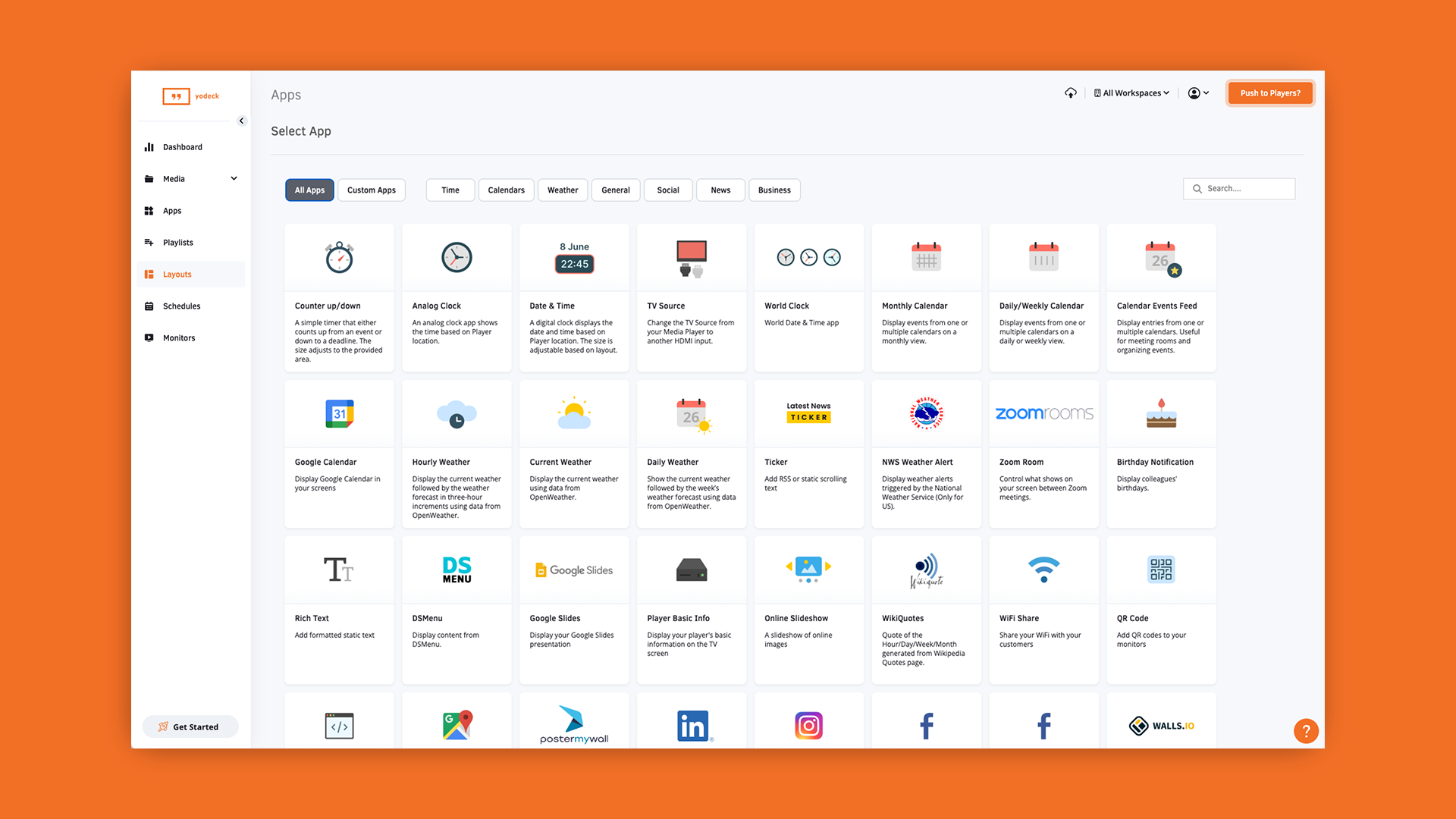
Yodeck is a well-established digital signage platform with a genuinely attractive free tier: one screen, completely free, with access to all templates, apps, and remote support. For a school that wants to test digital signage before committing budget, that's a reasonable starting point.
On the content side, Yodeck covers the operational basics well. The platform includes a standard template library, scheduling tools, and a widget marketplace for dynamic content like weather and social feeds.
Key Features
- CAP emergency alerts: Push urgent alerts to all connected screens instantly, overriding scheduled content.
- Free branded player: Raspberry Pi-based player included on annual plans. The standard 1GB model handles images, videos, and documents. The 4GB Plus model handles data dashboards and multi-zone layouts.
- School-focused templates: Ready-made designs for announcements, event calendars, lunch menus, and student recognition.
- Content scheduling: Schedule content by time, day, or screen group from a central dashboard.
- Multi-user access: Different staff members can manage different screens without sharing a single login.
Pricing
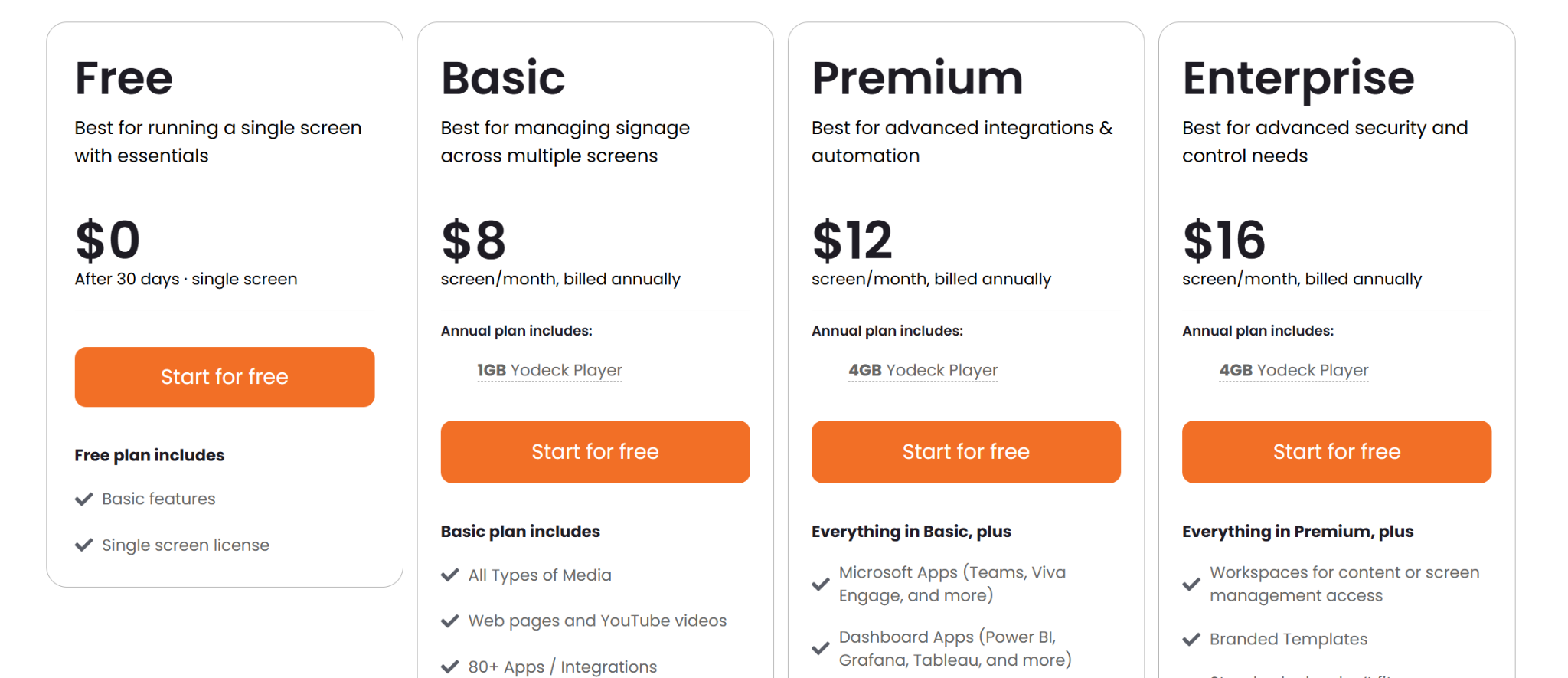
- Free: $0 per screen.
- Basic: $8 per screen per month, billed annually.
- Premium: $12 per screen per month, billed annually.
- Enterprise: $16 per screen per month, billed annually.
Pros
- Free player included on annual plans.
- Affordable entry-level pricing for budget-conscious schools.
- Quick to set up.
Cons
- No native screen sharing for classrooms.
- ChromeOS and some hardware options have feature limitations.
- Advanced layouts can overwhelm non-technical users.
5. ScreenCloud
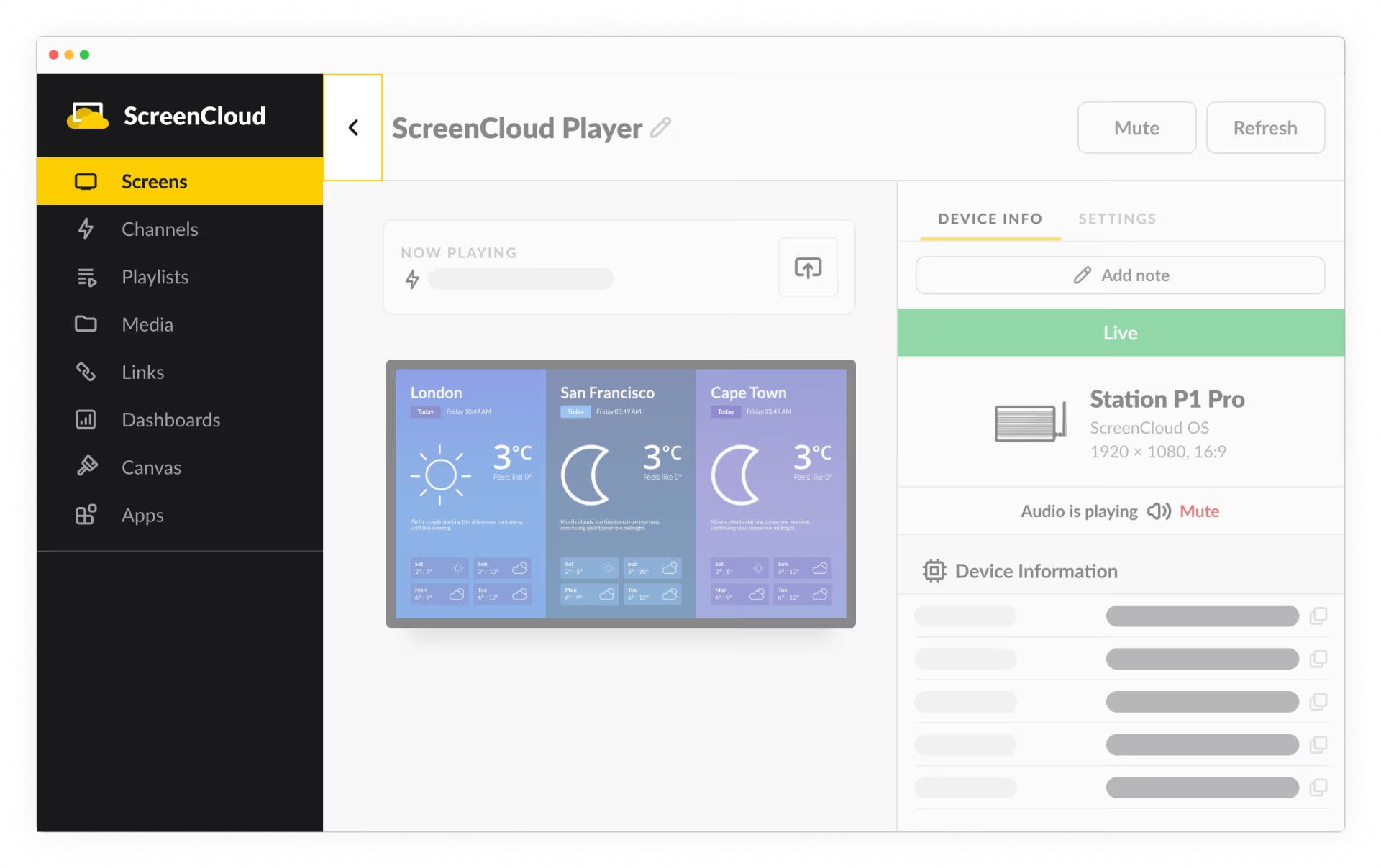
ScreenCloud is a cloud-based digital signage platform that skews toward medium-to-large organizations. It's compatible with a wide range of devices, including Amazon Fire TV, Google Chromebox, Android, and smart TVs, giving organizations flexibility in choosing hardware that fits their budget.
However, ScreenCloud comes with a steeper learning curve. The management interface can feel overly complex for non-technical users. Pricing is also on the higher end. ScreenCloud runs $20 to $24 per screen per month, which adds up quickly for a district running 30 or 40 displays. There's a 5% discount for schools, but that doesn't dramatically change the math.
Key Features
- 80+ app integrations: Connect to Google Slides, Microsoft Teams, Slack, social media feeds, and live data dashboards.
- Emergency casting: Instantly broadcast safety alerts or live streams to all screens.
- Canvas design tool: Create custom, branded layouts directly in the browser without external design software.
- Centralized screen management: Control all screens across locations from a single admin portal.
- Offline content caching: Screens continue running during internet outages using locally stored content.
Pricing
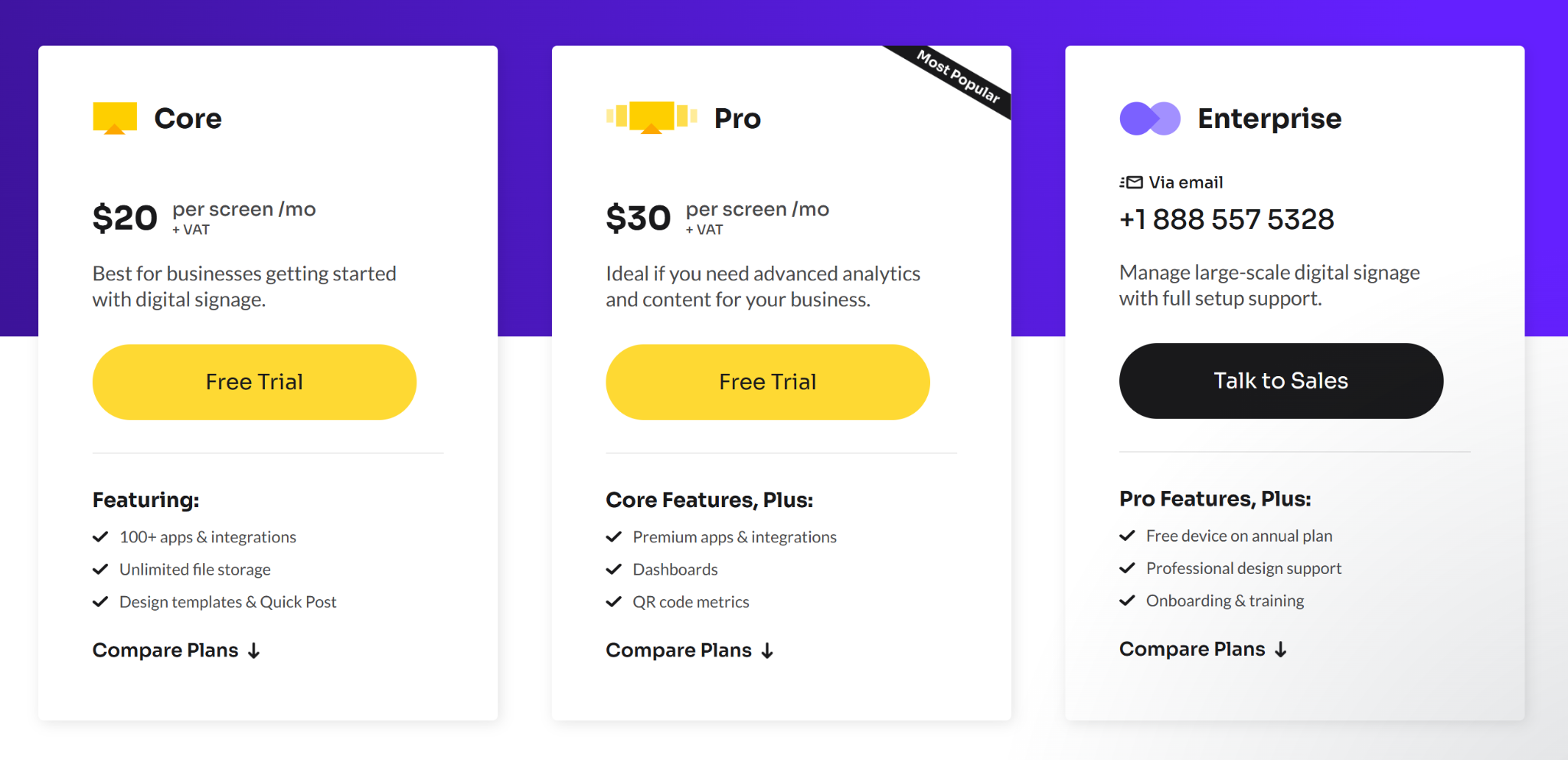
- Core: $20/screen/month.
- Pro: $30/screen/month.
- Enterprise: Custom pricing, contact sales.
Pros
- Fast setup with simple screen pairing.
- Strong app integration library for schools already using Google or Microsoft tools.
- Content updates are pushed instantly across all time zones.
Cons
- Monthly per-screen pricing gets expensive as screen count grows.
- No dedicated K-12 pricing or education discount publicly listed.
- No native screen sharing for classrooms.
6. OptiSigns
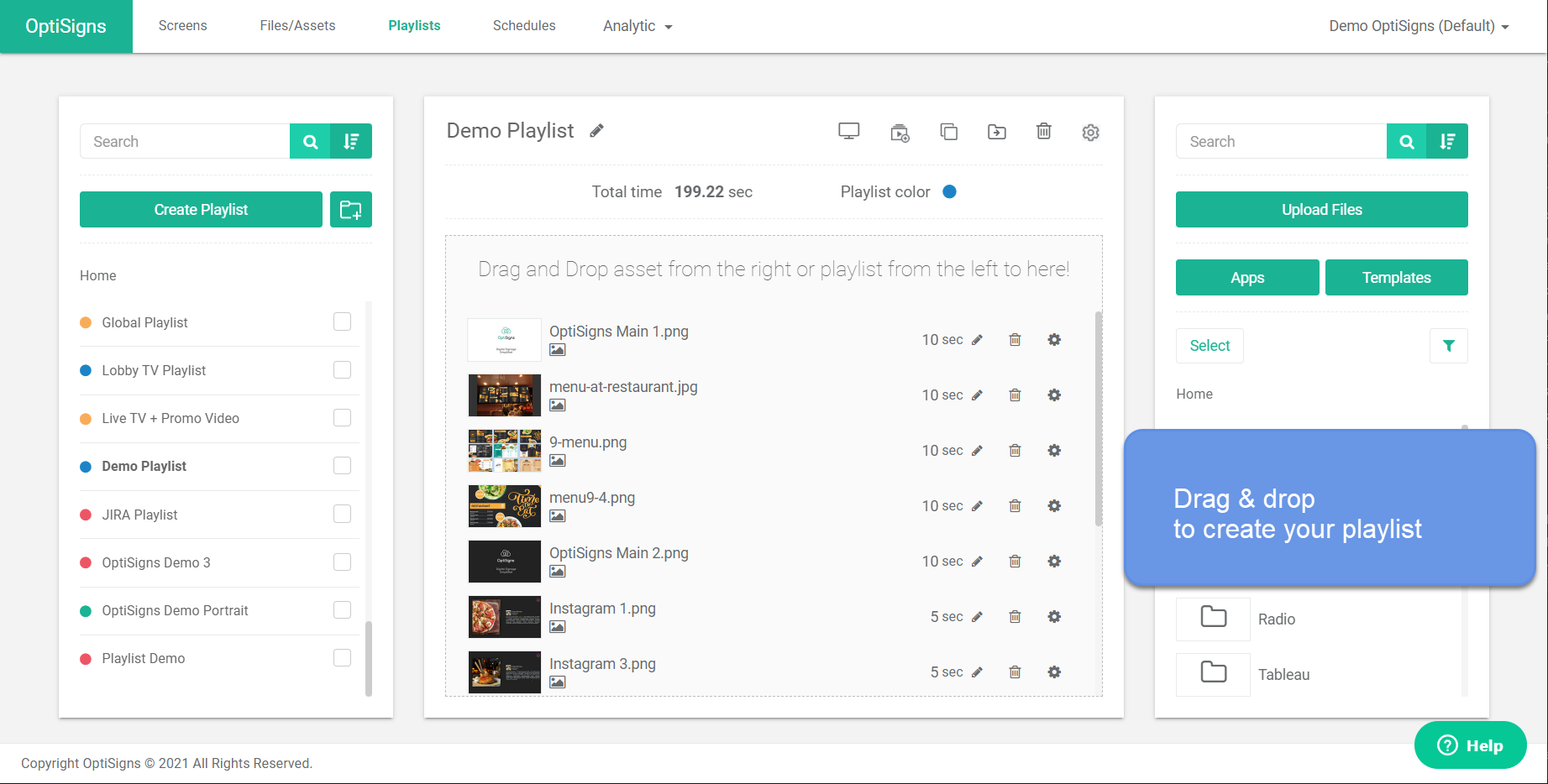
OptiSigns is a cloud-based digital signage platform that helps schools with student engagement, safety alerts, and campus updates. It works with a wide range of hardware, including Android, Windows, Fire TV, Raspberry Pi, Chrome OS, Apple TV, and more. This makes it a flexible choice if your school already has devices in place.
Key Features
- CAP emergency alerts: Push urgent safety alerts to all screens instantly via the Emergency Alert app and CAP integration.
- Hardware-agnostic: Runs on Android, Windows, Fire TV, Raspberry Pi, ChromeOS, Apple TV, BrightSign, LG WebOS, and more.
- Content scheduling: Schedule announcements, menus, and event content by time, day, or screen group.
- 500+ templates: Ready-made designs for school announcements, menus, calendars, and safety messaging.
- Multi-user permissions: Different staff members can manage different screens with separate roles and approval workflows.
Pricing
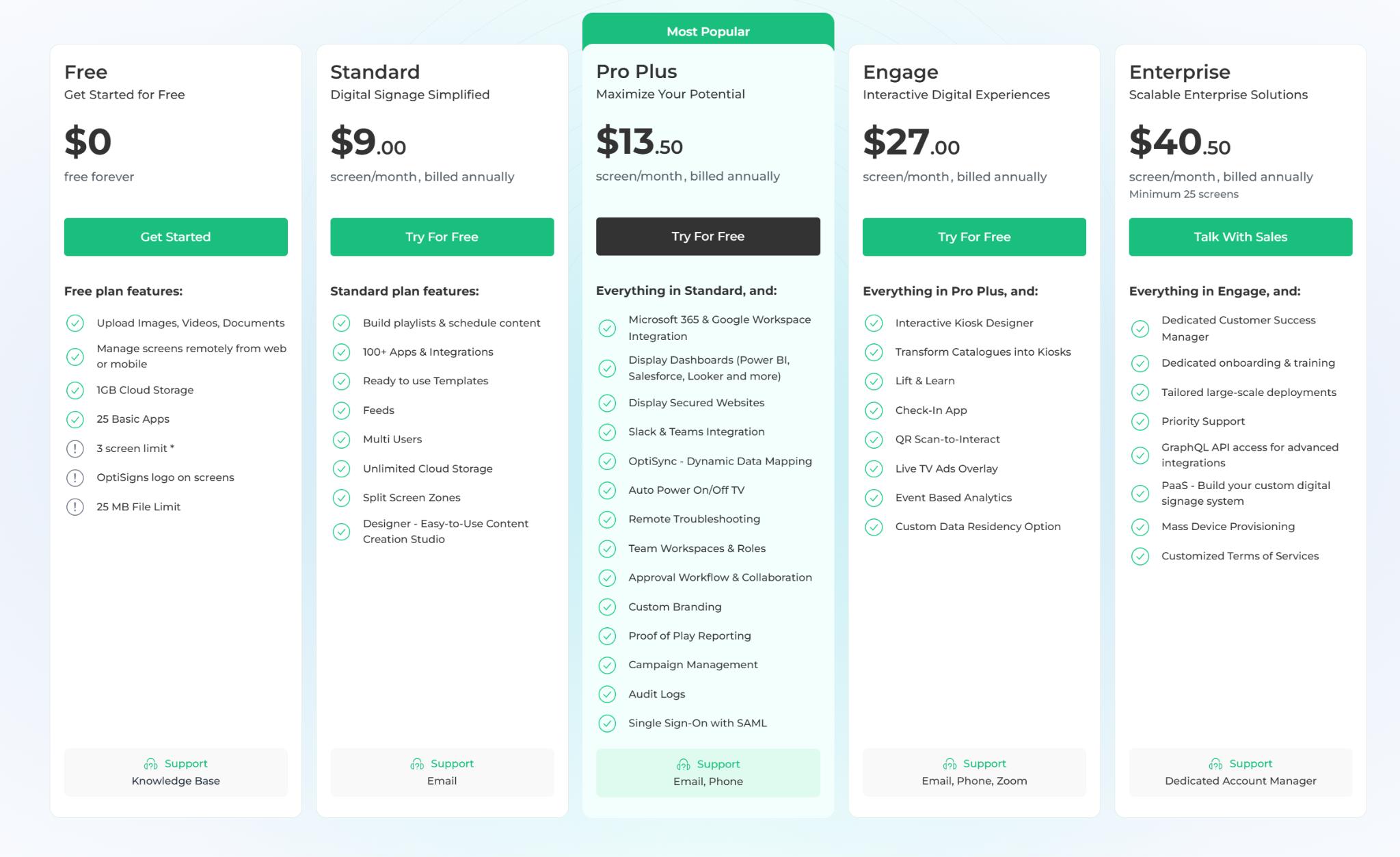
- Free: $0 for up to 3 screens.
- Standard: $9 per screen per month, billed annually.
- Pro Plus: $13.50 per screen per month, billed annually.
- Engage: $27 per screen per month, billed annually.
- Enterprise: $40.50 per screen per month, billed annually.
Pros
- Wide hardware support means schools can use existing devices.
- Affordable entry-level pricing with a free plan for small setups.
- CAP emergency alert integration is included.
Cons
- No native screen sharing for classrooms.
- Not built exclusively for schools.
- Costs add up quickly for larger deployments across many screens.
7. Xibo
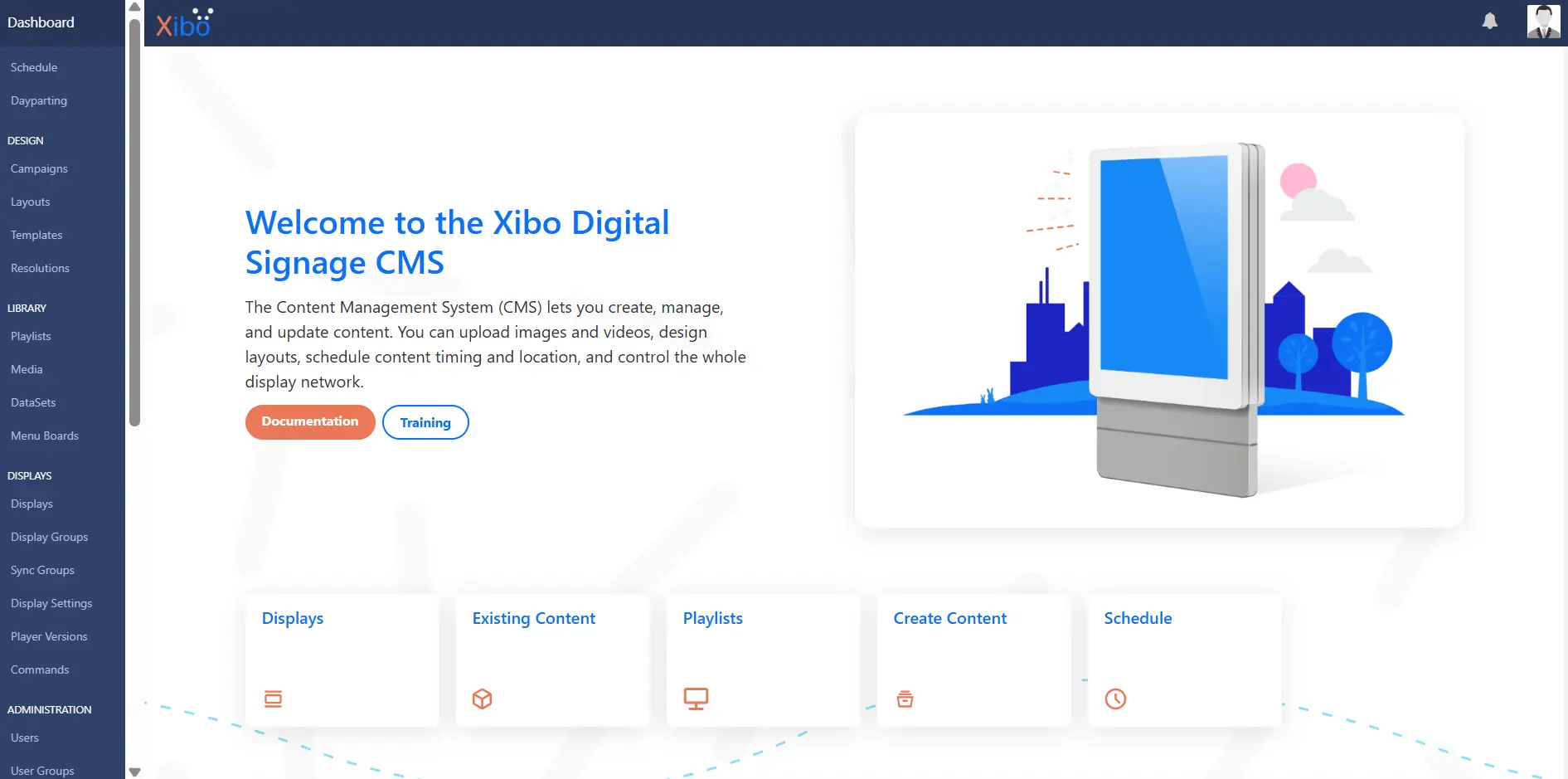
Xibo is an open-source digital signage platform that's been around since 2009. It takes a fundamentally different approach from every other platform on this list: you can self-host the entire CMS on your own servers for free, with no monthly licensing fee and no per-screen charges. For an IT team that wants full control over its infrastructure and has the bandwidth to manage it, that trade-off can make sense.
The catch is that self-hosted means your team owns everything, including the installation, updates, maintenance, and whatever breaks. For districts where IT is already stretched thin, that's a significant operational cost that doesn't show up in the licensing comparison.
Key Features
- Self-hosted CMS: Run the entire platform on your own servers at no licensing cost, with full admin rights and no vendor dependency.
- Cloud hosting option: Xibo manages the CMS infrastructure for you, with daily backups and SSL included.
- Content scheduling: Schedule playlists by time, day, or display group from a central dashboard.
- Role-based permissions: Configure user and group access to specific displays and content.
- Hardware support: Runs on Windows, Android, LG webOS, and Samsung Tizen displays. 14-day free trial: Full access to the Professional plan, including cloud CMS and two display licenses.
Pricing
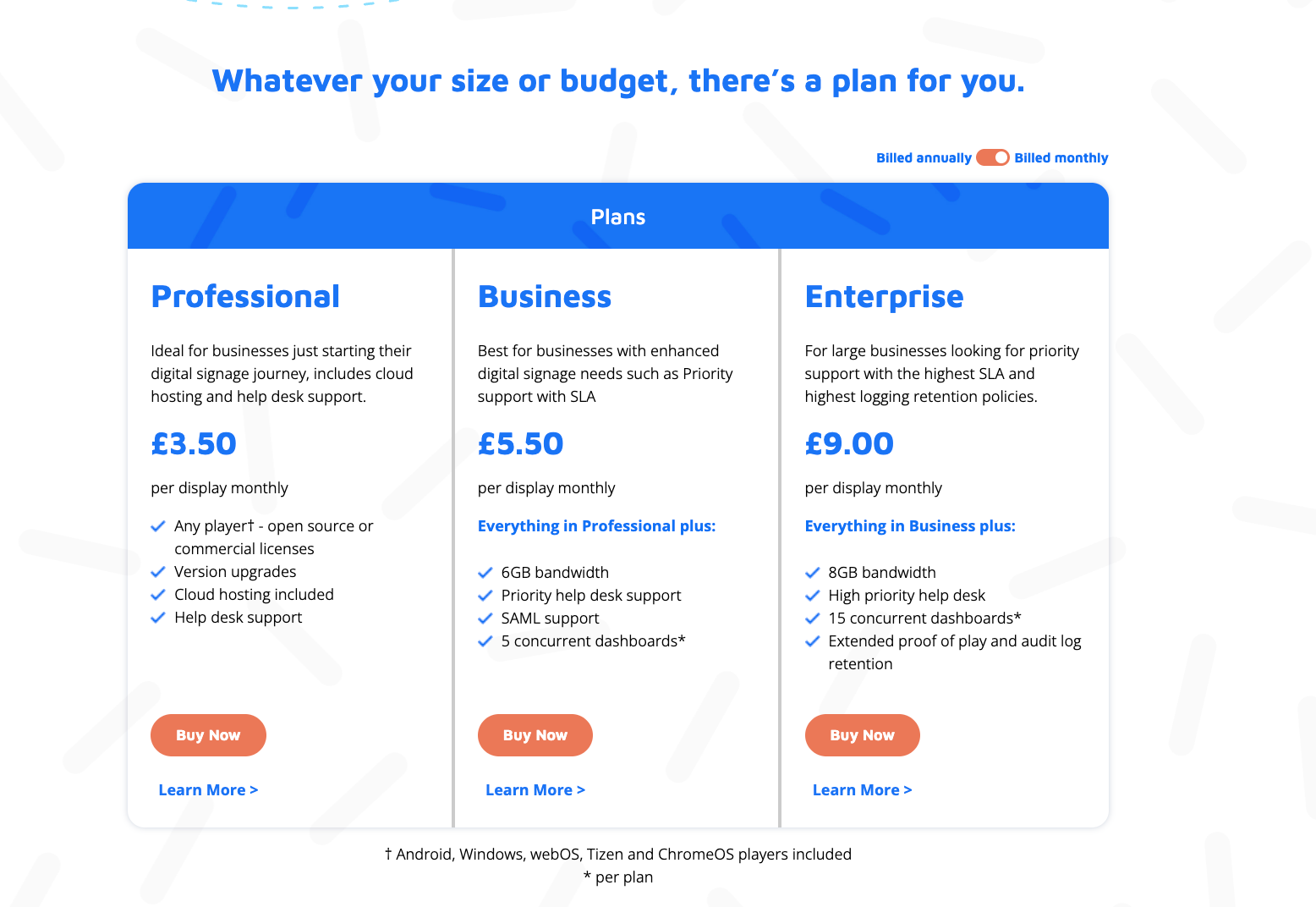
- Self-hosted: Free (open-source, server costs apply)
- Cloud hosted: Starting at £3.5/display/month
Pros
- No licensing fee for self-hosted deployments.
- Full infrastructure control for IT teams that want it.
- Flexible pricing model — perpetual licenses available alongside subscription.
Cons
- Self-hosted deployments require ongoing IT maintenance and management.
- No native emergency alert integration.
- Not built specifically for schools — permission structure and feature set are general-purpose.
- Setup and configuration have a steeper learning curve than cloud-native alternatives.
How to Choose the Right Digital Signage Software for your School
The right platform depends on your school's actual operational constraints. Here are four things to consider:
Who is Actually Managing the Content?
If a dedicated IT director is running your displays, almost any platform on this list will work. But if the daily updates fall on a librarian, an administrative assistant, or a volunteer teacher, you need a system with a near-zero learning curve and a deep library of ready-made templates. A platform with more features isn't better if nobody uses it. This question alone eliminates half the options for most schools.
Does the Permission Model Match How Your District is Structured?
Most platforms let you create user accounts and assign screens. That's not the same as a permission model built around how school districts actually operate.
What you need is role-based access where building staff can only see and manage their own displays. A department head at one school shouldn't be able to touch content at a different building. A principal shouldn't be able to accidentally push a spirit week announcement over a safety message from the district level. And whoever manages brand standards and emergency messaging centrally needs those controls locked at the top, not editable by anyone downstream.
How Many Screens Will You Have in Two Years?
Per-screen pricing models look highly manageable when you only have five displays, but they quickly become cost-prohibitive when you scale to 30 or 40, and beyond. Before committing, calculate your total software costs based on your expected growth over the next three years.
For growing deployments, flat-rate or unlimited pricing often makes far more financial sense, even if the upfront number looks higher at first glance. For example, Rise Vision offers K–12 pricing at $1,399 per school, per year for unlimited displays, which can be far more predictable than watching per-screen costs stack up as you expand.
Do the Emergency Alerts Actually Work Under Pressure?
While most platforms claim to offer emergency alerts, their technical execution varies drastically. You need to verify two critical details:
- Will an emergency broadcast automatically override a classroom display mid-lesson?
- Can the system push alerts to devices that aren't actively running the signage app?
There is a massive safety gap between a platform that merely updates hallway TVs and one that serves as a true, full-building audio-visual siren during a lockdown.
What Does Your Existing Hardware Footprint Look Like?
Most schools aren't starting with a blank canvas. Hardware-agnostic platforms allow you to deploy signage on the smart TVs, Chromeboxes, Amazon Fire Sticks, or older Windows PCs you already own, drastically lowering your upfront installation costs.
Platforms that force you to buy proprietary, brand-specific media players aren't necessarily worse, but that added hardware tax needs to be factored into your budget upfront before you begin comparing software licensing fees.
The Right Platform Changes How Your School Communicates
The platforms on this list approach school communication in different ways. Some prioritize classroom screen sharing. Others focus on affordability or hardware flexibility. Rise Vision unifies digital signage, emergency alerts, and screen sharing into a single platform. With free onboarding, support, and district-wide content management, your staff can keep every building informed and every screen up to date.
If you want to see how it works in a school like yours before making any decisions, book a free demo.
FAQ
Can Digital Signage Work Across Multiple Buildings or Campuses?
Yes, and this is one of the bigger selling points for multi-building organizations. Cloud-based platforms let you manage every screen from one account. Push the same content everywhere, or target specific buildings, floors, and rooms with content relevant to that location. A school district with 10 campuses across different buildings is running the same management workflow.
Is School Digital Signage Hard to Manage Without a Dedicated IT Team?
Not if the platform is built for it. The person managing the screens at most schools is also handling 10 other things. Good platforms account for that. Template libraries, scheduling tools, and automatic integrations mean content can largely run itself once it's set up.
Central R-3 School District is a good example. Their systems administrator was the only person managing all their signage until they switched to Rise Vision, which let him delegate content management to individual buildings and take that workload off his plate entirely. Day-to-day management shouldn't require a dedicated staff member or an IT ticket every time something needs to change.
What Hardware Do I Need to Get Started?
Hardware requirements vary by platform. Some require proprietary equipment. Others, like Rise Vision, work with a wide range of existing displays and media players, so you're not necessarily buying new hardware to get started. If you are starting fresh, a mid-range commercial display paired with a dedicated media player covers the majority of use cases in schools.
How Do I Keep Content From Going Stale?
Integrations, mostly. Connect the platform to Google Calendar or Microsoft Outlook and receive event-based content updates without anyone touching it.
Rise Vision also offers 50+ auto-updating templates that automatically refresh content daily, which is particularly popular with K-12 schools. Scheduling tools handle the rest. Set content to go live on a specific date and expire automatically when it's no longer relevant. You're not logging in to pull down a poster for an event that happened last Tuesday.
How Much Does Digital Signage Software Typically Cost?
Pricing varies a lot. Most cloud-based platforms charge per screen, either monthly or annually, and costs scale with screen count and feature tier. The subscription rate is only part of the picture. Hardware, installation, and ongoing support add up, so the total cost of ownership is a more honest number to compare than the monthly fee alone.
More From Our Blog
-
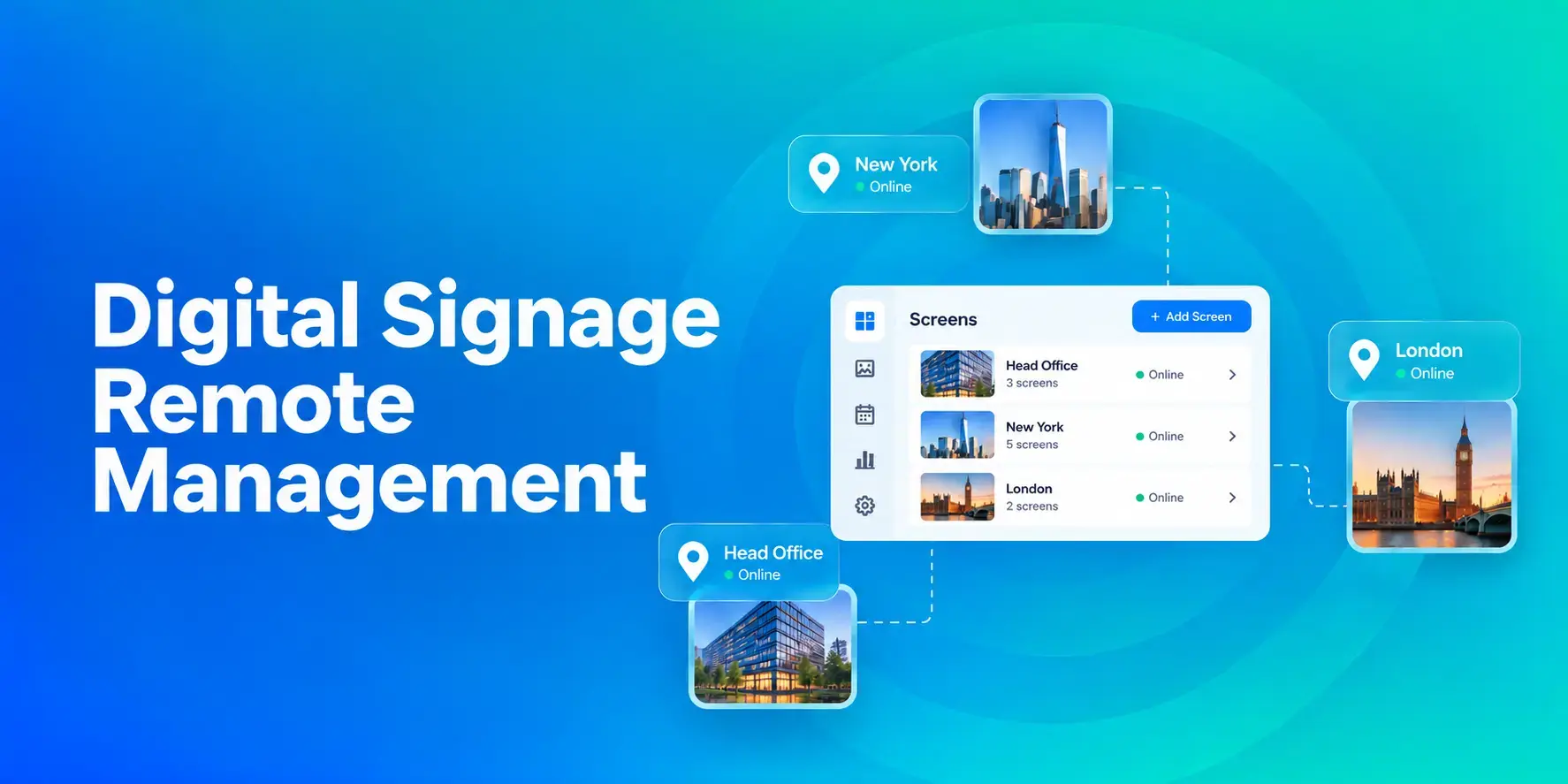
Digital Signage Remote Management: How to Run Every Screen From One Place
Digital signage remote management lets you control screens, schedules, and display health from an online platform. To get started, choose a hardware-agnostic platform, connect your media players or[…]
Read More -
ScreenBeam Review 2026: Features, Pricing, and Limitations
ScreenBeam sells wireless display receivers that let people cast to a screen from any device without an app. You need one receiver per display, and they run from $299.99 to $1,199.99. Cloud-based[…]
Read More -
Interactive Touch Screen Digital Signage: How It Works and What You Need
Interactive touch screen digital signage lets viewers tap a display to find what they need. It pairs a commercial touch display with content software. Common uses include wayfinding, visitor[…]
Read More
12,300+ Organizations Trust Rise Vision, You Can Too























Schedule a Free Demo
You deserve the #1 all-in-one platform for digital signage, screen sharing, and emergency alerts.