
Did you know M&M’s stands for Mars & Murrie? Or that the first woman to run for U.S. President did so in 1872? Or that tens of thousands of people in the U.S. get injured each year by a toilet? Trivia may sound lighthearted, but it’s powerful.
People love fun facts—especially when they’re unexpected, quirky, or thought-provoking. Trivia draws attention and invites interaction, making it a perfect fit for your digital signage display. Whether in a school hallway, office lobby, or breakroom, trivia content gives your screen a reason to be watched.
You’ve probably experienced it yourself—waiting at a movie theater and instinctively answering trivia questions on-screen to pass the time. Now, you can create the same effect using your own digital signage system.
In this guide, we’ll walk you through how to build a trivia slideshow using Google Slides and add it to your display in just a few minutes. (Stick around—answers to those trivia questions are at the bottom of this article.)
Create Your First Trivia Presentation
Google Slides is a free, cloud-based presentation tool that works seamlessly with most digital signage platforms. It’s part of Google Drive and functions similarly to PowerPoint or Keynote—but with the advantage of easy sharing and live updates.
To get started:
-
Open Google Slides
Go to your Google Drive and click the New button > Google Slides. Or go directly to Google Slides. -
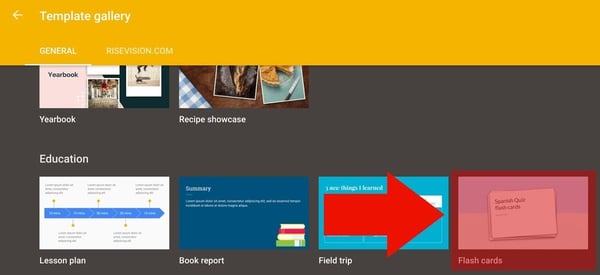
Pick a Template
You can start from a blank presentation or choose a template. The “Flashcards” template works great for trivia because it’s simple, bold, and clean. -
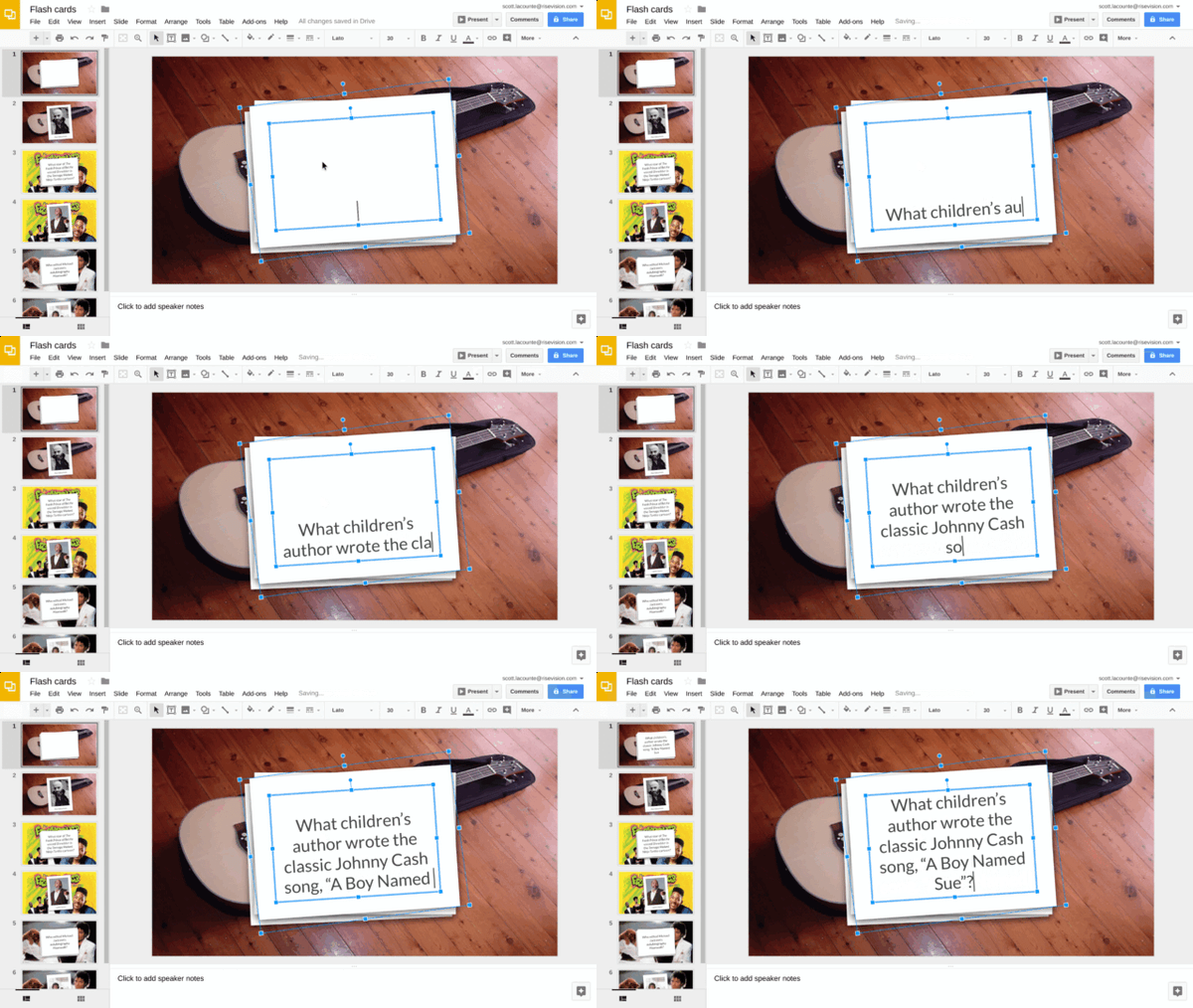
Add Your Questions and Answers
Each slide should contain either a question or an answer. You can format it however you'd like, but keep it consistent and easy to read from a distance. -
Customize Your Design
Personalize the layout with your brand colors, fonts, or even images to make it match the rest of your signage style.
 Now add your questions and answers to the slides. One question or answer per slide.
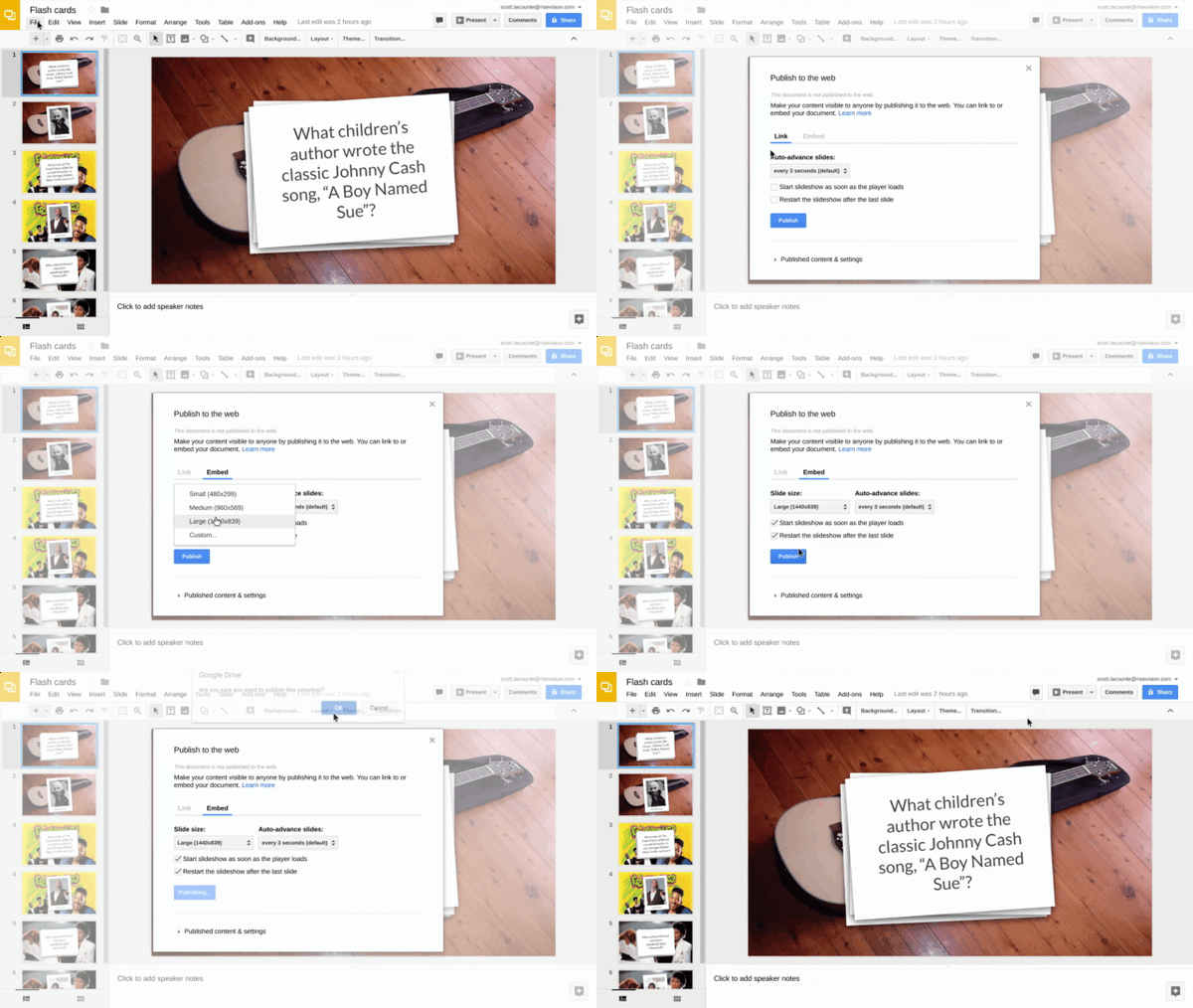
Publishing and Embedding Google Slides
Once your trivia presentation is ready, it’s time to publish and embed it into your digital signage software (such as Rise Vision or another CMS that supports web content).
To Publish:
-
Go to File > Share > Publish to the web
-
Click the Embed tab
-
Set your options (slide size, timing between transitions, auto-start, etc.)
-
Click Publish and OK
-
Copy the embed URL (starts with https:// and ends before any extra code)
To Embed:
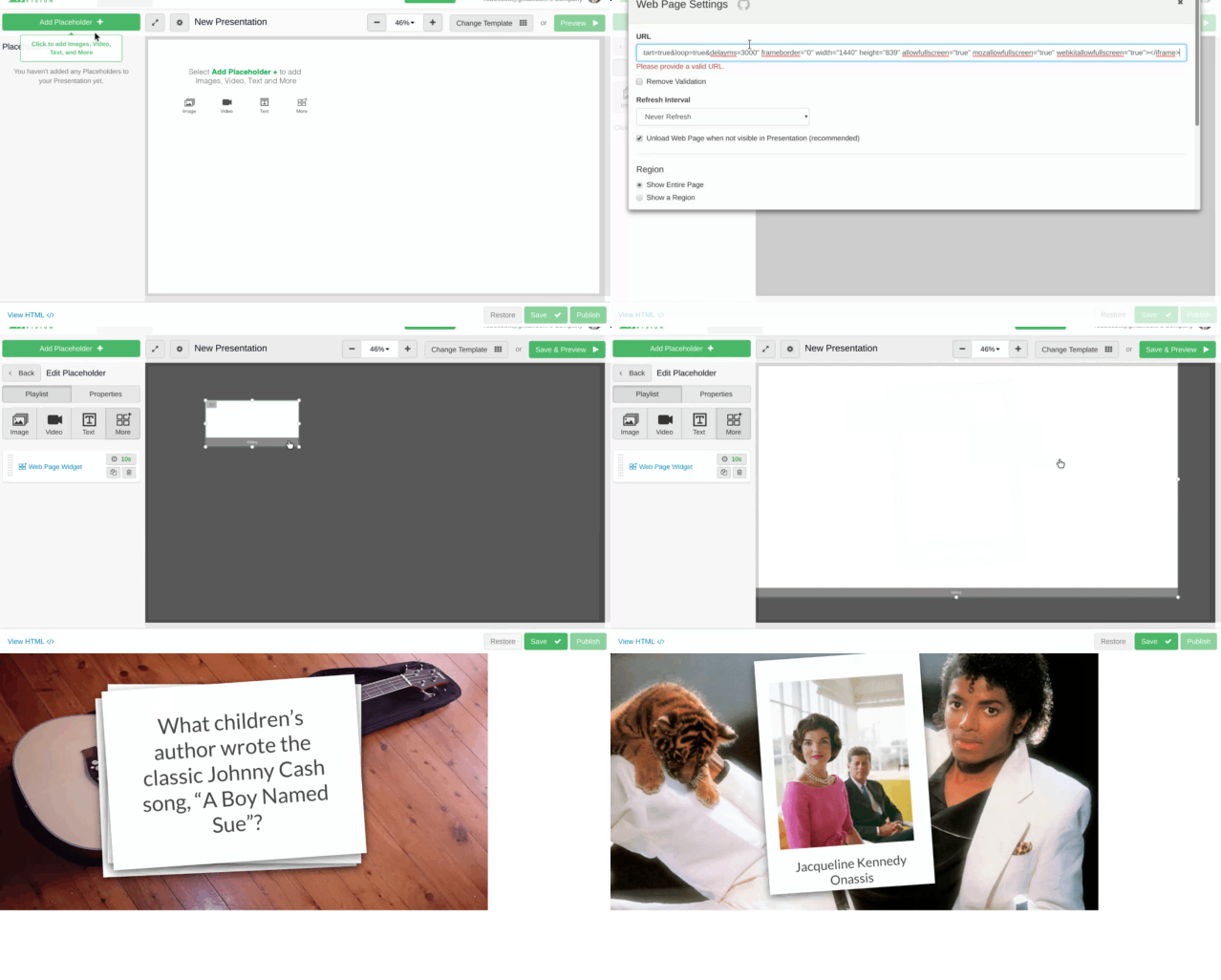
If you're using Rise Vision:
-
Log in to your account and open your presentation.
-
Click the green Add Placeholder button.
-
Choose More > Web Page Widget
-
Paste the embed link you copied (just the link—remove any extra characters)
-
Click Save then Save and Publish to preview the presentation
Once your slides are live, you can adjust sizing or positioning as needed. Best of all, you won’t need to re-embed every time you change content. Any edits you make to the Google Slides file will automatically update on your screen—as long as the slideshow remains published.
What Trivia to Include
There’s no shortage of trivia questions out there, but quality matters. Choose content that’s fun, surprising, and relevant to your audience. Here are a few tips:
- Verify your facts. Just because something is listed on a trivia site doesn’t mean it’s accurate. Double-check sources.
- Match the tone to your viewers. Trivia about vintage TV shows might not land with a Gen Z audience. Consider topics like pop culture, general knowledge, or local history.
- Make it personal. Add your own custom questions to boost engagement. For example:
“Which team just hit their sales target this week?” or
“Which employee just celebrated 10 years with us?”
You can even rotate in timely or seasonal trivia—think holiday facts or event-themed questions.
Trivia Games Not for You?
Trivia games aren’t for everyone. Here are some other things you can do with our free digital signage:
If you put a live stream into your presentation, we’d love to hear how it worked out! Drop us an email!
Trivia Answers
And now for those answers we promised:
-
What does M&M’s stand for?
Mars & Murrie—the last names of the company’s co-founders. -
Who was the first female U.S. presidential candidate?
Victoria Woodhull, who ran in 1872.
How many people in the U.S. are injured by toilets each year?
A 2015 report estimated around 40,000 injuries annually.

More From Our Blog
-

Yodeck vs ScreenCloud vs Rise Vision (2026 Comparison)
Yodeck is the cheapest way to run a few screens. ScreenCloud is the polished corporate pick. Rise Vision combines digital signage, screen sharing, and emergency alerts in one platform, and it's the[…]
Read More -

The Best Chrome Sign Builder Alternatives for Schools in 2026 (Free and Paid Options)
Google stopped supporting Chrome Sign Builder in kiosk mode after ChromeOS 150 in July 2026. So you'll need a replacement for any screen that's still running it. For schools that want to keep their[…]
Read More -
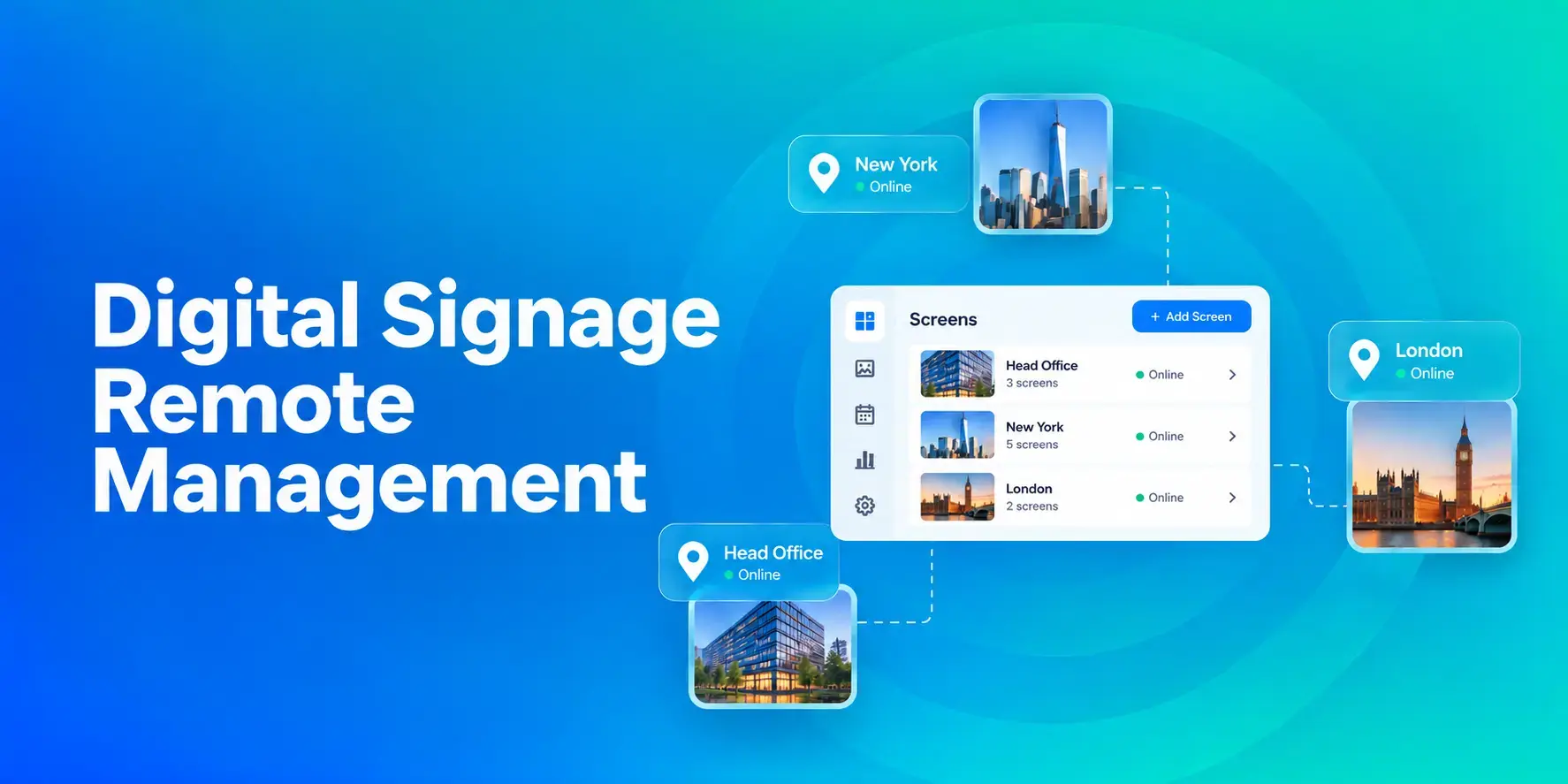
Digital Signage Remote Management: How to Run Every Screen From One Place
Digital signage remote management lets you control screens, schedules, and display health from an online platform. To get started, choose a hardware-agnostic platform, connect your media players or[…]
Read More
12,300+ Organizations Trust Rise Vision, You Can Too
































Schedule a Free Demo
You deserve the #1 all-in-one platform for digital signage, screen sharing, and emergency alerts.