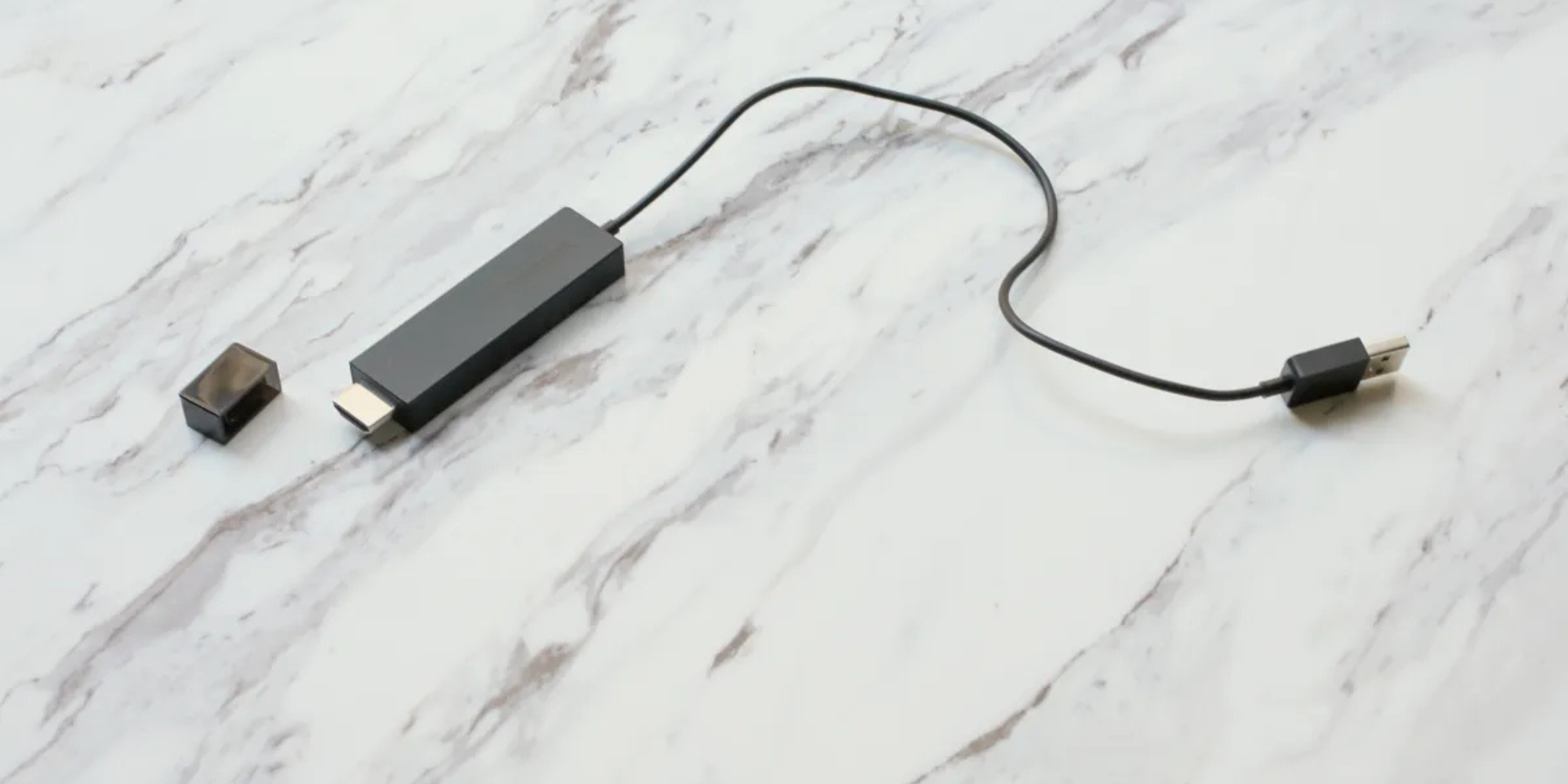
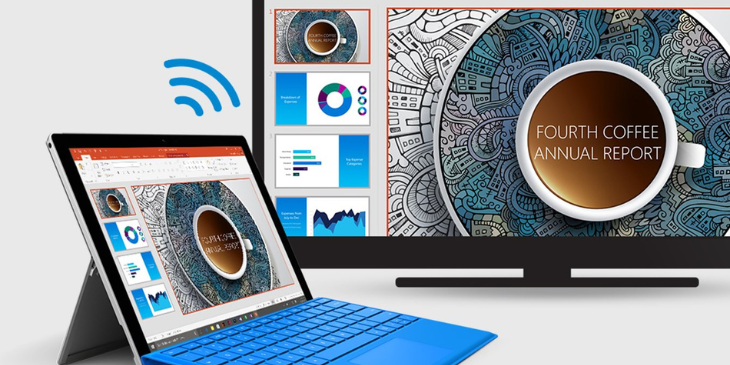
A wireless display adapter is a small device that plugs into a TV or monitor's HDMI port and lets you mirror content from phones, tablets, or laptops without cables. You connect your device over Wi-Fi, and whatever appears on your screen shows up on the larger display.
These adapters became popular because they solve a common problem: sharing your screen without hunting for the right cable or dealing with incompatible ports. Plug the adapter into any HDMI display, connect your device wirelessly, and you're presenting, streaming, or sharing photos within seconds.
The technology works through wireless protocols that transmit video and audio from your source device to the adapter. Depending on which adapter you use, it might support Miracast (for Windows and Android), AirPlay (for Apple devices), or Google Cast (for Chromecast). Some newer adapters support multiple protocols.
How Wireless Display Adapters Work
Setup takes a few minutes. The adapter plugs into an HDMI port on your display and draws power from either a USB port or a wall outlet. Once powered on, it creates a wireless signal that your devices can detect.
Your device connects to the adapter, usually through a simple pairing process. Windows users access the "Project" menu. Android devices use the "Cast" option. iOS devices use AirPlay from Control Center. After the first connection, most adapters remember your device and reconnect faster next time.
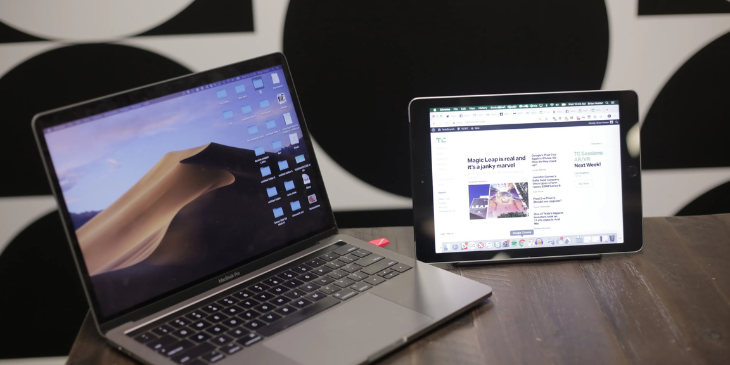
The adapter receives the wireless signal from your device and outputs it through HDMI to the display. Some adapters mirror your entire screen (everything you see on your laptop appears on the TV). Others let you extend your display, treating the TV as a second monitor.
Video quality depends on the adapter and your wireless connection. Budget adapters typically max out at 1080p resolution. Higher-end models support 4K, though you'll need strong Wi-Fi and compatible hardware to take advantage of it.
Common Types of Wireless Display Adapters
Different adapters use different technologies. Your choice depends mainly on what devices you own.
Chromecast and similar Google Cast devices work with Android phones, Chromebooks, and any device running the Chrome browser. They're inexpensive and simple to set up. Chromecast also functions as a streaming device, giving you access to apps like Netflix and YouTube when you're not mirroring your screen.
Miracast adapters support Windows PCs and Android devices. Microsoft's Wireless Display Adapter uses Miracast technology and creates a direct peer-to-peer connection between your device and the display. This means it works without requiring a Wi-Fi network, though you still need Wi-Fi capability on both devices.
AirPlay works exclusively within Apple's ecosystem. If you own Apple devices and an Apple TV or AirPlay-compatible smart TV, the integration is smooth. Everything connects automatically when devices are on the same network. The limitation is compatibility. AirPlay doesn't work with Windows or Android devices.
Some third-party adapters support multiple protocols, letting you connect Apple, Windows, and Android devices to the same adapter. These typically cost more but offer flexibility for households or offices with mixed device types.
When Wireless Display Adapters Work Well
Home use is where consumer wireless display adapters excel. Sharing vacation photos with family, streaming videos from your phone to a bigger screen, or showing a presentation to a small group all work fine with basic adapters.
Occasional use means the limitations don't matter as much. If you're mirroring your screen once or twice a week, the setup time and occasional connection hiccups are tolerable. You reconnect, try again, and it works.
Single-user scenarios also favor consumer adapters. When one person controls the screen and nobody else needs to connect, the single-connection limitation isn't a problem. You pair your device, share what you need, and disconnect when finished.
Small spaces with minimal Wi-Fi interference give consumer adapters their best performance. In a living room or small home office with few competing wireless devices, connection quality stays stable. The adapter works reliably because the environment is controlled.
Why They Fail in Professional Settings
Businesses and schools tried using consumer wireless display adapters in conference rooms and classrooms. The appeal made sense: walk into any space, connect wirelessly, and present without hunting for cables. No more compatibility issues between different laptop models.
The reality didn't match the promise. Connections dropped during presentations to executives. Only one person could connect at a time, making multi-presenter meetings clunky. Protocol incompatibilities meant some devices worked while others didn't. IT departments ended up fielding constant support tickets about pairing failures and dropped connections.
The single-connection limitation creates the biggest friction. A department meeting with three presenters means disconnecting and reconnecting between each person. Someone shows up with an older Android phone that doesn't support Miracast? They can't present. The office Wi-Fi gets congested during an all-hands meeting? Connections stutter or drop entirely.
Consumer adapters also sit idle between uses. The conference room displays just a pairing screen until someone connects. You can't display meeting schedules, company announcements, or wayfinding information. The screen serves one purpose and nothing else.
IT teams hate managing these devices because troubleshooting is inconsistent. Sometimes they work, sometimes they don't, and figuring out why burns time that could go toward other IT problems.
What Professional Wireless Presentation Needs
Corporate offices, schools, and manufacturing facilities share similar requirements. Multiple people need to be present in the same meeting without technical friction. The system should work regardless of what device someone brings (Windows laptop, MacBook, iPad, Android phone). And it needs to be reliable enough that presenters trust it will work instead of bringing backup cables just in case.
Beyond basic screen mirroring, professional environments benefit from scheduled content. Digital signage for business lets conference room displays show meeting calendars when nobody's presenting. Training room screens display safety reminders between sessions. Classroom monitors cycle through announcements until a teacher needs to share content.
Cross-platform compatibility without protocol headaches matters more in professional settings than at home. You can't require everyone to use the same device type or operating system. The wireless presentation system needs to handle whatever devices people bring to meetings.
Centralized management also becomes necessary at scale. Outfitting ten or twenty conference rooms with individual consumer adapters means configuring each one separately and troubleshooting them individually when problems arise. Professional platforms let IT teams manage everything from a single dashboard.
How Rise Vision Handles Professional Screen Sharing
Rise Vision turns any display into a wireless presentation hub without requiring separate dongles or adapters. Share content from any device through your browser or the mobile app. The platform handles Windows, Mac, iOS, and Android without needing different protocols or hardware for different device types.
Multiple presenters switch without disconnecting and reconnecting. Someone finishes their portion of a meeting, the next person opens the screen sharing interface, and they're presenting. No passing around hardware or troubleshooting pairing issues.
The system works across your existing network infrastructure. Staff on the main network, guests on visitor Wi-Fi, and devices on separate VLANs can all share to displays. You're not creating special network configurations just to enable wireless presentation.
When presentations aren't happening, displays show your scheduled content. Meeting room screens display calendar information pulled directly from Google Calendar or Microsoft 365, so bookings update automatically without manual intervention. Training room monitors show safety messaging or company announcements. The same platform handles both scheduled digital signage and on-demand screen sharing without switching between different systems.
Screen Sharing for Different Environments
Corporate offices use wireless presentation in conference rooms where back-to-back meetings involve different teams with different devices. Nobody knows if the next meeting will bring MacBooks, Surface tablets, or a mix of both. Systems that work universally prevent the five-minute scramble at the start of every meeting.
Meeting room displays can show booking calendars between presentations, reducing the "is this room free?" confusion. When someone needs to present, they share wirelessly. Meeting ends, the display returns to showing the schedule.
Schools and universities handle similar challenges. Teachers move between classrooms, each with their own devices and content. Students present from school-issued Chromebooks or personal laptops. The platform needs to accommodate all of it without teachers calling IT for help.
Manufacturing facilities use screen sharing for training sessions and safety briefings. Floor supervisors present production data or procedure updates from tablets while walking between workstations. Training rooms display safety videos or compliance content, then switch to wireless presentation when trainers need to share materials.
Healthcare facilities benefit from wireless presentation in staff meeting rooms and training areas. Medical professionals share patient education materials, protocol updates, or research findings from their devices without cable compatibility concerns.
Setting Up Professional Screen Sharing
The platform works with displays you already have. Connect media players to your monitors or use compatible smart displays. Cloud-based management means updates and configuration happen remotely without touching each device individually.
Create zones for different areas. Conference rooms on the third floor, training rooms in the warehouse, and classrooms in the science wing. Assign scheduled content to each zone, and all displays in that zone show the same information until someone initiates screen sharing.
Users connect through a browser or mobile app. No software installation required on personal devices. IT teams manage permissions centrally, controlling who can share to which displays without configuring individual devices.
The system includes both Standard Mode (anyone can connect and share) and Moderated Mode (an administrator approves who presents). Corporate environments typically use Moderated Mode for control. Schools might use Standard Mode in classrooms but Moderated Mode in auditoriums. You can try the platform with free digital signage on a single display before rolling it out organization-wide.
Frequently Asked Questions
Do I need special hardware for wireless screen sharing?
You need displays and media players, but not proprietary wireless adapters. The platform works with standard media players (Chrome devices, Windows PCs, Android players) connected to any commercial display. If you already have screens mounted in conference rooms, you can use those.
Can multiple people be present in the same meeting?
Yes. Presenters take turns sharing without disconnecting between each person. Someone finishes their slides, closes the screen sharing, and the next person opens it to present. No pairing issues or connection delays between presenters.
Does wireless screen sharing work across different operating systems?
The system handles Windows, Mac, iOS, and Android without requiring different protocols or configurations. Everyone uses the same sharing interface regardless of device type.
What's the difference between consumer adapters and professional screen sharing platforms?
Consumer adapters only mirror screens and support one connection at a time with protocol-specific requirements (Miracast for Android/Windows, AirPlay for Apple). Professional platforms handle multiple devices, work across operating systems, integrate with scheduled digital signage, and offer IT management tools that consumer adapters lack.
Are wireless display adapters good for home use?
Yes. Consumer adapters work well for occasional home use like sharing photos, streaming videos, or casual presentations. They're affordable and simple to set up. The limitations that cause problems in professional environments (single connection, protocol dependencies, no content scheduling) don't matter as much at home.
What happens to displays when nobody's presenting?
Displays show your scheduled content. Meeting room calendars, company announcements, safety reminders, or whatever content you've assigned to that display. Screen sharing overrides scheduled content when someone presents, then the display returns to regular programming when sharing ends.
Can guests or visitors share content wirelessly?
Yes, if you configure permissions to allow it. Moderated Mode lets an administrator approve guest presenters. The system works across network boundaries, so guests on visitor Wi-Fi can share to displays on your main network without security concerns.
Do we need to change our network infrastructure?
No. The platform works with existing networks and handles connections across VLANs and separate Wi-Fi networks. You're not creating special network configurations or opening ports that create security issues.
What if someone's device won't connect?
Cross-platform compatibility covers most devices, but troubleshooting starts with checking network connectivity and browser compatibility. The system works through web browsers, so if someone can access the internet, they can usually connect. IT teams can review connection logs to diagnose persistent issues.
How much does professional screen sharing cost compared to consumer adapters?
Consumer adapters cost less upfront ($30-60 typically) but don't include management tools, multi-user support, or scheduled content capabilities. Professional platforms charge based on the number of displays but include all features without per-user licensing. For organizations managing multiple conference rooms or classrooms, the total cost of ownership often favors professional platforms when you factor in reduced IT support time and better reliability.
More From Our Blog
-
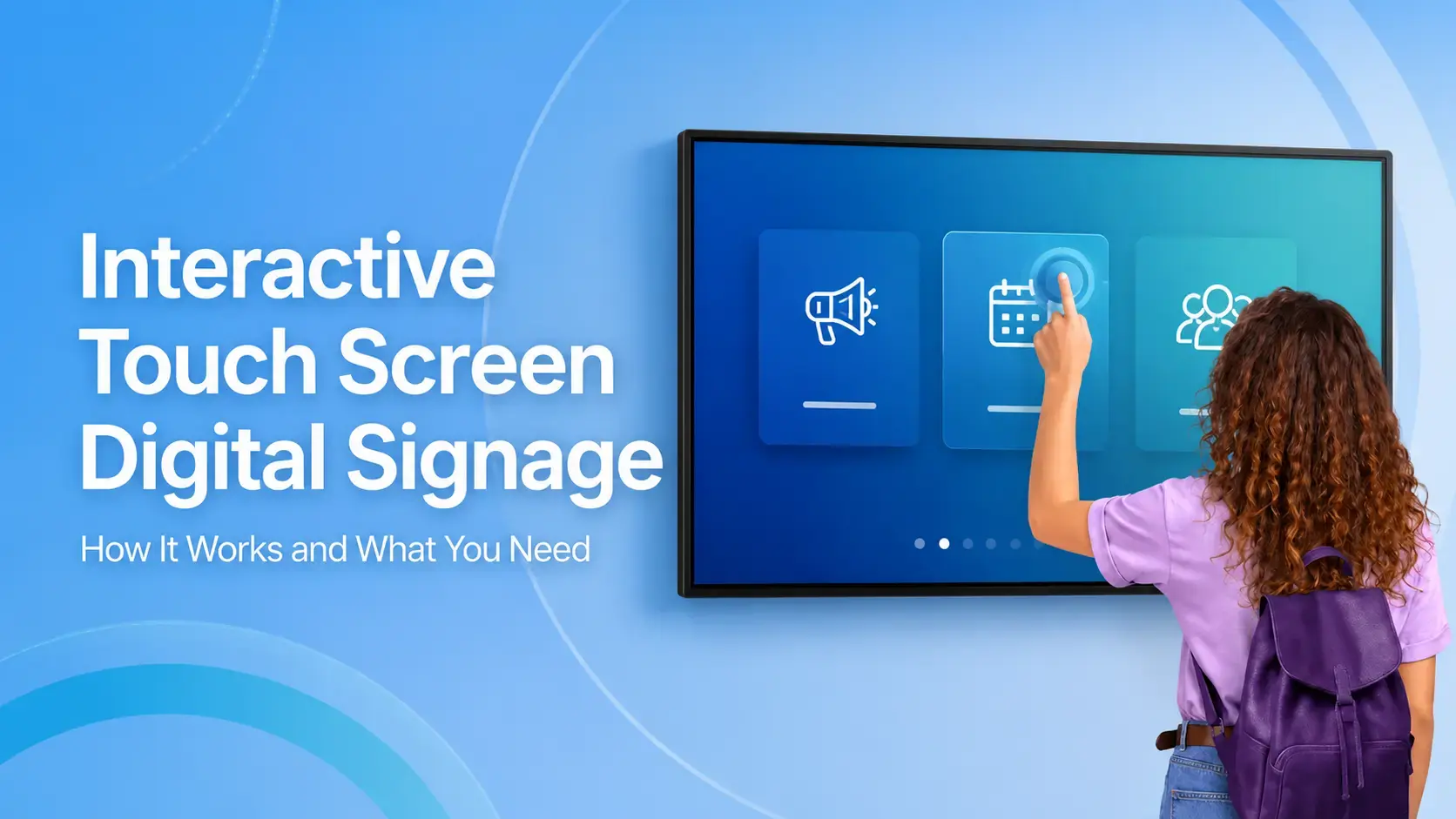
Interactive Touch Screen Digital Signage: How It Works and What You Need
Interactive touch screen digital signage lets viewers tap a display to find what they need. It pairs a commercial touch display with content software. Common uses include wayfinding, visitor[…]
Read More -
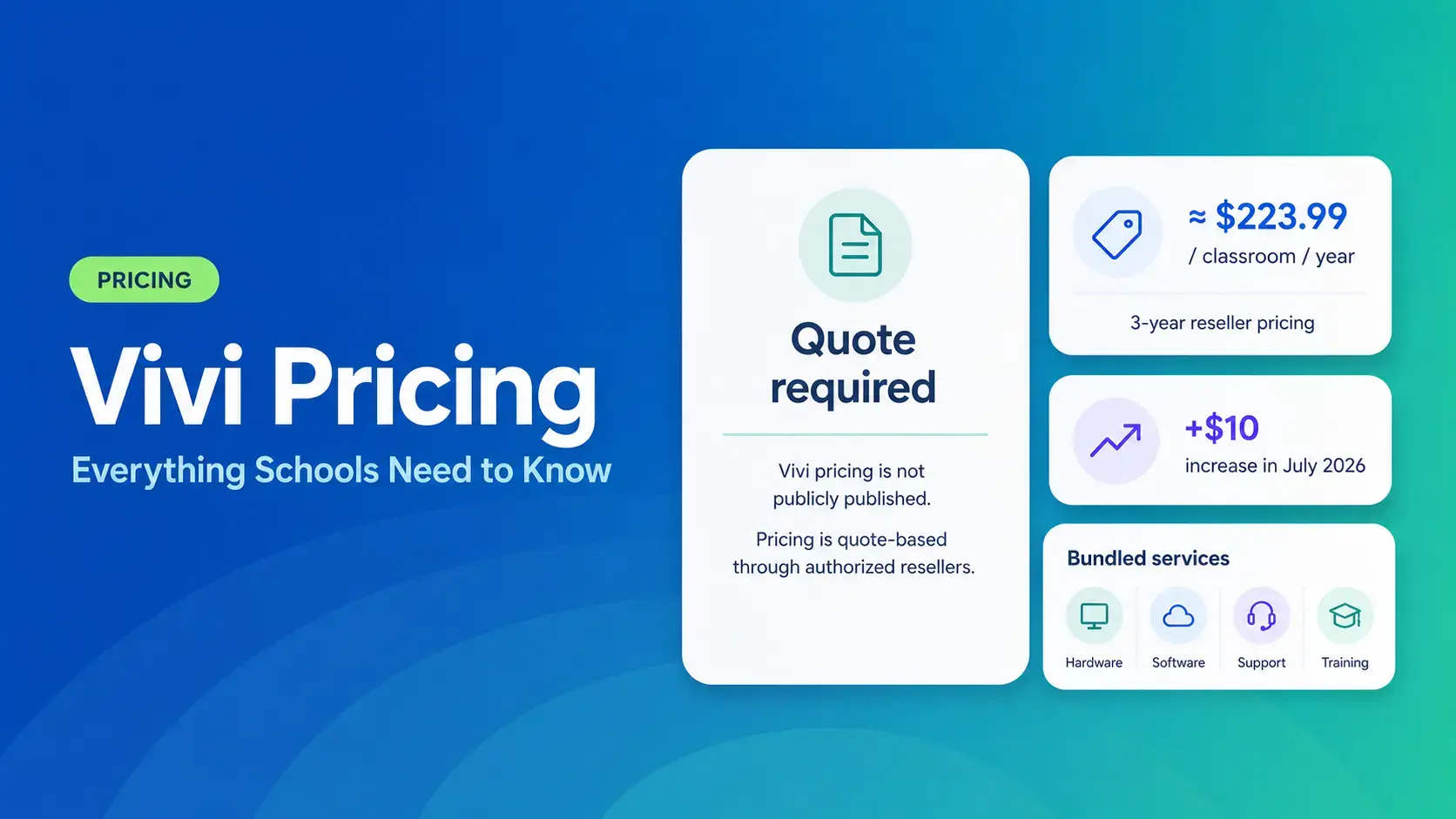
Vivi Pricing 2026: Everything Schools Need to Know Before Getting a Quote
If you're budgeting for Vivi, expect to call sales for a number. Pricing isn't published anywhere. Reseller data puts the 3-year subscription around $224 per classroom per year. That rate rose by $10[…]
Read More -
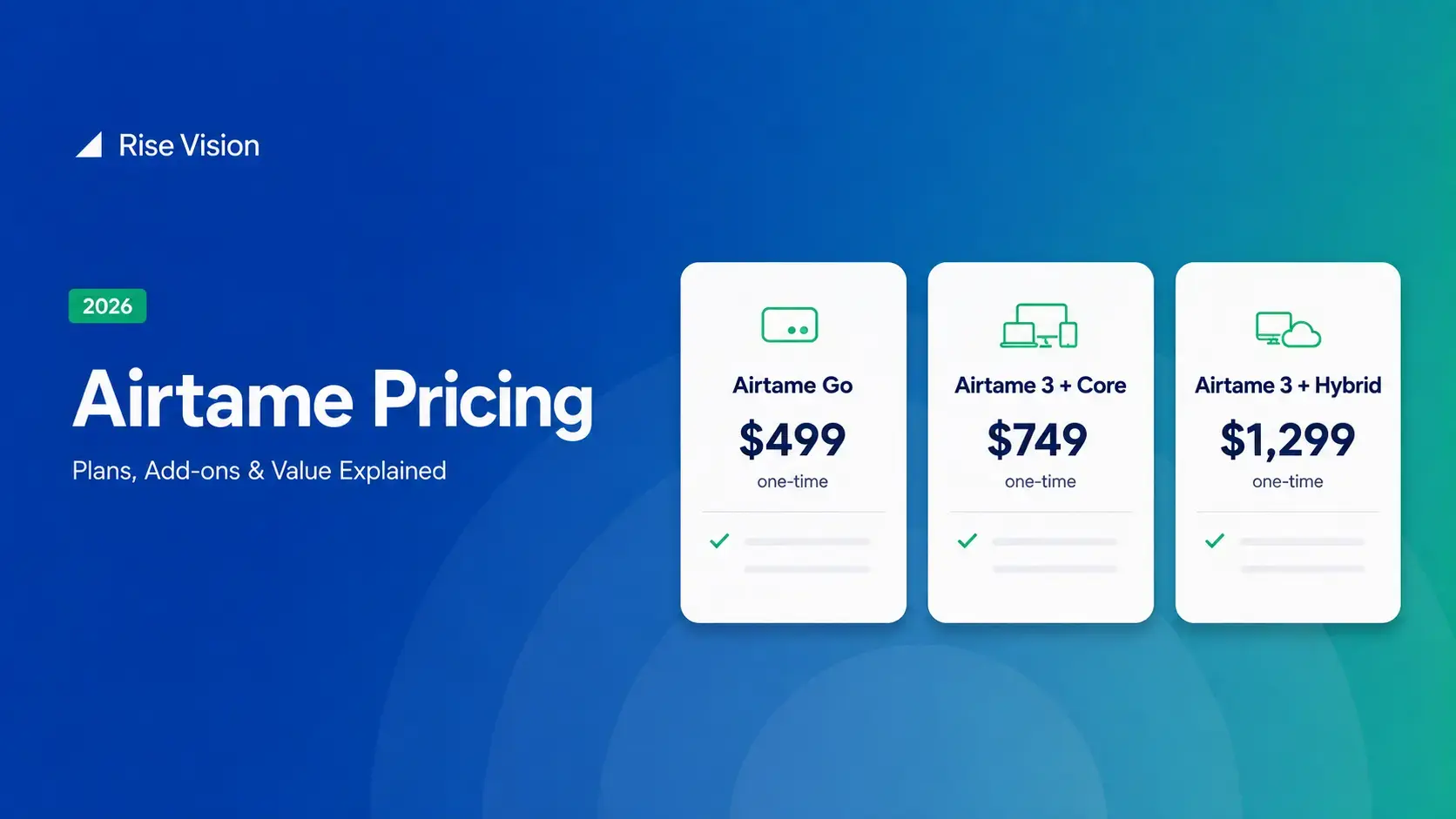
Airtame Pricing 2026: Plans, Costs & Renewal Fees
Airtame's 3-year bundles run $299 to $1,299 per display, then $120–$300/device/year to renew. Signage and alerts come standard on every tier, but only screen sharing survives if you skip renewal.[…]
Read More
12,300+ Organizations Trust Rise Vision, You Can Too
































Schedule a Free Demo
You deserve the #1 all-in-one platform for digital signage, screen sharing, and emergency alerts.